EasyManua.ls Logo

ION QUICK PLAY FLASH - User Manual

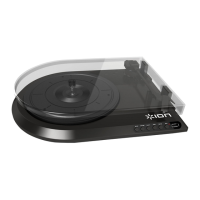
ION QUICK PLAY FLASH
10 pages
Print Icon
To Next Page IconTo Next Page
Loading...
Westfalia Bedienungsanleitung
Nr. 109919

Other manuals for ION QUICK PLAY FLASH

Questions and Answers

  • M
    mackenzie09Jul 31, 2025
    Why is my ION QUICK PLAY FLASH music playing at a strange pitch?
    • A
      amberdavisJul 31, 2025
      Your music might be playing at a strange pitch because the incorrect speed is selected on the ION Turntable. Ensure you're playing records at their intended speed by selecting the appropriate RPM (33, 45, or 78).
  • L
    lopeznancyAug 7, 2025
    What to do if my ION QUICK PLAY FLASH Turntable recordings are distorted on Windows 7?
    • J
      jerry76Aug 8, 2025
      If your ION Turntable recordings are distorted on Windows 7, the Sound Panel levels might be too high. Here’s how to adjust it: go to Start > Control Panel > Sound (in Classic View). Click the Recording tab, highlight the Microphone input (USB Audio Codec), and click Properties. In the Advanced tab, select “2 channel, 16 bit, 44100 Hz (CD quality)”, uncheck the two boxes in Exclusive Mode, and click Apply. Then, select the Levels tab, set the level slider to ‘4’, and click Apply and Ok.
  • A
    angela51Aug 15, 2025
    Why is the sound quality of my ION QUICK PLAY FLASH Turntable poor?
    • A
      Anthony BurnettAug 15, 2025
      Poor sound quality from your ION Turntable can occur for a couple of reasons: * The cartridge connection might not be secure; ensure it's securely connected to the tonearm. * The vinyl record might be dirty or scratched; try dusting off and gently wiping the record before playing.
  • K
    Kylie GarrettAug 22, 2025
    How to fix mono recordings from ION Turntable on Windows Vista?
    • M
      mbrownAug 22, 2025
      If your ION Turntable recordings are mono instead of stereo in Windows Vista, the recording input properties might not be set to “stereo.” To fix this, go to Start > Control Panel > Sound (in Classic View). Click the Recording tab and highlight the Microphone input (USB Audio Codec). Click Properties, go to the Advanced tab, and select “2 channel, 16 bit, 44100 Hz (CD quality)” in the Default Format menu. Click Apply to save the settings.

Summary

Quickstart Guide

Top Panel

Front Panel

Rear Panel

Playback and Recording

How to Play Your Records

Steps to play vinyl records on the turntable, including setup and operation.

How to Record to a Flash Drive

Instructions for recording vinyl audio to a USB flash drive using the turntable.

Playback from Flash Drive

How to Playback from a Flash Drive

Steps to play music files from a connected USB flash drive on the turntable.

How to Access Flash Drive Recorded Music on Your Computer

Instructions for transferring recorded music files from the USB drive to a computer.

Troubleshooting

ION QUICK PLAY FLASH Specifications

Turntable Playback IconTurntable Playback
wow & flutter0.2%
distortion2%
max. output220Mv
USB Flash Recorder/Player IconUSB Flash Recorder/Player
max. output0.1%
s/n ratio70dB
cross talk46dB
Power Specifications IconPower Specifications
voltage9V DC
current800mA
pin polaritypin +, tip –
Weight and Dimensions IconWeight and Dimensions
dimensions13" x 9.5" x 3.25" (330.2mm x 241.2mm x 82.5mm)
weight2.5 Lbs (1.1kg)

Related product manuals