23
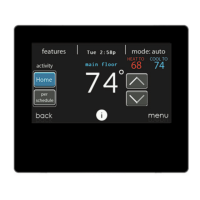
8. If you select NO, the screen Control will show you the newly created
schedule.
S If you have a zoning system, you will be asked if you want to schedule
another zone.
d If you select YES, you will return to step 2 and follow the process.
d If you select NO, you will see the newly created schedule.
Upload My Schedule
As noted earlier, programming the control with the My Iont mobile app is the most
convenient way. You can program a system that is not connected to the Internet
using a PC or MAC computer using the process shown, below.
The Upload My Schedule feature will allow you to upload your schedules from a
PC or MAC computer, load those schedules onto a micro SD card memory device,
and upload the schedules into the Iont System Control.
NOTE: Use a 4GB to 32GB micro SD memory card. The card should be formatted
for FAT32 (rather than FAT64 or exFAT) in order to be read by the control.
S To download the My Iont application for your computer, sign into the
My Iont website at www.IonComfort.com
.
d Click on the Downloads tab.
d Click on the Adobe Air download link and install Adobe Air onto
your computer.
d Once Adobe Air is installed on your computer, download the My
Iont Desktop application.
d The My Iont Desktop application provides a virtual Iont System
Control for you to use on your computer. You can perform all of the
programming steps on your computer that you can perform on the
Iont System Control.
S Once the schedules are complete, insert a micro SD card memory device
into your computer. Add a new folder to the micro SD card device la-


 To Next Page
 Loading...