(2) Apple Mac OS X Platform (OS X 10.6
Snow Leopard or later):
Check SkySafari from Simulation Curriculum
Corp.
(3) Apple iOS Platform
Check SkySafari from Simulation Curriculum
Corp.
(4) Google Android platform (app version and
android version unknown):
Check SkySafari from Simulation Curriculum
Corp.
4. StarFi configuration:
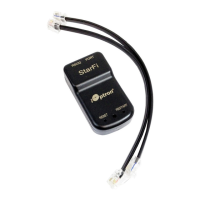
The StarFi Wi-Fi adapter is shipped with no
password protection. You can change the
StarFi SSID and enable password protection so
only you can make the connection.
To change the StarFi settings:
(1) Turn on the StarFi adapter by connect it
to a mount and turn the mount power on;
(2) Connect the
computer/tablet/SmartPhone to StarFi;
(3) Open the internet browser and type in
http://10.10.100.254
;
(4) A login window will open. Enter “admin”
as both User Name and Password;
(5) Go to AP Settings;
(6) Now you can change the SSID name
from StarFi to Your Name, enable
WPA2 encryption, etc.;
(7) You may also go to account to change
login name and password;
(8) Then restart the StarFi adapter by
power off/on the mount or press the
RESTART button with a sharp tip, such
as a tooth pick, on the StarFi adapter.
Note:
1. Please keep the StarFi at AP (access point)
mode
2. If ever you forgot your password, use a sharp
tip to Press and Hold the RESET button to reset
the WI-FI adapter to factory default settings.


 To Previous Page