EasyManua.ls Logo

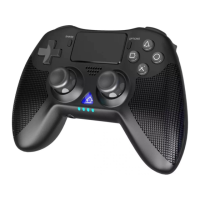
iPega PG-P4008 - User Manual

iPega PG-P4008
2 pages
Print Icon
To Next Page IconTo Next Page
Loading...
1. 产品主要适用于P4游戏主机、同时可兼容P3游戏主机、安卓(支持安卓10.0以上)、
iOS(13.0以上)、PC电脑上连接,进行游戏操作时使用。
2. 蓝牙连接方式与原装手柄连接方式相同。采用高性能蓝牙无线连接技术“蓝牙2.1+EDR”,提供
8米以内无延迟不掉线的可靠信号,抗干扰性强,不会受其它无线设备的影响。免驱动,自动连接,
无需繁琐的对码过程。
3. 内置LED彩色呼吸灯,手柄具有彩色LED光条指示玩家手柄通道功能及状态指示,指示功能方式
同原装P4手柄相同,不同的手柄由不同颜色的LED指示。
4. 内置左右非对称马达,支持双马达双振动功能。
5. 内置3D加速度传感器和陀螺仪传感器,具有六轴感应功能。
6. 内置扬声器与3.5mm耳机插孔,可以连接耳机或通过扬声器输出游戏的音频。
7. 结构符合人体工程学,手感舒适。
8. 支持双点电容式感应触控板。
9. 支持在线升级手柄固件,支持P4主机最新升级系统. 可有效避免因主机系统升级导致产品无法使用。
因官方游戏平台软件升级或源代码变更等不可抗拒的因素造成部分游戏无法与本产品连接操作,
我公司不负任何责任。对此我公司保留最终解释权。
产品适用说明:
1. 连接P4主机:
1.工作电压/电流:DC3.7V/ <30mA;
2.电池容量:400mAh;
3.静态电流: <20uA;
4.充满电持续使用时间: 约12小时;
注意事项:
产品清单
功能按键图示
P4游戏手柄
产品说明书(PG-P4008)
十字方向键
选项键分享键
能键
扬声器
右3D及下压R3键
左3D及下压L3键
3.5mm音频接口
触控板
HOME键
呼吸指示灯
无线手柄 x1 说明书 x1 Micro-USB线 x1
产品特性参数:
产品使用说明:
1. 请不要把本产品在潮湿或高温地方存储。
2. 不要敲击、摔打、刺穿、或试图去分解本产品,以免对产品造成不必要的损害。
3. 非专业人员误拆卸本产品,否则不在售后保修服务内。
4. 因官方软件升级或源代码变更等不可抗拒的因素造成部分游戏无法与本产品连接操作,我公
司不负任何责任。对此我公司保留最终解释权。
R1键
R2键
L1键
L2键
USB接口
USB接口
1)P4主机开机进入界面后,将数据线插入至主机的USB端口,手柄连接上数据线,然后按手柄端的
HOME键( ),手柄LED灯会快闪,当手柄上单个颜色LED常亮,表示连接成功,然后拔掉数据
线。按手柄端的HOME键( ),手柄与主机自动回连。
2)单按HOME键( ):1.显示主画面,2.连按2次HOME键( )是切换启动中的应用程序。3.
手柄睡眠后单按可以唤醒手柄。4.无唤醒主机功能。
3)长按HOME键:1.结束应用程序。2.登出/关闭P4主机电源。3.会依目前状况显示可操作的项目。
4)P4主机中: 手柄SHARE键:可以开启 (分享)按钮。 OPTIONS键:开启选择(选项)按钮。
PS3主机中:SELECT对应P4的SHARE键,START键对应P4的OPTIONS键。
5)手柄彩色LED指示状态说明:显示Player状态,按下HOME键( ),RGB彩色LED(光条)会
依蓝色、红色、绿色、紫色顺序亮灯,配置各控制器,作为使用者登入顺序辨识。1P:蓝. 2P:红 3P:
绿. 4P:紫色
A. 工作通道: P4主机提供一次最多能连接4个P4手柄同时使用,手柄由不同的LED颜色来指示。
B. 如手柄连机后对应的通道LED指示所在工作通道,第一支手柄连接上主机,手柄端亮蓝色灯,表
示用户1。第二支手柄连接上主机手柄端亮红色灯,表示用户2。关闭P4主机电源,彩色LED大概在
10秒内熄灭,系统处于休眠状态。
6)触摸屏测试:在P4主机设置--网络连接—选择无线网络---输入界面---可以测试到触摸屏功能。
7) 重力感应,陀螺仪功能在支持六轴的主机游戏内操作会有相应的动作感应。
8)在游戏内可以测试到喇叭和耳机的声音输出,插入耳机时,喇叭无声,拔出耳机,则喇叭发声。
2.连接P3/PC主机:
3.连接安卓设备(安卓标准游戏模式):
4.连接iPhone/iPad(IOS MFI游戏模式):
1)通过USB数据线将手柄连至P3(连接后按HOME键)或PC的USB端口,当有线手柄使用。
2)连接P3/PC使用时不支持六轴感应和震动功能。连接PC电脑时,需安装P4驱动程序.
1.手柄关机状态下同时按SHARE+HOME 2秒开启手柄,指示灯快闪。
2.在安卓设备的蓝牙列表中,找到并点击“Wireless Controller”进行配对连接
3.配对连接成功后手柄LED指示灯常亮,手柄进入安卓标准模式。推荐使用平台:葡萄游戏厅
1.手柄关机状态下同时按SHARE+HOME 2秒开启手柄,指示灯间隔性快闪。
2.在iOS设备的蓝牙列表中,找到并点击“DUALSHOCK 4 Wireless Controller”进行配对连接
3.配对连接成功后手柄LED指示灯常亮,手柄可玩iOS MFI类游戏
注意事项:仅支持iOS 13以上系统设备
部份MFi游戏目录:苹果App Store商店搜索下载“Gamevice Live”游戏平台或搜索MFI、Gameloft
大多数游戏都支持
现代战争5、狂野飙车8、狂野飙车9、NBA2K18,刺客信条,电磁风爆、我的世界、未来之战、
Never gone安魂曲、沌与秩序之英雄战歌、混沌与秩序online、魔龙与勇士、聚爆、世界2:风暴帝
国、怪物猎人、时空猎人、fifa 17、18、真实赛车3、质量效应:渗透者、 地牢猎人4、 侠盗猎车手
、使命召唤、浴火银河2、 帝之火:普罗米修斯 、 孤胆车神:维加斯、行尸走肉:第二季、古墓丽
影2(3D)、死亡扳机2,拳皇2012、拳皇97、98、崩坏学园2 ,枪火战线,乐高星球大战,真实拳
击.无敌士兵、辐射岛、速度与激情6,战场、NBA 2K15、16、坦克世界:闪电战、:身份、银河火
战、勇闯死人谷、愤怒的机器人、异性大战铁血战士:进化、花千骨 、逃亡、兄弟连3:战争之子 、
最终幻想6、铁甲钢拳:世界机器人拳击、合金弹头3、搏击长空:风暴特工队、魂斗罗:进化革命、
泰拉瑞亚、索尼克全明星赛车:变形、星球大战:旧共和国武士、火箭飞车2、曙光等
5.充电电压/电流:DC5V/<500mA;
6.充电时间:约2小时;
7.BT2.1,传输距离:≤8M;
8.待机时间:满电放置30天;
低电量指示:
当手柄电量不足时,手柄指示灯快闪,提示您及时充电;电量严重不足时,手柄将进入休眠状态。
充电指示:
当手柄处于无线连接状态时,插入USB充电线,手柄开始充电。
手柄未无线连接时,手柄指示灯绿色灯渐亮/渐灭显示, 表示正在充电,充电完成,指示灯熄灭。
手柄充电/休眠功能:

Question and Answer IconNeed help?

Do you have a question about the iPega PG-P4008 and is the answer not in the manual?

Overview

This document describes the Wireless Game Controller for P4, model PG-P4008.

Function Description:

The PG-P4008 is a wireless game controller designed for use with P4 devices (P4, P4 Pro, P4 Slim) running Android 10.0 or above, Windows PC (Windows 7/8/10), and iOS devices (iOS 13.0 or above). It connects via Bluetooth wireless connection, offering a stable and reliable connection with low delay and high performance. The controller supports both wired and wireless modes, allowing for flexible usage.

Key features include:

  • Vibration Feedback: Built-in dual motors provide strong vibration feedback, enhancing the gaming experience.
  • LED Indicators: A colorful breathing LED indicator shows the controller's working status. Different LED colors indicate different controller states.
  • Touchpad: A multi-point capacitive touchpad provides additional input methods.
  • Built-in Speaker: Enhances immersion with in-game audio.
  • 3.5mm Headphone Jack: Allows users to connect headphones for private audio.
  • Ergonomic Design: The controller features an ergonomic design for comfortable grip during long gaming sessions.
  • Software Updates: Supports P4 online upgrade product platform to update the latest software and hardware, ensuring compatibility and optimal performance.

Important Technical Specifications:

  • Working Voltage: DC3.7V
  • Working Current: <30mA
  • Battery Capacity: 400mAh
  • Static Current: <20uA
  • Continuous Game Play Time: Up to 12 hours after fully charged.
  • Charge Voltage/Current: DC5V/500mA
  • Charge Time: About 3 hours
  • Standby Time: Up to 30 days when fully charged.

Usage Features:

How to Connect to P4 Console:

  1. First-time Connection: Connect the controller to the P4 console via a USB cable. Press the HOME button on the controller. If the LED indicator lights up and stays on, the connection is successful. If the LED flashes, it means the connection is successful, and then it will turn off automatically.
  2. Subsequent Connections: If the controller has been successfully connected to the P4 console before, simply press the HOME button to wake up the controller. It will automatically reconnect. If it fails to connect, repeat step 1.
  3. Power Off: Press and hold the HOME button for 10 seconds to turn off the controller.
  4. Menu Navigation: Press the HOME button to open the current application.
  5. Status Indication: The LED indicator displays different statuses:
    • Press HOME button: RGB colorful LED light will light up in the order of blue, red, green, purple, configured as controller 1, 2, 3, 4.
    • User Login Indication: Blue, red, green, purple.
    • P4 Console Connected: The LED indicator will be blue, red, green, or purple, depending on the controller number (1-4).
    • Charging: The LED indicator will be orange during charging. If the controller is connected to the P4 console, the first controller connected will be blue, and the other controllers will be indicated by different colors. During charging, the LED will be orange and flash slowly. When fully charged, the LED will turn off in 10 seconds. If the controller is connected to the P4 console, the LED will be orange and flash slowly during charging. When fully charged, the LED will turn off in 10 seconds. If the controller is connected to the P4 console, the LED will be orange and flash slowly during charging. When fully charged, the LED will turn off in 10 seconds.
  6. Gyroscope Function: The controller supports six-axis gyroscope function.
  7. Headphones: Connect headphones to the 3.5mm jack for audio output.

Connect to Android Devices (Android Standard Mode):

  1. Pairing: Press and hold SHARE+HOME buttons for 2 seconds to enter pairing mode. The LED indicator will flash quickly.
  2. Bluetooth Search: Open Bluetooth settings on your Android device and search for "Wireless Controller". Select it to connect.
  3. Game Compatibility: Supports P4 online upgrade product platform to update the latest software and hardware. Supports most games that support the controller.

Connect to P3 Console / PC:

  1. Wired Connection: Insert a USB data cable to connect to the P3 console or PC. The controller will function as a wired controller.
  2. Driver Installation (PC): For PC, install the corresponding driver for vibration and axis calibration.

Connect to iOS Mobile Phone/Tablets (iOS MFi Games Mode):

  1. Pairing: Press and hold SHARE+HOME buttons for 2 seconds to enter pairing mode. The LED indicator will flash quickly.
  2. Bluetooth Search: Open Bluetooth settings on your iOS device and search for "DUALSHOCK 4 Wireless Controller". Select it to connect.
  3. Game Compatibility: The LED indicator will light up and stay on after successful connection. You can use the controller to play MFi games on your iOS devices.
  4. iOS Version: Only supports iOS 13.0 or above.
  5. Game Availability: Many MFi games are supported. Search "Gamevice Live" or "Game App" in the App Store.

Maintenance Features:

Charge Controller / Sleep Function:

  • Low Power Indication: The LED indicator flashes quickly when the controller is low on battery. Charge the controller immediately.
  • Charging Indication: When the controller is wired and charging, the LED indicator will be orange and flash slowly. When fully charged, the LED indicator will turn off.
  • Wireless Charging: When the controller is wireless and charging, the LED indicator will be orange and flash slowly. When fully charged, the LED indicator will turn off.

Notes:

  • Do not store this product in wet or high-temperature areas.
  • Do not knock, beat, drop, or try to decompose this product to avoid unnecessary damage.
  • Non-professional personnel should not disassemble the product. Otherwise, it will not be covered by the after-sales warranty services.

iPega PG-P4008 Specifications

General IconGeneral
BrandiPega
ModelPG-P4008
CategoryVideo Game Controller
LanguageEnglish

Related product manuals