018
Point of View advanced operation
The icons in the lower right bottom display the current status of the PoV camera:
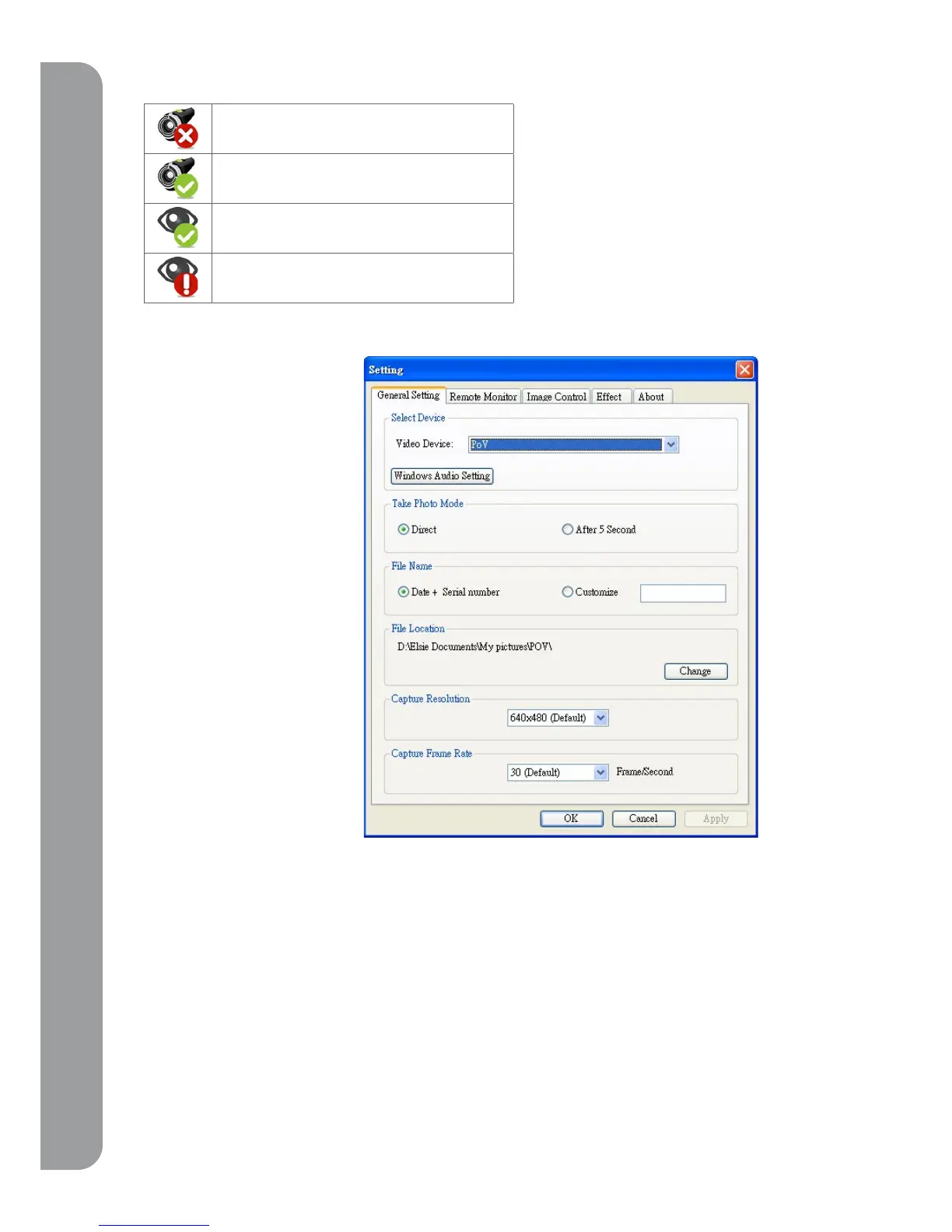
5-2 General Setting
1. Select Device: Please choose PoV in the list of Video Device. The “window audio setting” is used to set up audio
input/output. Ensure you’ve selected the original speaker or headphone in the “sound playback”. Choose the
PoV or other microphone as the default device in the “sound recording”.
2. Take photo mode: Point of View provides two choices to capture images. You can take an instant snapshot by
selecting “direct.” PoV also has a timer function to delay the image capture. A countdown will appear in the
preview screen after you’ve set the “After 5 seconds” radio button.
3. File Name: The default file name format for images in PoV is “date + serial number,”. You can change this
setting by choosing “customize”.
4. File location: All the images captured or received is located in: my document\ my picture ( my document \My
picture\ PoV). If you want to customize the location, select the “ change” button.
5. Capture resolution: The PoV default capture resolution is 640x480. For larger images, change the resolution to
800x600. Other options include :320x240 , 176x144 or 160x120
6. Capture frame rate: The default capture frame rate of the PoV is set at 30 frames per second. Frame rates will
vary for each PC. For slower computers, a lower frame rate is recommended to improve performance.
PoV is not connected
PoV connected
Remote monitor connected
Logged off from Skype



 To Next Page