EasyManua.ls Logo

IRiver E10 - Page 10

IRiver E10
38 pages
Print Icon
To Next Page IconTo Next Page
To Previous Page IconTo Previous Page
Loading...
D
Y
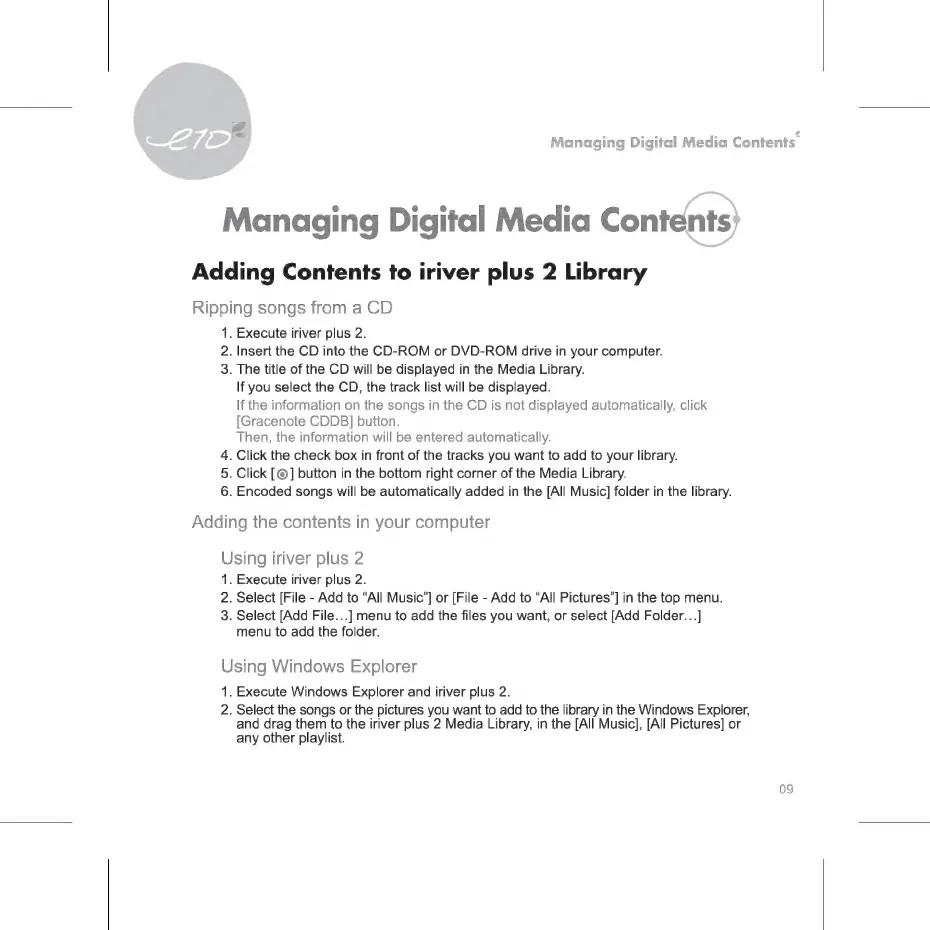
Managing
Digital
Media
Contents
Managing
Digital
Media
Contents
Adding
Contents
to
iriver
plus
2
Library
Ripping
songs
from
a
CD
.
Execute
iriver
plus
2.
2.
Insert
the
CD
into
the
CD-ROM
or
DVD-ROM
drive
in
your
computer.
3.
The
title
of
the
CD
will
be
displayed
in
the
Media
Library.
If
you
select
the
CD,
the
track
list
will
be
displayed.
If
the
information
on
the
songs
in
the
CD
is
not
displayed
automatically,
click
[Gracenote
CDDB]
button.
Then,
the
information
will
be
entered
automatically.
4.
Click
the
check
box
in
front
of
the
tracks
you
want
to
add
to
your
library.
Click
[©]
button
in
the
bottom
right
corner
of
the
Media
Library.
6.
Encoded
songs
will
be
automatically
added
in
the
[All
Music]
folder
in
the
library.
=
о
Adding
the
contents
in
your
computer
Using
iriver
plus
2
1.
Execute
iriver
plus
2.
2.
Select
[File
-
Add
to
“All
Music"]
or
[File
-
Add
to
“All
Pictures"]
іп
the
top
menu.
3.
Select
[Add
File...]
menu
to
add
the
files
you
want,
or
select
[Add
Folder...]
menu
to
add
the
folder.
Using
Windows
Explorer
1.
Execute
Windows
Explorer
and
iriver
plus
2.
2.
Select
the
songs
or
the
pictures
you
want
to
add
to
the
library
in
the
Windows
Explorer,
and
drag
them
to
the
iriver
plus
2
Media
Library,
in
the
[All
Music],
[All
Pictures]
or
any
other
playlist.
09

Related product manuals