EasyManua.ls Logo

IRiver T6 - Page 13

IRiver T6
41 pages
Print Icon
To Next Page IconTo Next Page
To Previous Page IconTo Previous Page
Loading...
Connecting
Products
Connecting
the
Product
to
Your
PC
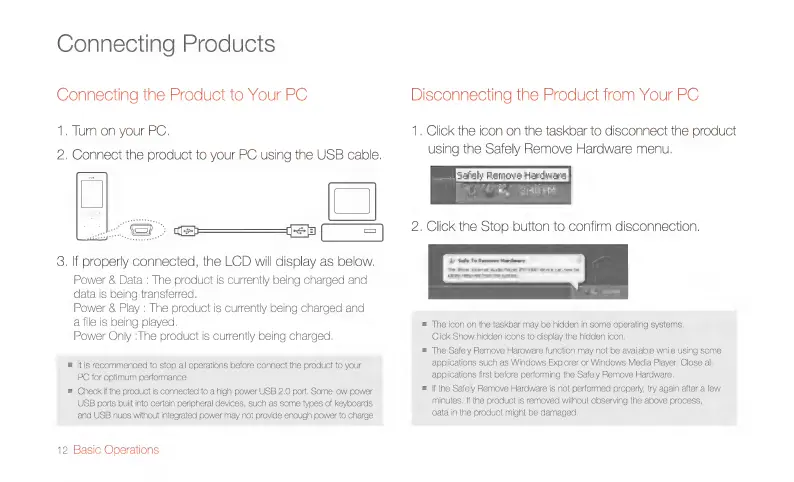
1.
Tum
on
your
PC.
2.
Connect
the
product
to
your
PC
using
the
USB
cable.
3.
İf
properly
connected,
the
LCD
will
display
as
below.
Power
&
Data
:
The
product
is
currently
being
charged
and
data
is
being
transferred.
Power
&
Play
:
The
product
is
currently
being
charged
and
a
file
is
being
played.
Power
Only
:The
product
is
currently
being
charged.
m
\tis
recommended
to
stop
all
operations
before
connect
the
product
to
your
PC
for
optinum
performance,
m
Check
if
the
product
is
connected
to
a
high-power
USB
2.0
port.
Some
low-power
USB
ports
built
into
certain
peripheral
devices,
such
as
some
types
of
keyboards
and
USB
hubs
without
integrated
power
may
not
provide
enough
power
to
charge.
12
Basic
Operations
Disconnecting
the
Product
from
Your
PC
1.
Click
the
icon
on
the
taskbar
to
disconnect
the
product
using
the
Safely
Remove
Hardware
menu.
Safely
Ramcve
Hardware
Be,
core
2.
Click
the
Stop
button
to
confirm
disconnection,
Ay
Sate
Tamer
dme
The
We
hiere
bazi
eye
FO
Greve
car
rem
te
RY
peered
hum
he
newer
m
The
icon
on
the
taskbar
may
be
hidden
in
some
operating
systems.
Click
Show
hidden
icons
to
display
the
hidden
icon.
=
The
Safely
Remove
Hardware
function
may
not
be
available
while
using
some
applications
such
as
Windows
Explorer
or
Windows
Media
Player.
Close
all
applications
first
before
performing
the
Safely
Remove
Hardware.
m
If
the
Safely
Remove
Hardware
is
not
performed
properly,
try
again
after
a
few
minutes.
If
the
product
is
removed
without
observing
the
above
process,
data
in
the
product
might
be
damaged.

Related product manuals