DIGISPENSE 3009 CONTROLLER MODULE, STYLE B Page 3-9
29 October, 2019 IVEK Corp. P03R017E
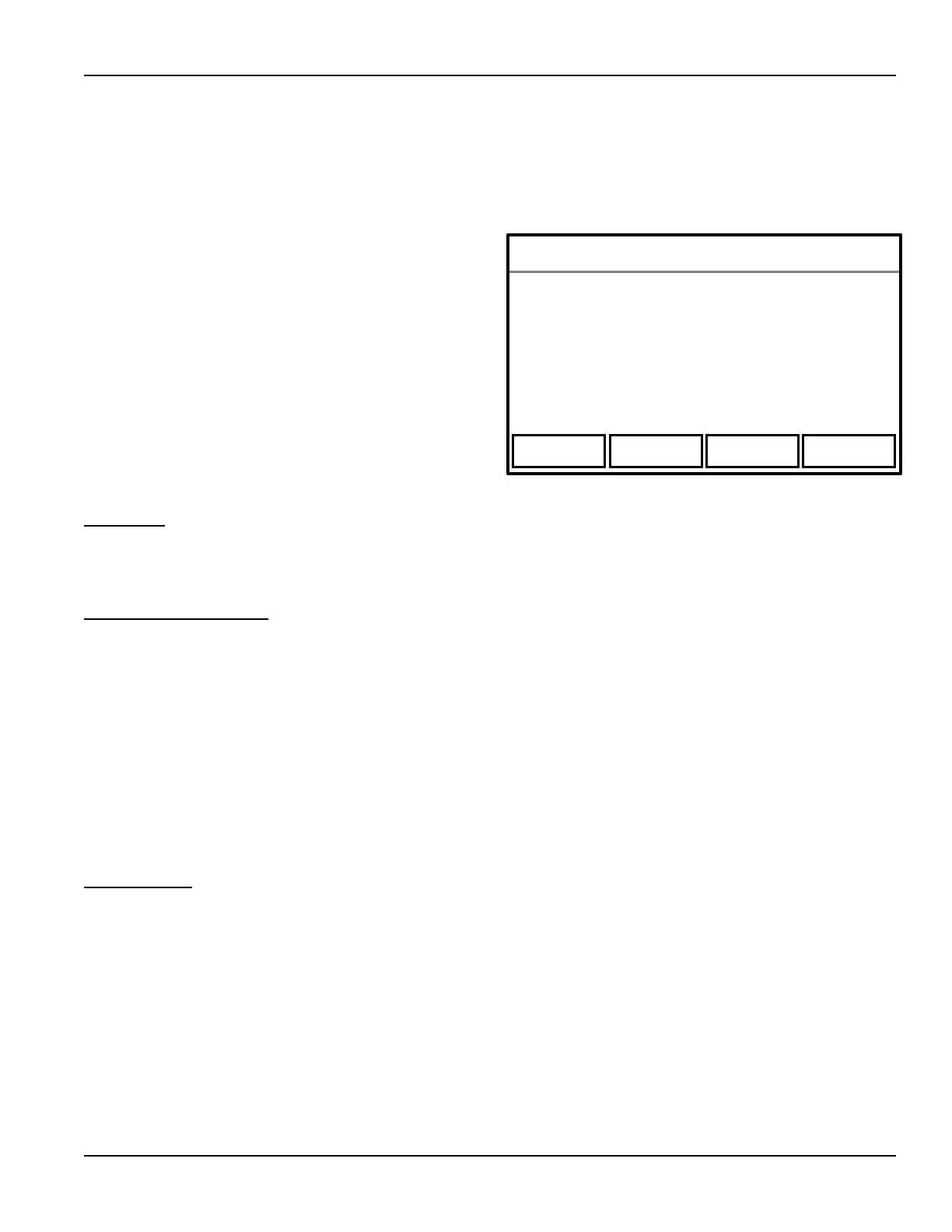
(FPB1) (FPB2) (FPB3) (FPB4)
NOTE
References to push-buttons for fields 3 through 6 refer to the push-button located below a word on the
display. For example, the push-button located under 'REFERENCE' will be called the Reference push-button.
These are referred to as Function Push-Buttons 1 through 4 (FPB1 - FPB4).
Field 1 - This field displays screen name and status information.
Field 2 - This field displays all the operating parameters.
Fields 3 thru 6 - These fields provide function legends for
the four function push-buttons directly below the screen.
NOTE
A legend does not appear if the function is not per-
mitted due to permission levels (section 3.2.6),
Configurable Input 2 (section 3.3.9.3) or the value of the
Serial Interface "k1" command (Table 3.8).
Field 5 is the FPB3 key described in the Reset Parameter
Warning screen (section 3.3.7.23).
3.3.5 Help
Help is available when selecting or entering new values by pressing the FPB1 push-button. Information pertaining to
the selected value will be displayed. Press the FPB1 key again to clear the help information from the screen.
3.3.6 Permission Levels
There are four levels of permission; Operator, I/O Test, Supervisor and Keylock. Each level allows access to selected
items on the display.
The permission level can be changed in the Change Permission screen (Section 3.2.7.8).
The highest level is Keylock. This level allows access to all items on all screens including the Front Panel Lock. The
most typical level is Supervisor, which allows access to all items on all screens other than the Front Panel Lock.
The I/O Test level allows access to the same items as the Operator except it also allows access to the I/O Test
screen. The Operator level does not allow changing system parameters. Recipes can be selected and loaded, but
not changed.
3.3.7 Screens
There are twenty screens used to setup, operate and exit the system. The most commonly used screens are shown in
Figure 3.3. Each screen contains information relating to operating the system. Table 3.1 lists each screen
alphabetically and provides a brief overview of its function. Figure 3.3 shows the basic screens and provides a map of
how to get to each screen. Transition between screens is limited by permission level, operating mode and interface
signals.



 To Next Page