
 Need help?
Do you have a question about the Jabra Evolve 65+ UC Stereo and is the answer not in the manual?
Device must support Hands Free (HFP/HSP) and Advanced Audio Distribution (A2DP) Bluetooth profiles for direct pairing.
Verify connection, re-pair, reset device, update softphone client, and confirm audio device selection.
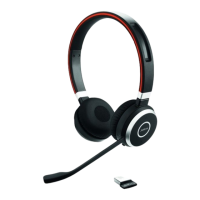
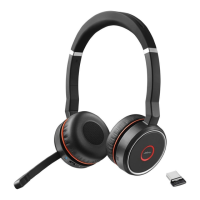
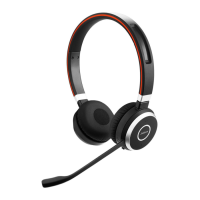
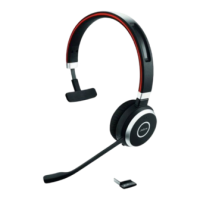
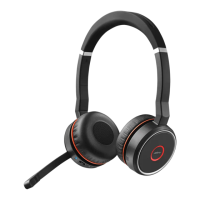
The Jabra Evolve 65+ UC Stereo is an enterprise-grade Bluetooth headset designed for professional use, primarily with computers and softphones. While it is engineered to connect seamlessly with a computer using its dedicated Jabra Bluetooth adapter, it also offers the flexibility to connect directly to a computer's built-in Bluetooth, though with some potential limitations. This headset aims to provide clear audio for calls and media consumption in a professional environment, offering a balance of connectivity options and user control.
The primary function of the Jabra Evolve 65+ UC Stereo is to facilitate high-quality audio communication and media playback in a professional setting. It is optimized for Unified Communications (UC) platforms, ensuring compatibility and enhanced functionality with various softphone clients. The headset is designed to handle both incoming and outgoing audio, making it suitable for virtual meetings, customer service calls, and general office use. Its stereo design provides an immersive audio experience, which can be beneficial for both communication clarity and listening to music or other media.
When used with the included Jabra Bluetooth adapter, the headset is expected to deliver its full range of features, including integrated call controls. This means that buttons on the headset itself, such as answer/end call, volume adjustment, and mute, should seamlessly interact with softphone applications like Microsoft Teams. This integration is crucial for a smooth and efficient workflow, allowing users to manage their calls directly from the headset without needing to interact with their computer's interface. The adapter ensures a stable and optimized Bluetooth connection, which is vital for maintaining consistent audio quality and reliable control.
The headset supports essential Bluetooth profiles, specifically the Hands-Free Profile (HFP) or Headset Profile (HSP) for call functionality, and the Advanced Audio Distribution Profile (A2DP) for high-quality stereo audio streaming. These profiles are fundamental for enabling both two-way communication and rich media playback. HFP/HSP allows the headset to function as an audio input and output device for calls, while A2DP ensures that music and other audio content are transmitted with good fidelity.
The Jabra Evolve 65+ UC Stereo offers several usage features designed to enhance the user experience in a professional context. Its primary mode of operation involves connecting to a computer via the dedicated Jabra Bluetooth adapter. This method is recommended to ensure full functionality, including comprehensive call control integration with softphone clients. Users can expect reliable audio transmission and responsive button controls when utilizing the adapter.
However, the headset also provides the flexibility to connect directly to a computer's built-in Bluetooth. This can be a convenient option for users who prefer not to use the adapter or whose computers have robust Bluetooth capabilities. When connecting directly, users should be aware that while basic audio transmission (sending and receiving audio) is generally possible, the advanced call control features (e.g., answer/end, mute, volume synchronization with the softphone) might not function as intended with certain softphone clients. This is because the dedicated adapter often provides a more specialized and integrated communication pathway with the computer's operating system and UC applications.
The pairing process for direct computer connection is similar to pairing with a mobile device, emphasizing ease of setup. Users would typically put the headset into pairing mode and then select it from their computer's Bluetooth settings. For optimal performance, especially when connecting directly, it is crucial that the computer supports the necessary Bluetooth profiles: HFP/HSP for calls and A2DP for stereo audio. Without these profiles, the headset's core functions may be limited or unavailable.
The stereo design of the headset contributes to an immersive audio experience, which is beneficial for both communication and media consumption. During calls, the stereo sound can help in distinguishing voices and environmental sounds, potentially improving comprehension. For listening to music or podcasts, the stereo output provides a richer and more engaging experience.
Maintaining the Jabra Evolve 65+ UC Stereo primarily involves ensuring software and firmware are up to date, and troubleshooting connectivity issues. These "maintenance" aspects are more about digital upkeep and problem-solving rather than physical care.
One of the most critical maintenance features is the requirement to keep all devices involved in the connection up to date. This includes the Jabra Enterprise Bluetooth device itself (via firmware updates), the computer's operating system, and any softphone clients installed. Firmware updates for the headset often introduce performance enhancements, bug fixes, and improved compatibility with new software versions or operating systems. Similarly, keeping the softphone client updated ensures that it can properly interact with the headset and leverage its features.
When encountering challenges with direct computer or softphone client connections, several troubleshooting steps are recommended. These steps serve as a form of user-driven maintenance to restore optimal functionality:
These maintenance-oriented steps empower users to diagnose and resolve common connectivity and functionality issues, ensuring that the Jabra Evolve 65+ UC Stereo continues to provide a reliable and effective communication solution. Regular checks for updates and familiarity with these troubleshooting procedures are key to maximizing the headset's performance and longevity in a professional environment.
 General
| Battery Life | Up to 14 hours |
|---|---|
| Microphone | Yes |
| Microphone Frequency Range | 100Hz - 8kHz |
| Earpads | Leatherette |
| Connectivity | Bluetooth, USB |
| Wearing Style | Over-the-head |
| Charging Time | 120 minutes |
| Certifications | Microsoft Teams, Cisco |
| Type | Wireless |
| Frequency Response | 20 Hz - 20 kHz |
| Wireless Range | Up to 30 meters (98 feet) |



 To Next Page