Need help?
Do you have a question about the Jabra LINK 400 and is the answer not in the manual?
Jabra Direct software for device support, management, and optimal functionality.
Jabra Xpress software for mass deployment, management, and analytics of devices.
Information on how Jabra Direct notifies users about firmware updates.
Link to Frequently Asked Questions for support on Jabra Link 400.
Guidelines for operating temperature and cleaning the Jabra Link 400 device.
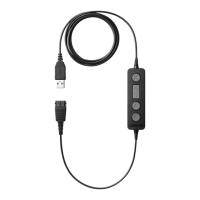
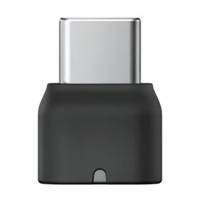
The Jabra Link 400 is a durable USB DECT adapter designed for portability, offering seamless wireless connectivity for Jabra Engage DECT headsets. It serves as a bridge between your Jabra headset and your computer, enabling high-quality audio for calls and music playback. The device is engineered to provide a reliable and secure wireless experience, going beyond the highest DECT Security Level C.
The primary function of the Jabra Link 400 is to establish a wireless DECT connection between a Jabra Engage DECT headset and a computer. This connection facilitates audio transmission for various applications, including voice calls, video conferences, and music playback. When paired with a Jabra Engage DECT headset, the Link 400 provides stereo sound and wideband audio, specifically optimized for speech clarity, which is crucial for professional communication environments like UC (Unified Communications) and contact centers. The adapter supports a significant wireless range of up to 150 meters (490 feet), allowing users freedom of movement while maintaining a stable connection.
The Jabra Link 400 also incorporates SafeTone™ 2.0 technology, which provides outstanding hearing protection for users, safeguarding against sudden loud noises and ensuring comfortable listening levels over extended periods. This feature is particularly important for individuals who spend a lot of time on calls.
The Jabra Link 400 offers several user-friendly features to enhance its functionality and ease of use:
Pairing with a Jabra Engage Headset: The pairing process is straightforward. To manually pair, ensure the headset is off, then press and hold the Call button on the headset for 5 seconds to turn it off. Next, press and hold the Call button on the headset for 4 seconds until the LED flashes blue and a tone is heard, indicating it's ready to pair. Finally, press and hold the button on the Jabra Link 400 for 1 second until its LED turns solid blue, confirming successful pairing. Once paired, the Jabra Link 400 remembers the headset, even when unplugged from the computer. For Jabra Engage bundles, the headset and Link 400 come pre-paired, simplifying initial setup.
Connecting to a Computer: After pairing, simply plug the Jabra Link 400 into a USB port on your computer. The adapter will automatically connect to the paired headset when the headset is turned on. It may take up to 15 seconds for the computer to detect the Link 400 and establish the connection. Users might need to select the Jabra Link 400 as the default output and input device in their computer's sound settings.
Status LEDs: The Jabra Link 400 features a multi-color LED that provides clear visual cues about its operational status:
Conference Mode: The Jabra Link 400 supports conference mode, allowing up to three additional headsets to connect to a single adapter. To initiate, ensure the primary headset is on and connected. Then, turn off the additional headset, press and hold its Call button for 4 seconds. Next, press and hold the button on the Jabra Link 400 for 1 second until its LED flashes orange rapidly. A voice prompt in the primary headset will ask to accept the additional headset; press the Call button on the primary headset to confirm. Audio will then be shared, with additional headsets muted by default. The Link 400's LED will flash orange every couple of seconds, with the number of flashes indicating how many additional headsets are connected. Calls can be ended for all headsets by pressing the Call button on the primary headset. Individual additional headsets can leave the conference by pressing their Call button. Conference mode settings can be customized via Jabra Direct.
Adjustable Sidetone: The adapter allows for adjustable sidetone, which enables users to hear their own voice during calls. This feature helps prevent users from speaking too loudly and provides a more natural conversation experience.
Software Integration: The Jabra Link 400 works seamlessly with Jabra Direct, a software application designed to support, manage, and optimize the functionality of Jabra devices. Jabra Direct allows users to customize settings, manage firmware updates, and ensure their device is always performing at its best. It also integrates with Jabra Xpress for mass deployment, management, and analytics in larger organizational settings.
Maintaining the Jabra Link 400 is simple and ensures its longevity and optimal performance:
Temperature Range: It is recommended to keep the Jabra Link 400 within a temperature range of -5°C to 45°C (23°F to 113°F) to prevent damage and ensure proper operation.
Cleaning: If the Jabra Link 400 becomes dirty, it should be cleaned with a soft, lint-free cloth that has been dampened with clean water. Avoid using harsh chemicals or abrasive materials that could damage the device.
Firmware Updates: Firmware updates are crucial for improving performance, adding new features, and resolving any potential issues. Jabra Direct will notify users when firmware updates are available or when the device is updating its firmware, ensuring the Link 400 always has the latest enhancements.
Resetting the Device: In case of connectivity issues or other malfunctions, the Jabra Link 400 can be reset. This can be done via Jabra Direct. For a manual reset, press and hold the button on the adapter while plugging it into a USB port. After a reset, it is necessary to re-pair the Link 400 with the headset.
The Jabra Link 400 is a robust and versatile accessory that significantly enhances the user experience of Jabra Engage DECT headsets, providing reliable wireless connectivity, advanced audio features, and easy management for both individual users and large-scale deployments.
 General
| Brand | Jabra |
|---|---|
| Model | LINK 400 |
| Wireless Technology | Bluetooth |
| Color | Black |
| Bluetooth | Yes |
| Connectivity | USB |
| Supported Bluetooth Profiles | HSP, HFP, A2DP, AVRCP |

 To Next Page