11
2.1 2.2
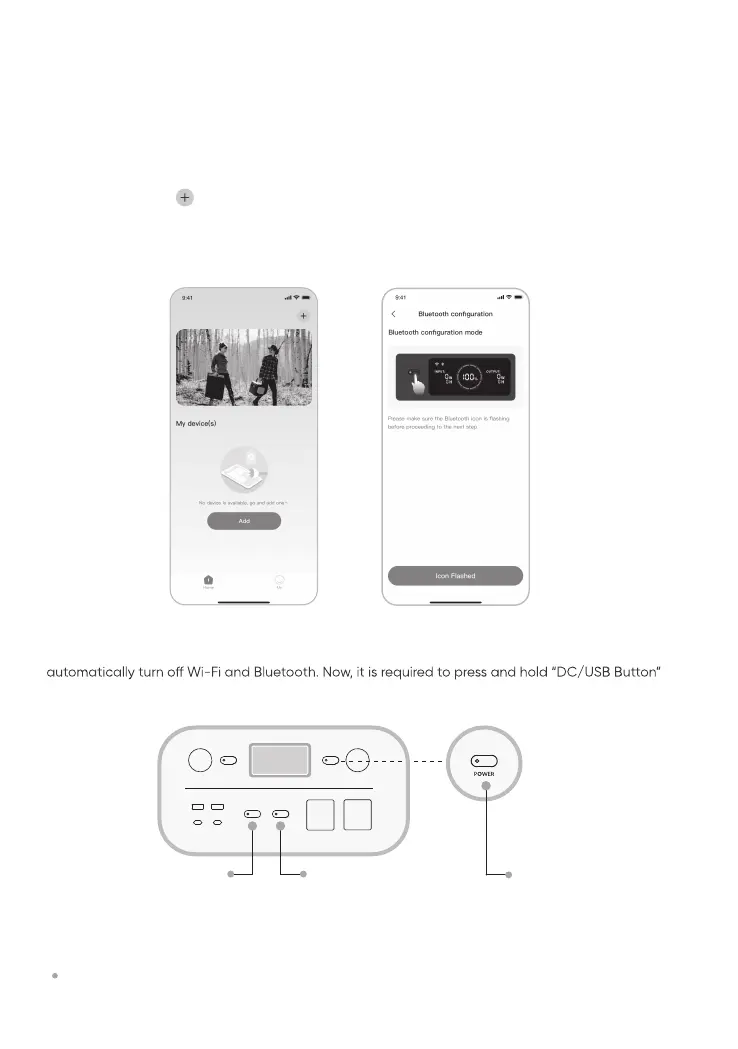
2.3 After clicking the searched device icon, the App automatically connects the device via Bluetooth.
Remarks: After being turned on, if the APP is not connected within 5 minutes, the device will
and “AC Button” to turn on Wi-Fi and Bluetooth again.
Remarks: If “the device has been bound” is prompted during the binding process, the following two
ways can be used for connection:
The device owner will share this device with other users through the App. For details, please refer to
equipment sharing.
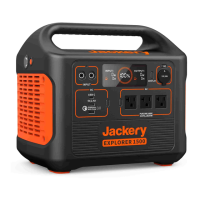
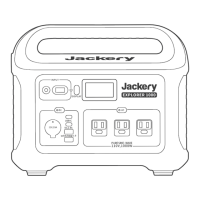
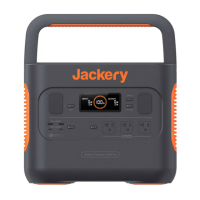
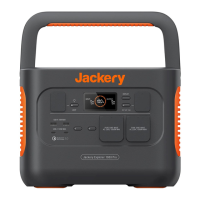
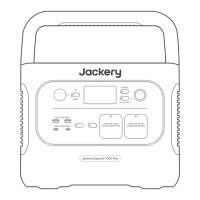
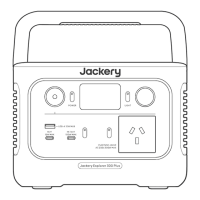
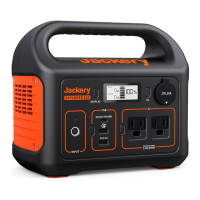
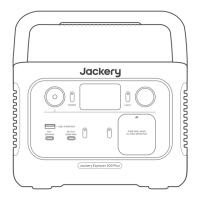
DC/USB Button AC Button POWER Button
2. To add device
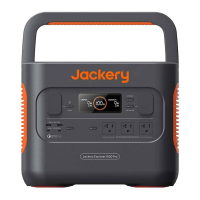
2.2 Long press the “POWER” button on the device to turn on, the Wi-Fi and Bluetooth icons on the
device flash to indicate that the device has entered the network configuring mode, click the “Icon
Flashed” button and allow the App to connect to nearby devices and open Bluetooth permissions.
USER MANUAL FOR JACKERY APP
Search for “Jackery” in Google Play or App Store to install the App. After that, you can register and
log in.
1. To download the App and log in
2.1 Click the button to add your device.


 To Next Page