12
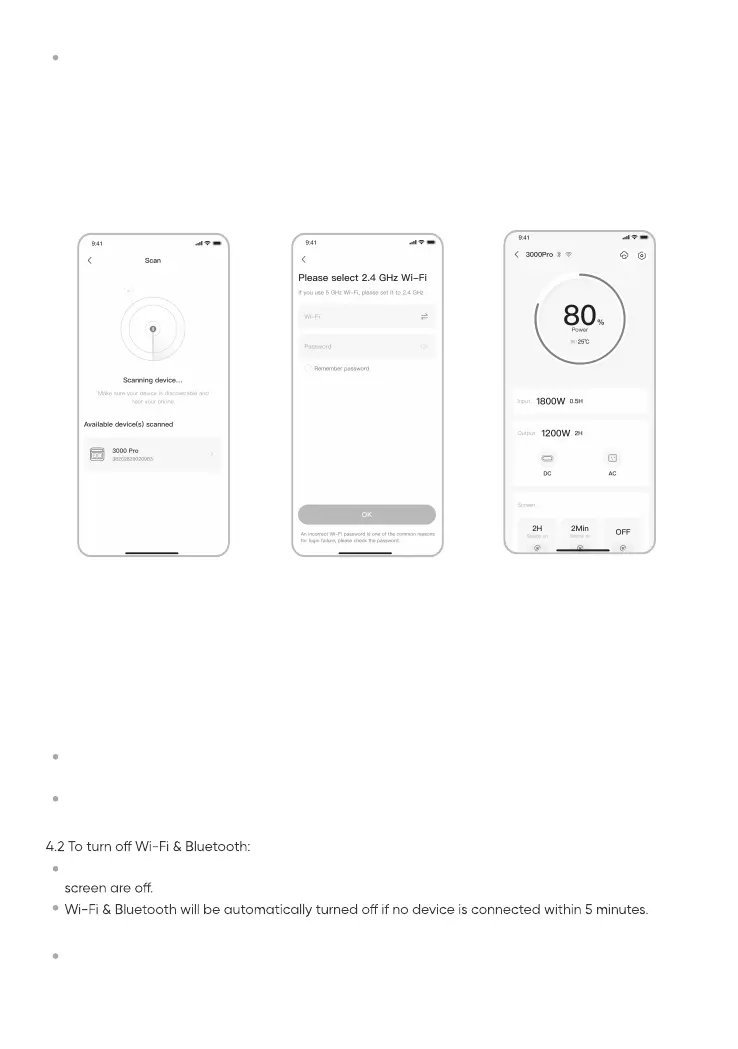
The above screenshots are for reference only.
Wi-Fi & Bluetooth are automatically turned on after the device is on, and the Wi-Fi & Bluetooth
icons on the screen light up.
Press the DC/USB button and the AC button at the same time until the Wi-Fi & Bluetooth icons on
the screen light up.
3. To unbind the device
Click the Settings button in the upper right corner of the main interface of the device to enter the
settings page, and click the Unbind button at the bottom of the page to unbind the device.
4. Notes
4.1 To turn on Wi-Fi & Bluetooth:
Press the DC/USB button and AC button at the same time until the Wi-Fi & Bluetooth icons on the
Press the POWER button and DC/USB button at the same time for 3 seconds to reset Wi-Fi &
Bluetooth to factory settings and reboot the system. The connected App account will be unbound.
4.3 To reset Wi-Fi & Bluetooth:
2.4 After the device is successfully connected, it is necessary to enter your Wi-Fi password and tap the
OK button.
2.5 After the device is successfully added on the home page of the device, the Wi-Fi icon on the
device will be always on.
Remarks: Please select a Wi-Fi network in 2.4GHz band. The device does not support a Wi-Fi
network in 5GHz band.
Press and hold the “POWER Button” and “DC/USB Button” for 3 seconds to reset the device, and
then re-bind the device.
2.5
2.3 2.4


 To Next Page