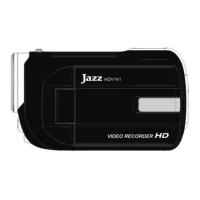
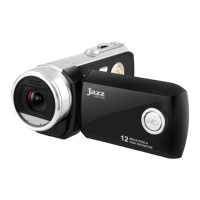
d) Video and picture taking
The SD card must be installed if you wish to record video or take still pictures.
Press " " to scroll and select Video Recording or Still photo capture mode. Note related icons visible in left
upper corner onto LCD screen.
Press " " to begin Video Recording or take a Still Picture.
Press " " again to stop Video Recording.
e) Playback
Press " " to scroll and enter the Playback mode.
Press " " or " " (left or right) buttons to select desired Video or Still Picture file.
Press " " (down button) to enter “THUMBNAIL MODE” to view multiple files. Then scroll to desired file and press
" " to select
Press " " to start playing video, press this button again to stop.
Press " " or " " to zoom in/out of a Still Picture
When you have zoomed in, press " " or " " (left or right button) to enter “PAN MODE”. Then pressing any direction
keys will move the enlarged image in any direction so you may view selected picture segment.
To exit from “PAN MODE”, press " " button.


 To Next Page