EasyManua.ls Logo

Jeio tech IST-4075 - User Manual

Default Icon
70 pages
Print Icon
To Next Page IconTo Next Page
Loading...
Operating Manual
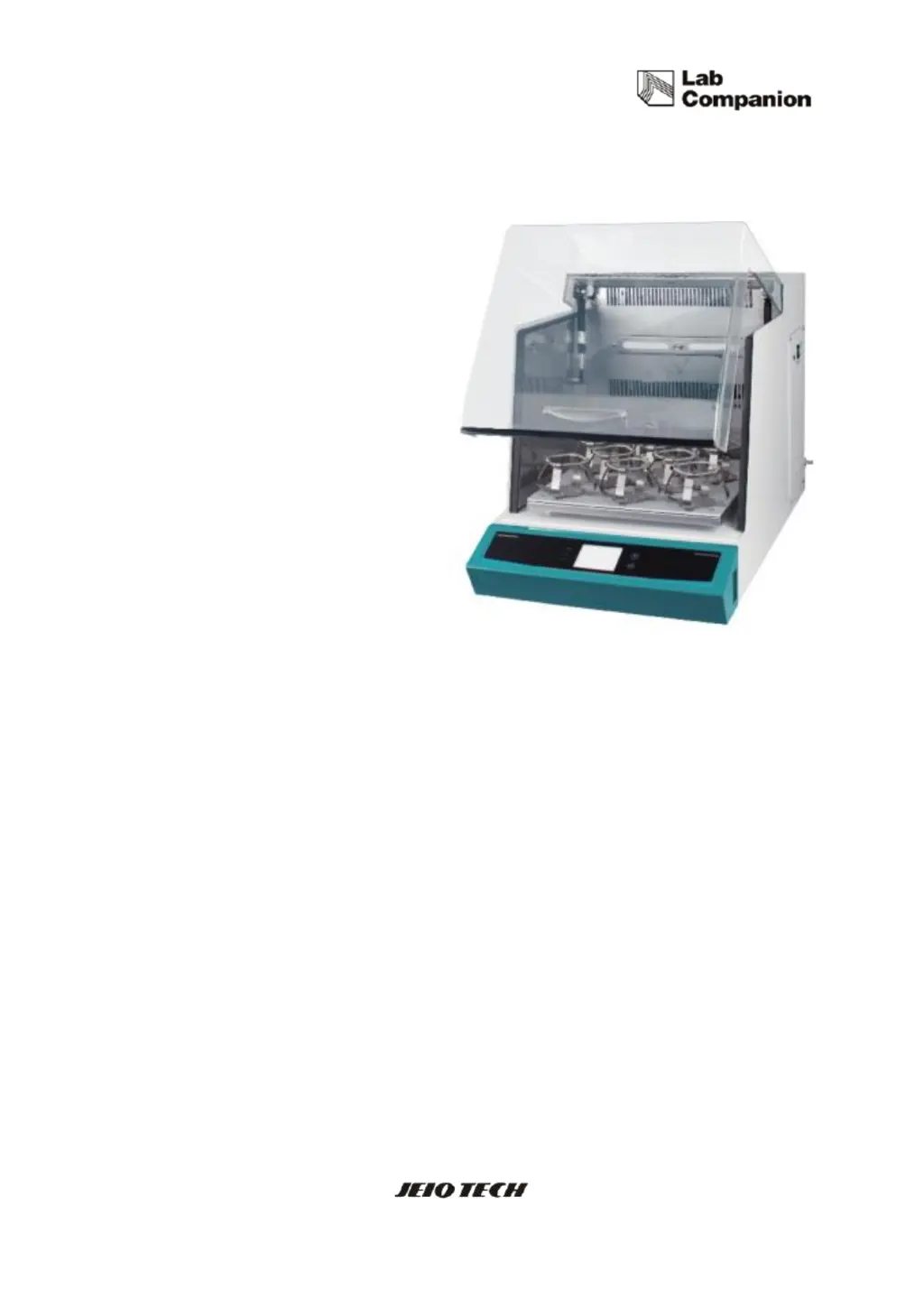
Shaking Incubator
Model : IST-3075, IST-4075, IST-3075R, IST-4075R
Menual no. : XXXXXXXXXXX

Table of Contents

Questions and Answers

  • M
    mitchell79Aug 14, 2025
    How to troubleshoot if my Jeio tech IST-4075 equipment is not turning on?
    • J
      Joseph BrockAug 15, 2025
      If your Jeio tech Accessories equipment isn't turning on, first, ensure the power plug is securely connected to the socket. Next, check if the circuit breaker has tripped. If the fuse is short-circuited, replace it with a new one. Also, verify that there isn't a power outage. If these steps don't resolve the issue, further assistance may be needed.
  • C
    Charles BartlettAug 18, 2025
    Why is the temperature of my Jeio tech IST-4075 incubator not reaching the set value?
    • R
      Ryan WalkerAug 18, 2025
      If the temperature of your Jeio tech Accessories incubator isn't reaching the set value, first, check if the Temperature Control ON indicator is illuminated. Ensure that the outdoor temperature isn't too high or low, and maintain an appropriate room temperature. Also check the door switch. Check the air filter condition and clean it. If the temperature is unstable, perform Auto Tuning. If the problem persists, further assistance may be required.
  • U
    ureeseAug 21, 2025
    What to do if my Jeio tech IST-4075 Accessories equipment powers on but the controller doesn't operate?
    • T
      Timothy ByrdAug 22, 2025
      If your Jeio tech Accessories equipment powers on but the controller isn't working, check the power plug connection to the socket. Inspect the panel board circuit breaker and reset it before turning the machine on. If the Display board or Main PCB has a problem, or if the Power switch is faulty, further assistance will be required.
  • H
    hwongAug 25, 2025
    How to fix shaking trouble in Jeio tech Accessories?
    • B
      Brandon TaylorAug 26, 2025
      To address shaking issues with your Jeio tech Accessories: * If there's excessive vibration, ensure the machine is level, adjusting as needed. * If vibration is intense and the shaking speed slows, redistribute samples evenly. * For overloading, reduce sample weight. * Check the door switch. * If shaking doesn't start after pressing the start button, cancel the timer setup. If the problem persists, further assistance may be needed.
  • A
    armstrongericaAug 28, 2025
    What to do if I get an over current error on my Jeio tech IST-4075?
    • J
      James BrooksAug 28, 2025
      If you're getting an over current error on your Jeio tech Accessories, check for any overload or obstructions within the shaking system.
  • W
    Wayne MartinezAug 31, 2025
    How to reduce noise from Jeio tech Accessories?
    • A
      Andrew BurchAug 31, 2025
      To reduce noise from your Jeio tech Accessories, check that the platform and samples are securely fixed. Also, make sure the sample weight is evenly distributed. If the issue continues, further assistance may be needed.
  • N
    nhesterSep 4, 2025
    What causes load unbalance in Jeio tech Accessories?
    • A
      alicia65Sep 4, 2025
      Load unbalance in Jeio tech Accessories can be caused by an unbalanced sample setting, overload, or an un-flat surface. Check these factors to resolve the issue.
  • M
    Matthew MitchellSep 7, 2025
    What to do if Jeio tech Accessories shows a 'Door Open' error?
    • I
      ibrownSep 7, 2025
      If your Jeio tech Accessories displays a 'Door Open' error, ensure the door is completely closed. Then, press the start button to restart the unit.
  • A
    amber87Sep 12, 2025
    How to solve temperature limit error in Jeio tech Accessories?
    • R
      Richard CohenSep 12, 2025
      To address a temperature limit error in your Jeio tech Accessories, check the setting on the analog over temperature regulator and the operating temperature. Restart the equipment once the temperature is within the acceptable range.

Summary

Safety

Warning Statement

Provides critical warnings about product usage and potential hazards.

Caution Statement

Details precautions to avoid minor or moderate injuries and equipment damage.

Functional Description

Installation Guide

Operation

Using the Controller

Step-by-step guide on operating the controller for various functions.

Temperature Control

Instructions for starting, stopping, and changing temperature settings on the controller.

Shaking Control

Steps for controlling the shaking speed, including starting, stopping, and changing speed.

Alarm and Stop Functions

Explains how the unit handles alarms, warnings, and automatic stop functions.

System Settings

Configuration options for deviation limits, calibration, auto-tuning, and parameter resets.

Control Deviation Limit

How to set limits for temperature and RPM deviation and alarm delay.

Calibration Procedures

Procedures for calibrating temperature sensors and shaking speed.

Safety Tools and Features

Information on safety features like the over temperature limiter and glass fuse.

Maintenance

Fuse Replacement

Procedure for replacing fuses, including specifications and safety warnings.

Troubleshooting

Stop During Operation

Describes common operational stops and their solutions based on display messages.

Jeio tech IST-4075 Specifications

General IconGeneral
BrandJeio tech
ModelIST-4075
CategoryAccessories
LanguageEnglish

Related product manuals