EasyManua.ls Logo

Jeio tech IST-4075R - User Manual

Default Icon
70 pages
Print Icon
To Next Page IconTo Next Page
Loading...
Operating Manual
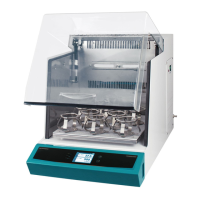
Shaking Incubator
Model : IST-3075, IST-4075, IST-3075R, IST-4075R
Menual no. : XXXXXXXXXXX

Table of Contents

Questions and Answers

  • M
    Melanie FrancisAug 15, 2025
    How to troubleshoot if my Jeio tech Accessories equipment is not turning on?
    • S
      Stephen FloresAug 15, 2025
      If your Jeio tech Accessories equipment isn't turning on, first, ensure the power plug is securely connected to the socket. Next, check if the circuit breaker has tripped. If the fuse is short-circuited, replace it with a new one. Also, verify that there isn't a power outage. If these steps don't resolve the issue, further assistance may be needed.
  • E
    Elaine HooperAug 18, 2025
    Why is the temperature of my Jeio tech Accessories incubator not reaching the set value?
    • A
      Amanda FrenchAug 18, 2025
      If the temperature of your Jeio tech Accessories incubator isn't reaching the set value, first, check if the Temperature Control ON indicator is illuminated. Ensure that the outdoor temperature isn't too high or low, and maintain an appropriate room temperature. Also check the door switch. Check the air filter condition and clean it. If the temperature is unstable, perform Auto Tuning. If the problem persists, further assistance may be required.
  • M
    Monica DavenportAug 21, 2025
    What to do if my Jeio tech IST-4075R equipment powers on but the controller doesn't operate?
    • R
      rhaydenAug 21, 2025
      If your Jeio tech Accessories equipment powers on but the controller isn't working, check the power plug connection to the socket. Inspect the panel board circuit breaker and reset it before turning the machine on. If the Display board or Main PCB has a problem, or if the Power switch is faulty, further assistance will be required.
  • K
    kthompsonAug 25, 2025
    How to fix shaking trouble in Jeio tech Accessories?
    • E
      Ebony SanfordAug 25, 2025
      To address shaking issues with your Jeio tech Accessories: * If there's excessive vibration, ensure the machine is level, adjusting as needed. * If vibration is intense and the shaking speed slows, redistribute samples evenly. * For overloading, reduce sample weight. * Check the door switch. * If shaking doesn't start after pressing the start button, cancel the timer setup. If the problem persists, further assistance may be needed.
  • G
    Gerald GomezAug 28, 2025
    What to do if I get an over current error on my Jeio tech IST-4075R Accessories?
    • J
      Jennifer CaldwellAug 28, 2025
      If you're getting an over current error on your Jeio tech Accessories, check for any overload or obstructions within the shaking system.
  • T
    traciecarrilloAug 31, 2025
    How to reduce noise from Jeio tech IST-4075R Accessories?
    • P
      patricia72Aug 31, 2025
      To reduce noise from your Jeio tech Accessories, check that the platform and samples are securely fixed. Also, make sure the sample weight is evenly distributed. If the issue continues, further assistance may be needed.
  • S
    Stephanie JonesSep 3, 2025
    What causes load unbalance in Jeio tech IST-4075R Accessories?
    • V
      Vicki VaughnSep 4, 2025
      Load unbalance in Jeio tech Accessories can be caused by an unbalanced sample setting, overload, or an un-flat surface. Check these factors to resolve the issue.
  • A
    aaronchapmanSep 7, 2025
    What to do if Jeio tech Accessories shows a 'Door Open' error?
    • A
      Adam JenningsSep 7, 2025
      If your Jeio tech Accessories displays a 'Door Open' error, ensure the door is completely closed. Then, press the start button to restart the unit.
  • B
    Brandon HendersonSep 10, 2025
    How to solve temperature limit error in Jeio tech IST-4075R Accessories?
    • K
      Kelly BrownSep 12, 2025
      To address a temperature limit error in your Jeio tech Accessories, check the setting on the analog over temperature regulator and the operating temperature. Restart the equipment once the temperature is within the acceptable range.

Summary

Safety Information

Manual Usage Guide

Guide for installing, operating, and maintaining the Jeio Tech product.

Safety Symbols and Alerts

Alert marks for safety operation and instrument protection from damage.

Warning Statements

Indicates a hazardous situation which, if not avoided, could result in death or serious injury.

Caution Statements

Indicates a hazardous situation which, if not avoided, may result in minor or moderate injury.

Installation Guide

Operation Procedures

Controller Interface

Overview of the controller interface, including indicators, buttons, and displays.

Using the Controller

Instructions for operating the controller, setting temperature, RPM, and timer.

Temperature Control

Detailed steps for starting, stopping, and changing temperature settings.

Shaking Control

Instructions for starting, stopping, and changing shaking speed.

Shaking Timer

Guide on setting and using the timer for shaking operations.

Alarms and Faults

Explains the unit's alarm system, including warnings, forced stops, and fault conditions.

System Settings

Safety Tools

Over Temperature Limiter

Description and setting of the over-temperature protection limiter.

Glass Fuse Function

Explanation of the fuse's function and when it operates.

Maintenance

Troubleshooting

Jeio tech IST-4075R Specifications

General IconGeneral
ModelIST-4075R
BrandJeio Tech
TypeRefrigerated Incubator Shaker
Capacity75 L
ControllerDigital PID Controller
Weight120 kg
Temperature Accuracy±0.5°C
Temperature Uniformity±1°C at 37°C
Shaking Amplitude25 mm
Timer99 hr 59 min
Power Consumption1500 W
Power Supply230 V, 50/60 Hz

Related product manuals