EN
8
English
10. On some phones, application asks for their geolocation; you must accept to continue.
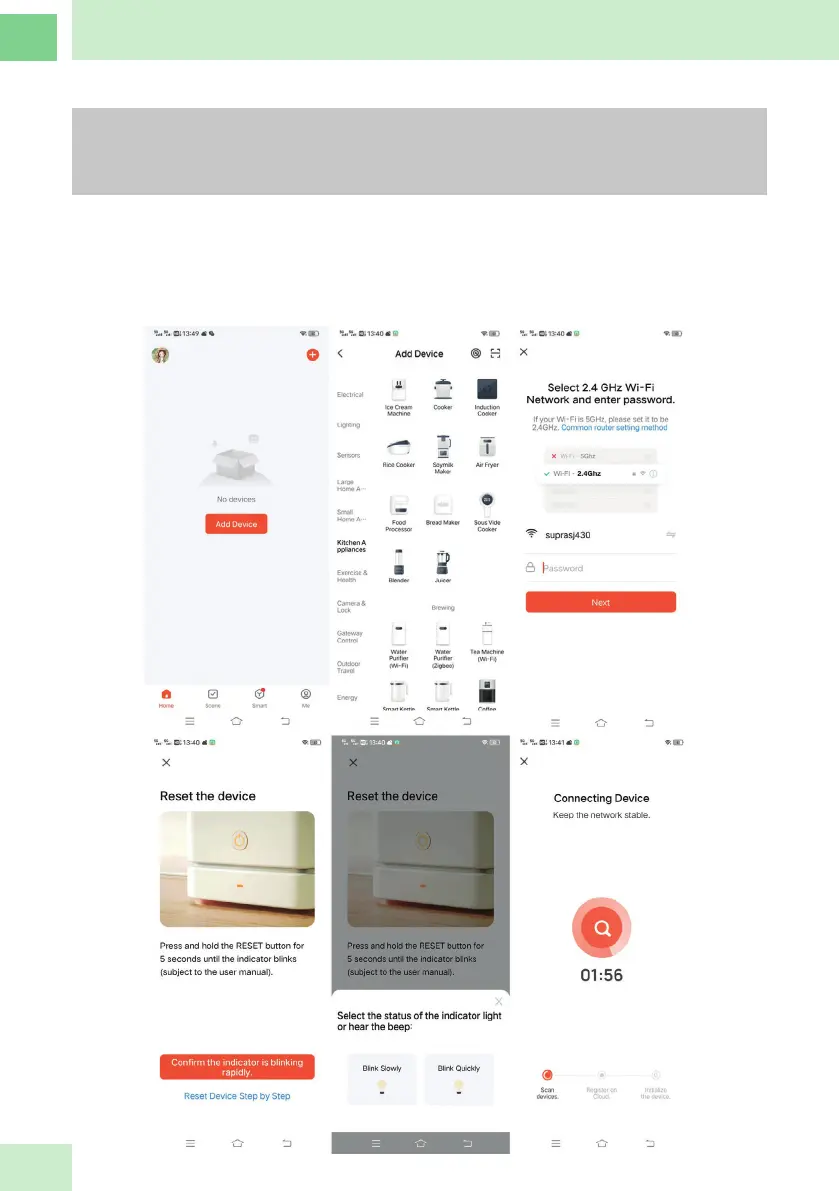
11. The app will then suggest connecting the food processor to Wi-Fi. Click on “connect now”.
IMPORTANT:
In order to connect to the Wi-Fi network, it needs a 2.4GHz frequency, you can check
the frequency in the settings of your mobile device.
NOTE: If your Wi-Fi network is not working in the 2.4GHz frequency, you must modify
it from your router (see problem resolution section).
12. You are then redirected to your phone’s general settings. Go to WIFI settings and select the
“SmartLife-XXXX” network; the network number is specic to each robot.
13. Then return to application,
14. Long press WIFI key.
15. Press “Check that the indicator is ashing quickly” then “Next;” the countdown begins.
16. Once appliance has been added, it appears under the name “Kitchen robot” click on “nish”
and the LED on control screen of the robot turns blue.


 To Next Page