JPL-Explore User Manual
JPL-Explore Cartridge Module for
USB Connection
• SophoneinteroperabilitythroughUSB/computerwith3CX,AvayaOne-X,
CiscoJabber,CounterPathandSkypewithassistancefromtheJPLGateway.
• JPLGatewaysowaremustbeinstalledandrunningfor
remotecallcontrolfunctionstoworkwithsupportedsophones.
https://www.jpltele.com/resources/jpl-gateway/
Additional Accessories
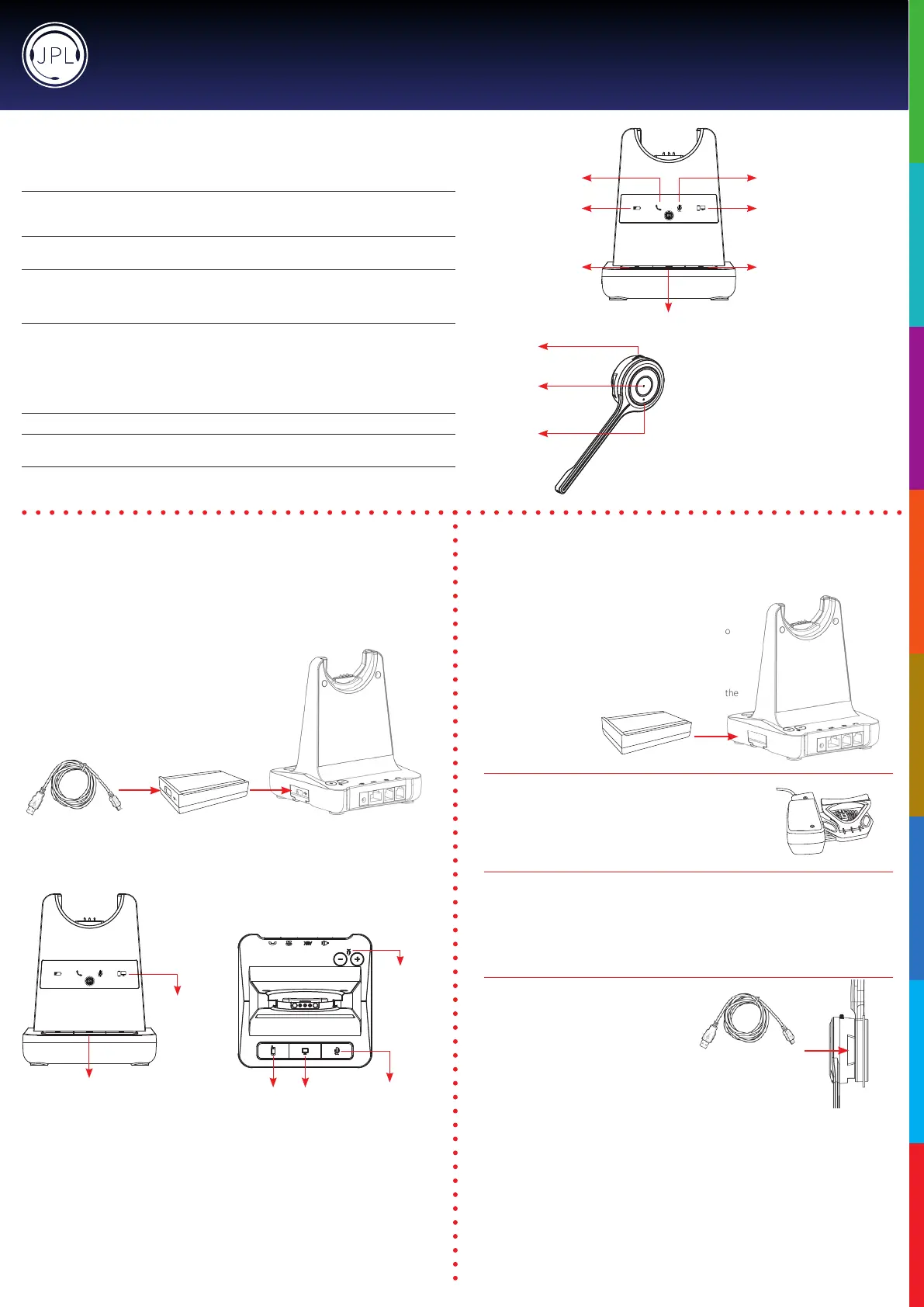
PC/Bluetooth
Indicator
PC/TEL
Selection
• Aerinsertingthecartridge,connectthepowerandthenconnecttheUSBcable.
• TomakeaUSBcall,pressthe“PC/TEL’button.
• Whenyoupressthe“PC/TEL”button,the“PC/TEL”LEDwillashonando.
USB Cable Type-A to Mini-B
Bluetooth
Pairing Button
PC/TEL
Selection
Microphone
Mute Button
Microphone
Volume
JPL-Explore Cartridge Module for
Bluetooth Connection
• Bluetooth allows the DECT headset to connect wirelessly to
Bluetoothenabledsmartphones.
• This headset allows wireless conversations from any desk
phone,sophoneandmobile.
• Before inserting your Bluetooth cartridge, make sure that the
baseunitispowered-o.
JPL-DECT Lier
• TheJPL-DECTLierremotelylisthedeskphonehandset
tomakeoransweracall.
https://www.jpltele.com/product/jpl-dect-lier/
(RefertotheJPL-DECTLierinstallationguide).
Electronic Hook Switch (EHS) Adapter
• EHS Adapter enables an incoming call to be answered
orendedbyusingtheOn/ObuttonontheHeadset.
https://www.jpltele.com/products/ehs-cables/ Refer to the EHS Compatibility Table to see which
adapteryouneedforyourdeskphone.(RefertotheEHSAdapteruserguidetoseehowtoinstall
yourEHScable).
USB Cable Type-A to Micro USB
• Optionalmethodforchargingtheheadset.
Connect the micro USB jack to the micro USB port
located on the side of the headset
Additional Accessories
How to Activate a Conference Call:
While Headset A is on a call, press the <Mute> button on the base station (g. 1)formorethan2seconds.
The base station is now in the ‘Conference Call Initiating Mode’ and all LEDs, except the Battery Charging
LED,willbeashing.
Headset A generates a Conference Beep and Headset BwillgetaConferenceRingTone.
On Headset A, the user needs to press the <Mute> button on the headset (g. 2) for more than 2 seconds
within20secondstoaccepttheconferencecallinitiatingrequest.
On Headset B, the user needs to press the <Hook On/O> button (g. 3) to accept the incoming
conferencecallrequest.
Default : Headset B will be on Mute until the conference call is fully set up. User can toggle Mute operation.
If both headsets accept the conference call request, the base station goes into ‘Conference Mode’ and the
<In-use> LED (g. 4) willashtoindicatethe‘Conference Mode’.
How to Deactivate a Conference Call:
While in ‘Conference Mode’, the user on Headset A can press the <Mute> button (g. 2) for more than 2
secondstoterminatetheconferencecallandcangobacktoanormalsinglecall.
User on Headset A can press <Hook On/O> button (g. 3)toterminatecurrentactivecall.
The user on Headset B can press <Hook On/O> button (g. 3)toleavetheconferencecall.
In this case, Headset A goesbacktoanormalcall.
Mute (g. 2) /
Speaker Volume
Hook On/O
(g. 3)
Answer / End a call
In-use (g. 4) /
Busy Indicator
Microphone Mute Indicator
(Red Light)
PC/Bluetooth Indicator
(White Light)
Battery Charge
Indicator
(Blue Light)
Telephone Indicator
(Green Light)
Bluetooth
Button
PC/TEL Selection
Microphone
Mute Button
(g. 1)



 To Previous Page
 Loading...