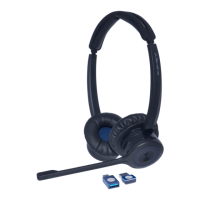
JPL-Explore User Manual
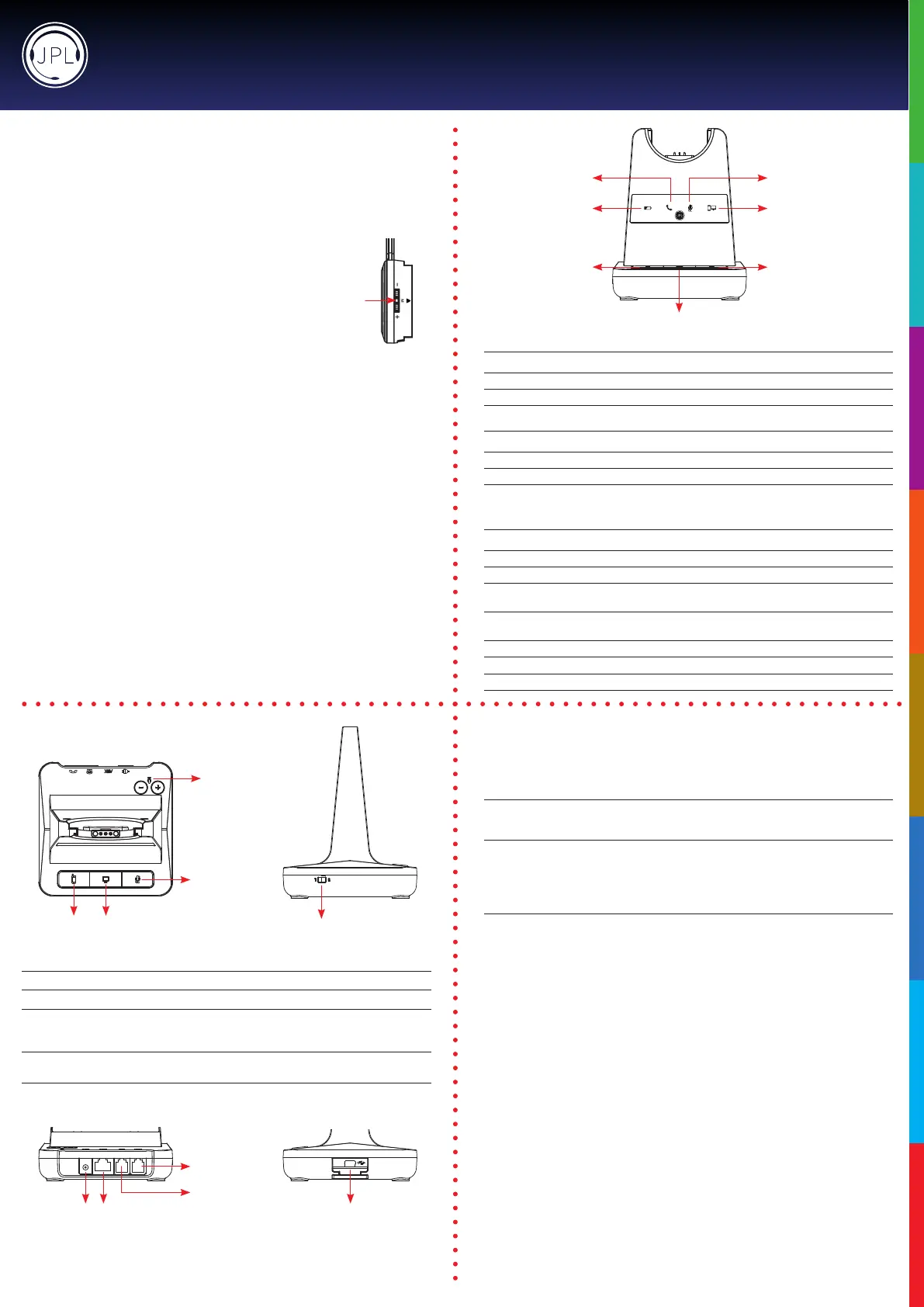
Microphone Mute Indicator
(Red Light)
PC/Bluetooth Indicator
(White Light)
Battery Charge Indicator
(Blue Light)
Telephone Indicator
(Green Light)
Bluetooth
Button
PC/TEL Selection
Microphone
Mute Button
Visual Indicator
Charging Status LED Status
Charging BatteryIndicator:‘Flashing’1sec-ON,1sec-OFF
FullyCharged BatteryIndicator:‘ON’
LowBattery BatteryIndicator:‘Flashing’0.5sec-ON,0.5sec-OFF
Event LED Status
PressMicrophoneMute MuteIndicator:‘ON’
PressPC/TELSelection PC/TELIndicator-TEL:‘OFF’PC:‘ON’
HookO SelectedModeIndicator:‘ON’
Audio Indicator
Event Sound Eect
Speaker/MicrophoneVolume BeepSound‘UP’-HighTone,‘DOWN’-LowTone
Max/Min Speaker Volume Double beep
Max/Min Microphone Volume Double Beep
MicrophoneMute WhenheadsetisMUTED,pressthe‘volumeupkey’for2seconds–
thiswillactivateMutebeeptonesigniedbyalongbeeptone
MicrophoneUnmute Tounmute,pressthe‘volumedownkey’for2secondsanditwill
deactivatethemutebeepdonesigniedbythreeshortbeeps
Mute Reminder Beep (every 15 seconds)
HookO/On DoubleBeep(HighTone/LowTone)
Low Battery Continuous beep in headset when battery is low
Base Unit
Base Unit
Bluetooth
Pairing Button
PC/TEL
Selection
Microphone
Mute Button
Microphone
Volume
Compatibility
Switch
Mini‘B’USB/Bluetooth
Module Drawer
Bluetooth Button This function works when the Bluetooth module is inserted
PC/TEL Selection This function works when the USB cartridge is inserted
Microphone Mute Button Press to mute the call
Microphone Volume Yourheadsethasautomaticaudioconguration,(thiscantakeafew
minutes to settle) however, if required, you can adjust the volume
level for the speakers and microphone to suit
Compatibility Switch Select‘1’or‘2’untiladialtoneisheardviathetelephone
connection
DC Jack AUX Port
Handset Port
Telephone Port
Operating Instructions
Pairing a headset to the base unit:
1) Taketheheadsetothebaseunit
2) Make sure there is no power to the base unit
3) Place the headset on the base unit
4) Pluginthepowercordtothebaseunitandthe‘GREEN’TELlightwillash.
Now the base station is in pairing mode
5) Pressthe‘mutebutton’ontheheadsetfor2-3secondsuntilthe
‘BLUE’indicatorlightontheheadsetstartstoash(indicating
pairing mode)
6) Duringpairing,thebasestation’s‘GREEN’lightwillashandthe‘BLUE’lightontheheadset
willash
7) Whenpairinghassuccessfullycompleted,thereisaconrmationbeeptoneontheheadset’s
earpiecespeaker.Thenbothlightswillstopashing.
Pairing a second headset to a base station:
1) Oneheadsetshouldalreadybepairedtothisbaseunit,ifsoitneedstobeturnedo
2) Toturntheheadseto,rstlytakeitothebaseunitandpressthecallaccept/rejectbutton
to deactivate the green phone light on the base unit
3) Hold the call accept/reject button for 3 seconds, you should hear a short beep and then a
longerbeepsignifyingtherstheadsetiso
4) Followthestepsin‘Pairingaheadsettoabaseunit’abovetoconnectthesecondheadset
5) Oncethesecondheadsetisconnectedturntherstheadsetbackonwithashortpresstothe
call accept/reject button
6) Test the headsets by calling the phone system connected to the base unit and each headset
shouldring.
Please note: Pairing two headsets to one base unit allows each headset to answer the incoming
call,(amaximumofveheadsetscanbepairedtoonebaseunit)however,onlytheperson(the
rsttoanswerthecall)willbeabletohearandinteractwiththecaller.
Mute
Please note: Your JPL-Explore is supplied paired to the base unit straight out of the box.
However,ifaerchargingtheheadset,the‘GREEN’TELlightdoesn’tactivatewhentheheadset
isremovedfromthebaseunit,thenyoushouldfollowtheseinstructions.
Auto-Talk Option
Auto-talk means that the call will be active once answered as soon as you take the headset o of the
base station, this is default active. You can disable this, so that to make the call active, you have to press
the call accept button on the headset when you are ready to take the call.
Disable Auto-talk feature Put headset on base station
Pressthe‘mute’inthedirectionofvolumedownontheheadsetfor
two seconds and the LED on the headset will blink three times
To test, take the headset o of the base station and the ‘Green TEL Light’ should not activate unless the
call accept/end button on the headset is pressed.
Enable the Auto-talk feature Put headset on base station
Pressthe‘mute’inthedirectionofvolumeupontheheadsetfortwo
secondsandtheLEDontheheadsetwillblinkvetimes
To test, take the headset o of the base station and the ‘Green TEL Light’ should activate.



 To Next Page
 Loading...