The Element-BT500D is a wireless Bluetooth headset designed for use with mobile phones and in office environments. It offers a comfortable and ergonomic solution for individuals who spend extended periods on the phone, providing good sound quality and built for all-day wearing comfort. An optional USB Bluetooth dongle is available to connect the headset to a PC, allowing it to function as an audio and call control device for soft clients like Microsoft Teams, as well as for streaming audio.
Function Description:
The Element-BT500D serves as a versatile communication tool, enabling hands-free calls and audio playback. It supports Bluetooth Version 5.0, ensuring improved data transfer, security, and connectivity. The headset is designed for both music and speech, making it suitable for various applications. It features dedicated controls for answering/ending calls, volume adjustment, and microphone muting. Voice prompts are available in 10 different languages, enhancing user experience. The headset also supports two simultaneous connections, allowing seamless switching between devices.
Important Technical Specifications:
- Bluetooth Version: 5.0
- Talk Time: Up to 20 hours
- Standby Time: Up to 96 hours
- Working Range: Up to 30 meters
- Voice Prompts: Available in 10 languages (English, French, Spanish, German, Italian, Dutch, Russian, Danish, Swedish, Norwegian)
- Audio Profile: A2DP for stereo music
- Charging Time: 2-3 hours (up to 4 hours for initial charge or after prolonged disuse)
- Battery Type: Rechargeable Lithium-polymer battery
- Microphone: Dedicated microphone mute button, last number re-dial function.
- Connectivity: Supports two simultaneous connections.
- LED Status Indication: Provides visual cues for power, pairing, connection, music playback, call status, and low battery.
- SKU: 575-290-010
Usage Features:
- Attaching the Headband: Align the triangle shape on the microphone boom arm with the triangle shape on the headband and push to click into place. The boom arm can then be rotated to the desired position.
- Detaching the Headband: Support the neck of the headband with your index and middle fingers, then gently push the microphone speaker with your thumb from inside the ear cushion to detach the boom arm. Avoid pushing through the ear cushion without supporting the headband's neck to prevent damage.
- Positioning the Microphone: The microphone boom arm is flexible and can be gently bent to suit the curve of your face. For optimal performance, position the microphone at the corner of the mouth, approximately 30mm (two finger widths) away, ensuring it points towards the mouth.
- Headset Charging: The headset can be charged via a Micro USB port using the included USB Type-A to Micro USB cable. This cable can be plugged into a computer or a USB wall charger. A flashing red LED indicates low battery. The headset can be charged while in use.
- Microphone Boom Volume Control: Nudge the volume up/down button (marked with "+" or "-") to adjust the listening volume. A raised notch on the button aids in tactile identification.
- Mute On/Off: During a call, press and release the mute button to activate "Mute On" (audible in the speaker). Press again to resume the call, and "Mute Off" will be heard.
- Volume Settings (Important): For optimal audio, set the headset earphone volume on your PC to maximum and the microphone volume within your PC settings to a mid-range. Conduct a test call to fine-tune microphone sound via PC settings and speaker sound using the headset's volume switch.
- Turning the Headset On/Off:
- On: Press and hold the answer button for 2 seconds until the purple LED flashes 3 times and "Power on" is heard.
- Off: Press and hold the answer button for 3 seconds until the purple LED flashes once and "Power off" is heard.
- Pairing:
- Turn on Bluetooth on your phone.
- Put the headset in pairing mode by pressing and holding the pairing button for 4 seconds until the blue LED flashes rapidly (ensure the headset is switched on).
- Search for Bluetooth devices on your phone.
- Connect to "BT-500D" when found.
- A blue LED will illuminate, and "Connected" will be heard when pairing is complete.
- The pairing mode is active for 3 minutes. To cancel pairing mode, press the answer button, and "Pairing Cancel" will be heard.
- Answering/Rejecting/Ending Calls:
- Answer: Briefly press Button 1.
- Reject: Press Button 1 for 2 seconds during an incoming call; "Call rejected" will be heard.
- End: Briefly press Button 1 or end the call on the mobile phone.
- Making Calls: Dial the number on the mobile phone and briefly press Button 1.
- Last Number Redialing: Briefly press Button 1 twice; "Redialling" will be heard.
- Voice Prompt Language Selection: To select a language, ensure the headset is not connected to any Bluetooth devices. Nudge the "volume up/down" button towards "+" or "-" to cycle through languages. Stop when the desired language is announced.
- BT-220 Dongle LED Status:
- Power On: Red LED On (0.5 Sec) & Off (0.5 Sec)
- Pairing Mode: Red & Blue Toggle > 1 minute Time Out
- Headset Connected: Blue LED On
- A2DP Mode (Music): Purple LED Flashes
- A2DP Play (Music): Purple LED Flashes
- HFP Mode (Call): Blue LED Flashes On & Off
- Microsoft Teams Mode: Purple LED On
- Idle: Blue LED On
Maintenance Features:
- General Care: The headset is a technically advanced device. To ensure reliability and lifespan, avoid exposing it to moisture, liquids, rain, or dust. Store it in a dry and dust-free location.
- Cleaning: Use a dry cloth to clean the headset.
- Battery Care: Do not store a fully charged headset on the charging stand for long periods. Avoid exposing the device to extreme high or low temperatures, as this can reduce battery capacity and lifespan. Never dispose of batteries in an open fire. Dispose of used batteries and electronic devices according to local recycling regulations.
- Ear Cushions: For hygiene, it is advisable to replace ear cushions every 6 months. Spare ear cushions are available for purchase.
- Troubleshooting: If connection issues arise, ensure the headset is charged, turned on, within 10 meters of the phone, and Bluetooth is enabled on the phone. Verify the headset is listed and connected in your phone's Bluetooth settings. If necessary, remove the headset from the phone's paired devices and re-pair. If the headset stops functioning despite being charged, try resetting it by turning it off, waiting 15 seconds, and then turning it on again. Resetting the phone may also help.
- Firmware: Check for the latest firmware for your phone, as some features may depend on the phone model and its Bluetooth implementation.

 Need help?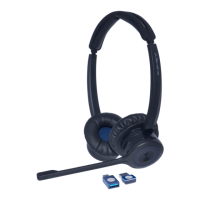

 To Next Page
 General