Wallpaper, Manage apps, System settings
Home Key
Returns to the main screen in one touch; Tap and hold
the Home Key to view recently browsed/ accessed/ used
applications
Back Key
Makes the screen go back one level
Power Key
Switches the phone on or o; locks/unlocks or sleeps/wakes
your phone; switches to silent, vibration proles; turns the
Airplane mode on or o.
Touch Control
Your phone responds to the following nger gestures:
Ta p
Selects or launches an item or an app i.e. selecting from the
menu, entering characters or text in a eld.
Tap & Hold
Activates widgets and oers further options to an application.
Tap & hold an item on the screen by touching it and not lifting
your nger until an action occurs.
Drag
Tap & hold an item and then, without lifting your nger, move
your nger on the screen to reposition it on the screen.
Swipe or Slide
Lets you scroll the screen up, down, left or right. It is also used
when unlocking the screen. Lightly and quickly touch and
slide your nger across the screen without pausing to avoid
dragging an item instead.
Double-tap
Lets you zoom in or out a screen Tap quickly twice on a
webpage, map, or other screen to zoom.
Pinch
lets you zoom in or out a screen by placing two ngers on the
screen at once and pinching them together (to zoom out) or
spreading them apart (to zoom in).
Customize the Home Screen
Change the Wallpaper
Tap and hold any clear part of the ScreengChoose a
wallpaper from Gallery, Live Wallpapers, Video Wallpaper and
Wallpapers.
Remove items from Your Home Screen
Tap Home Key to return to the Home Screen. Tap and hold
the item to be removed and drag it towards the [X Remove]
icon at the top of the screen.
Auto-Rotate Screen
With the Auto-Rotate Screen turned on, you will be able to
view items on the screen vertically or horizontally, depending
on how you hold your phone. Please note that not all screens
are covered by the Auto-Rotate Screen feature.
To turn the Auto-Rotate Screen feature on/o, go to
MenugSettingsgDisplaygAuto-Rotate Screeng(uncheck)
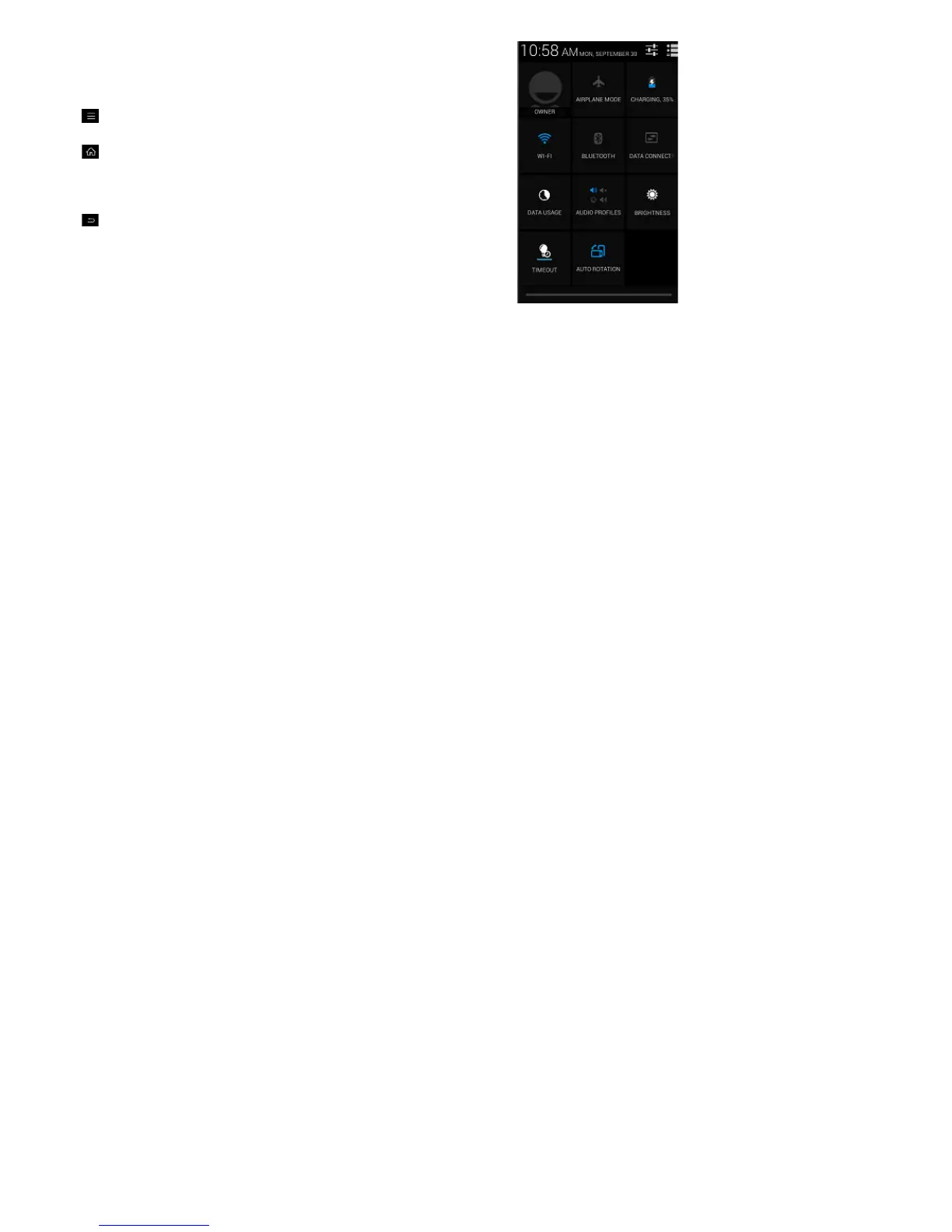
You may also drag down the Notications panel and tap
‘Auto-rotation’ to activate or deactivate auto-rotate function.
Folders
This allows you to organize your applications in folders on the
Home Screen. To make a new folder on your Home screen,
tap and hold and drag apps to the Home Screen, and stack
them on top of another. They will automatically be grouped
into a folder.
To name folder on Home screen:
1. Touch the folder icon on Home screen to open
2. Touch the folder’s title bar to show the name eld.
3. Edit the folder’s name and tap Done after renaming.
To remove applications out of a folder back to the
Home Screen
Touch and hold the item in a folder, and then drag it out of
the folder.



 To Next Page