Page 7
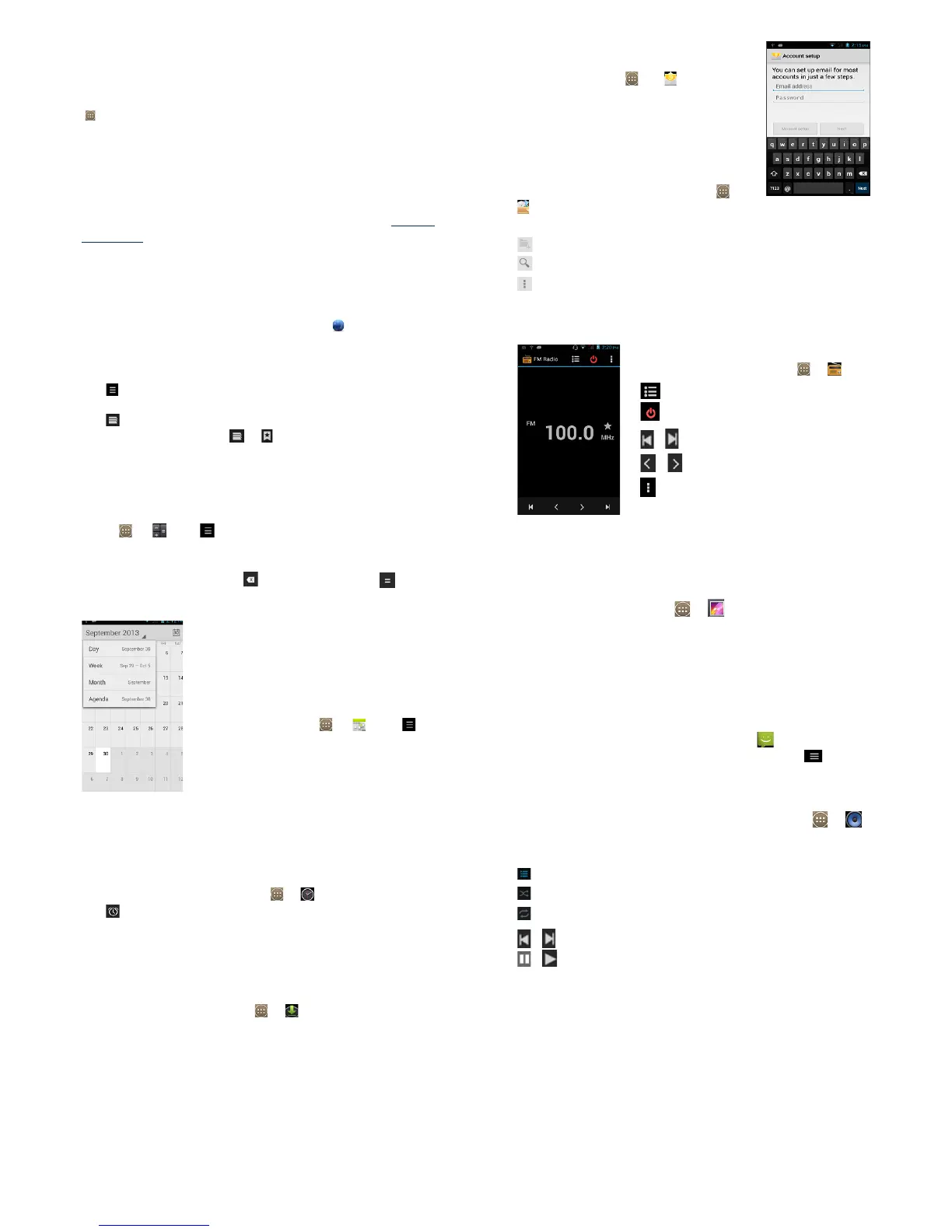
4. Main Menu
The Main Menu displays all the applications your phone has.
You may access the Main menu by tapping on the Menu icon
[ ] from the Home Screen.
Backup and Restore
Tap Backup and Restore, this contains your entire backup
and restore options.
Backup contains both Personal Data and Application Data.
Personal Data: Contacts, Messages, Pictures, you can Backup
to SD card.
Application Data: Game Data, Input Methods etc.
Restore: you can choose which items to restore.
Browser
To surf the Internet on your phone, go to .
Tap the address bar type in desired URL
GO
To change the homepage, Menu Settings General
Set Homepage
choose from options.
Tap
to access more functions, such as bookmarks, history
and others
Tap
to view all active browsers.
To bookmark a page, tap
To open new tab, tap +
Calculator
This mobile phone is equipped with a calculator to facilitate
simple computations using the 4 basic functions. To access,
go to
. Tap on the Calculator’s interface and an
advanced panel will pop up for more complex calculations.
Enter the numbers using the on-screen keyboard and choose
the desired operation. Tap for corrections and to get
the output.
Calendar
The Calendar application shows the
current date/month, and lets you
organise your schedule by allowing you
to add, edit, delete and view events. You
may also add appointments and notes
as reminders. Go to . Tap for
options.
Camera
Please see “Capture and View Photo or Video”
Clock
This function shows the current time and date, and gives you
access to the alarm clock. Go to
Tap to edit alarms. To add new alarm, tap +
Downloads
This allows you to view a list of downloaded les and apps
stored in the internal storage, and those currently being
downloaded.
To manage Downloads, go to .
Email
You can send and receive e-mails on
your phone. Tap set up an
account by entering an existing email
address and password.
File Manager
The File Manager lets you view, open
and manage the data saved in your
phone and Memory card. Go to
choose from Phone Storage / SD
Card.
- New folder
- Search item
- display options
You may also press and hold a folder or le for further
options.
FM Radio
To listen to the radio, go to .
- view channel list
- on/o
/ - search the channel list
/ - ne tune channel
- display options: Search, Speaker,
Record FM
A headset must be connected for the FM radio to work.
Press side keys to adjust volume.
Gallery
To view captured images, recorded video clips and
downloaded images, go to .
Click on a thumbnail to open an album.
Tap and hold an image to share (via Messaging, Bluetooth,
Email), delete or view details.
Messaging
This menu allows you to read, compose, send and receive
messages. The screen icon displayed in standby mode refers
to received and unread messages. Tap from the Home
Screen to access. On the Messaging interface, tap options.
For related information please refer to “Messaging”.
Music
Use the Music to play music and audio les. Go to .
The songs are categorized into tabs: Artists, Albums, Songs
and playlists To Recently added.
- displays playlist
- shues tracks
- repeats playback
/ - plays previous or next track
/ - play/pause song



 To Next Page