Page 5
Status and Notication Icons
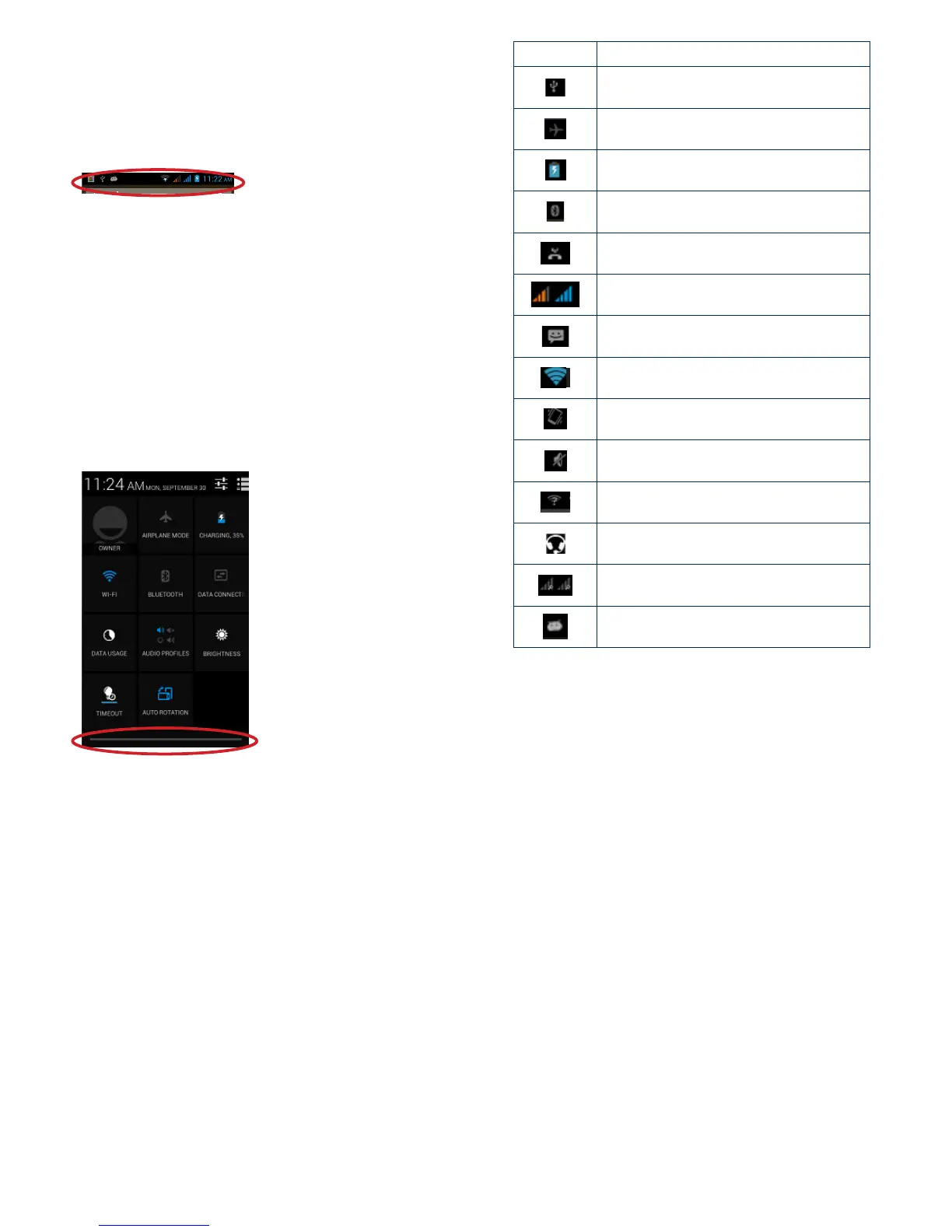
To view your phone’s notications, simply swipe the notications
bar downwards. To the right are the possible status icons you
may see and their meanings:
Notications
The Notications panel lets you view notices, warnings and any
new updates in your phone.
To open the Notications panel
Found on the top part of the screen, drag the notications panel
(also known as the status bar) downwards.
To close the Notications panel
Drag the tab at the bottom of the Notications panel touch.
To open a running application from the Notications panel
From the Notications panel, touch the icon for the running
application to open it.
Toolkits
ToolKits quickly start applications such as Bluetooth, WLAN and
so on.
• Drag NotIcations panel downwards.
• Tap a ToolKit to enable or disable.



 To Next Page