EN
31
3. Fasten the housing by bending out the
tabs.
FIG. 7
4. Slide the car stereo into the housing. Make
sure it locks rmly in place in the frame.
FIG. 8
USE
TOUCH SCREEN FUNCTIONS
Main menu
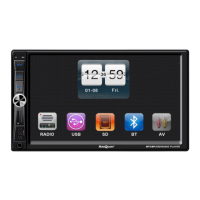
The radio interface is shown when the unit is
switched on. Press the MENU button on the
panel to open the main menu. The options
RADIO, USB, SD, AUX, Bluetooth, TV and SETTING
are shown.
FIG. 9
FIG. 10
FIG. 11
Radio
Press the symbol RADIO to switch to radio mode.
The frequency band and set frequency are now
shown in radio mode.
FIG. 12
1. Press the arrow on the left or right of the
shown frequency to automatically search
for a new station.
2. Press BAND to switch between FM1, FM2,
FM3, AM1 and AM2.
3. Press PTY to select function in RDS mode.
4. Press AF /TA to select if the functions are to
be on or o. In AF mode the radio searches
for alternative radio frequences if the
reception is poor on the set frequency. In TA
mode the car stereo receives trac alerts.
5. Press MUTE to switch o the sound.
USB/SD playback
1. The USB port is under the panel marked
USB in the bottom left corner on the front.
2. The SD card slot is placed over the USB panel.
3. Press the symbol USB or SD in the main
menu to select playback source.
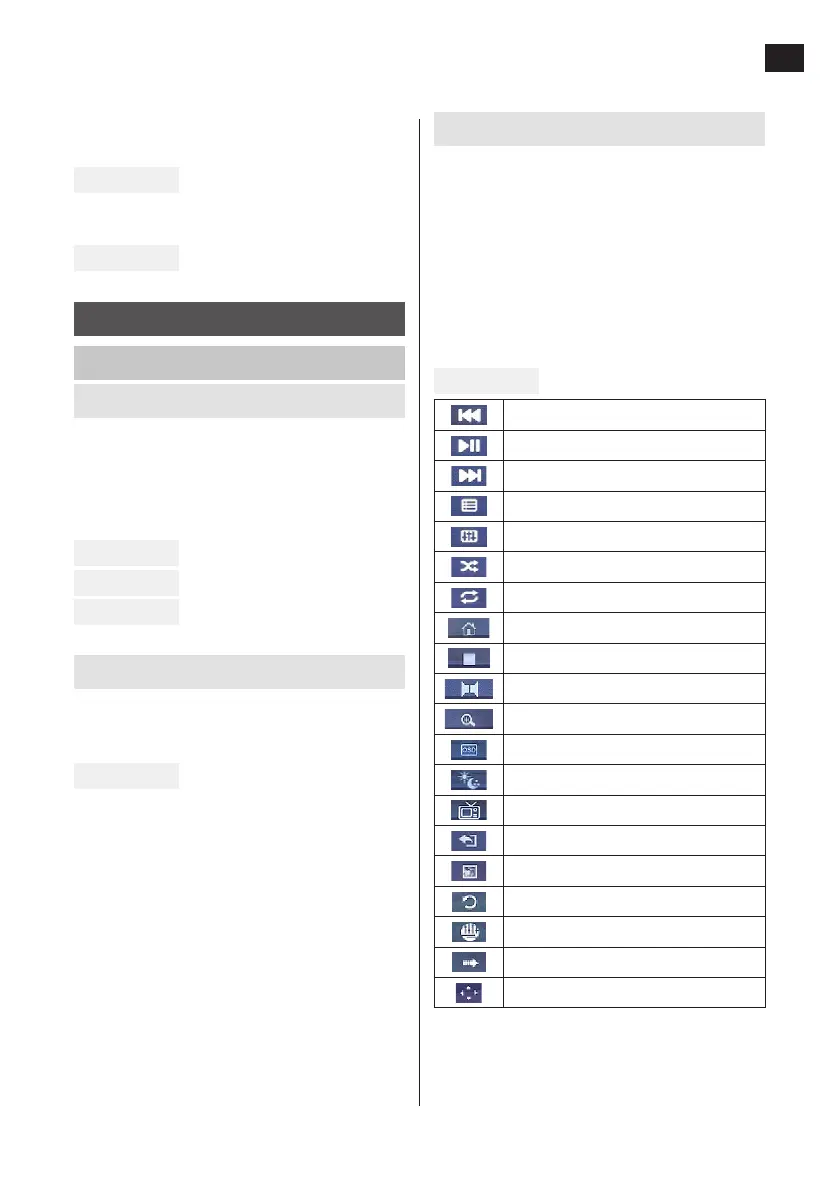
4. Several specic function icons are shown
in playback mode. The icons go o after
a while – turn the volume button to show
them again.
FIG. 13
Previous
Play/Pause
Next
List
Equalizer
Play at random
Repetition
Main menu
Stop
Right or left channel
Change image ratio 4:3 / 16:9
Texting on/o
Adjust brightness
Change screen setting
Return to list
Sound on/o
Image rotation
Playback mode image display
Playback speed
Display mode photo


 To Next Page
 Loading...