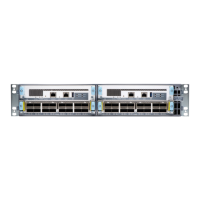
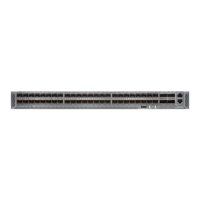
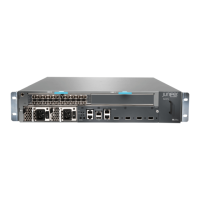
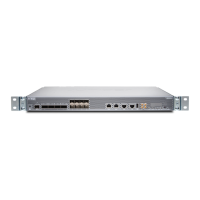
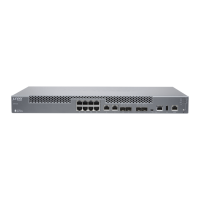
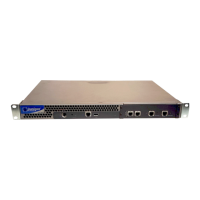
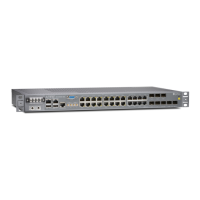
The Juniper Networks ACX7024 Cloud Metro Router is a high-performance access router designed to meet the increasing demands of metro applications. It is characterized by its compact 1-U form factor, temperature-hardened design, and advanced timing features, making it suitable for supporting Ethernet business services, residential access, and 5G mobile deployments. The ACX7024 offers significant port flexibility, supporting 1GbE to 100GbE, and boasts a switching capacity of 360 Gbps. It operates on Junos OS Evolved, providing a range of capabilities including support for the latest protocol and traffic engineering technologies, enhanced security, and precision timing crucial for mobile backhaul applications.
Installation and Setup:
The installation process for the ACX7024 is streamlined into a simple three-step path: Begin, Up and Running, and Keep Going. This guide focuses on quickly getting the DC-powered ACX7024 installed in a rack, powered up, and configured with basic settings.
What's in the Box (and what you'll need):
Along with the ACX7024 router, the package includes a documentation roadmap card, two-post rack mounting brackets (preinstalled on the router), two #10-32 grounding screws, and an LCD6 2-hole grounding lug.
To complete the installation, you will need:
- Assistance to secure the router to the rack.
- An electrostatic discharge (ESD) grounding wrist strap.
- Four rack mount screws appropriate for your specific rack.
- A #2 Phillips (+) screwdriver.
- A management host (laptop or desktop PC).
- A serial-to-USB adapter if your management host lacks a serial port.
- A grounding cable: 6 AWG, 90°C stranded copper wire.
- DC power wire: 12 AWG and 75°C temperature-rated or 14 AWG and 90°C temperature-rated stranded copper wire to connect the DC source to the router.
- A customer-site 2-pole circuit breaker rated for 30A and 80V, or as required by local electrical code.
Rack Installation:
Before beginning the rack installation, it is essential to review the General Safety Guidelines and Warnings. The process for installing the ACX7024 in a two-post rack involves:
- Wrapping and fastening one end of an ESD grounding strap around your bare wrist and connecting the other end to a site ESD point.
- Positioning the router in front of the rack, noting that the mounting brackets are preinstalled.
- Lifting the ACX7024 and aligning the bottom hole in each mounting bracket with a hole in each rack rail, ensuring the router is level.
- Securing the chassis to the rack using rack mount screws (not provided), tightening the bottom screws first, then the top screws.
- Verifying that the mounting screws on each side are aligned and the router is level.
Power On:
Once the ACX7024 is installed in the rack, the next step is to connect it to power. The ACX7024 supports DC power supplies, which are pre-installed at the factory.
Important Power Connection Cautions:
- Each power source and power supply module connection must include a circuit breaker. A customer-site 2-pole circuit breaker rated for 30A and 80V (or as per local electrical code) is recommended.
- Do not connect two sources to a single power supply module, as this can cause circulating current in feed wires if there is a voltage difference between the sources.
- The ACX7024 operates with a DC power supply module that has a single, non-redundant feed input. For source redundancy, two DC power supplies should be installed, with source (A) connected to one module and source (B) to the second, providing A/B feed redundancy.
Grounding and Power Connection Steps:
- To meet safety and EMI requirements, the router must be properly grounded before connecting to power. A licensed electrician should attach the cable lug to the grounding cable.
- Wrap and fasten one end of the ESD grounding strap around your bare wrist and connect the other end to a site ESD point.
- Connect the grounding cable to a proper earth ground.
- Place the grounding cable lug over the grounding points on the side of the chassis and secure it with the grounding screws, applying 2.5 N-m of torque.
- Dress the grounding cable to ensure it doesn't touch or block access to router components or create a tripping hazard.
- Ensure power supplies are fully inserted into the chassis.
- Verify DC power cables are correctly labeled. In a typical power distribution scheme where the return is connected to chassis ground at the battery plant, a multimeter can be used to verify the resistance of the -48V and RTN DC cables to chassis ground:
- Cable with very low resistance (closed circuit) to chassis ground is positive (+) and connects to the V+ (return) DC power input terminal.
- Cable with very high resistance (open circuit) to chassis ground is negative (-) and connects to the V- (input) DC power input terminal.
- CAUTION: Maintain proper polarity. Power source cables may be labeled (+) and (-), but there is no standard color coding for DC power cables. The external DC power source's color coding determines the color coding for the leads on the power cables.
- Ensure the input circuit breaker is open so that the voltage across the DC power source cable leads is 0 V during connection.
- Remove the terminal block cover and the screws on the terminals using a screwdriver (save the screws).
- Connect each power supply module to the DC power sources:
- Secure the ring lug of the positive (+) DC power source cable to the RTN (return) terminal using one of the terminal screws.
- Secure the ring lug of the negative (-) DC power source cable to the -48V (input) terminal using the other terminal screw.
- Tighten the screws on the power supply module terminals until snug with a Phillips number 2 screwdriver (do not overtighten; apply 1.2 N-m of torque).
- NOTE: After crimping input DC wires to wiring lugs, cover the lugs and crimped area with a suitable heat shrink sleeve to avoid exposed bare lug or crimped areas.
- Replace the terminal block cover, applying 0.5 N-m of torque to the screws.
- Close the input circuit breaker.
- NOTE: The switch powers on as soon as it is connected to power.
Initial Configuration (Plug and Play):
The ACX7024 ships with factory-default settings for plug-and-play operation, which load upon power-on. To customize the basic configuration:
- Have the following information ready: Hostname, Root authentication password, Management port IP address, Default gateway IP address, IP address and prefix length of remote prefixes, and (Optional) SNMP read community, location, and contact information.
- Verify default serial port settings on your laptop/desktop PC: Baud Rate-9600, Flow Control-None, Data-8, Parity-None, Stop Bits-1, DCD State-Disregard.
- Connect the console port (lower RJ-45 port on the left side of the port panel) on the ACX7024 to your laptop/desktop PC using an RJ-45 cable and RJ-45 to DB-9 adapter.
- At the Junos OS Evolved login prompt, type
root to log in (no password needed initially). If the software boots before connection, press Enter for the prompt.
- Start the CLI by typing
cli.
- Enter configuration mode by typing
configure.
- Stop the chassis auto-upgrade process:
delete chassis auto-image-upgrade.
- Stop zero-touch provisioning (ZTP):
delete system commit factory-settings.
- NOTE: ZTP is enabled by default. It must be stopped before configuring any settings. ZTP-related messages may appear until a root password is assigned and an initial commit is made; these can be safely ignored.
- Add a password for the root administration user account:
set system root-authentication plain-text-password.
- Commit the configuration:
commit. Wait for the ZTP process to stop.
- (Optional) Give the router a name:
set system host-name host-name (enclose in quotation marks if it includes spaces).
- Configure the default gateway:
set routing-options static route 0.0.0.0/0 next-hop destination-ip.
- Configure the IP address and prefix length for the management port (MGMT, upper RJ-45 port on the left side of the port panel):
set interfaces re0:mgmt-0 unit 0 family inet address address/prefix-length.
- (Optional) Configure specific static routes to remote prefixes:
set routing-options static route address/prefix-length next-hop destination-ip.
- Enable Telnet service (if required):
set system services telnet.
- NOTE: Root login is not allowed via Telnet when enabled; it's only for SSH access.
- Enable SSH service:
set system services ssh.
- To allow root login via SSH:
root-login (allow) within the [edit system services ssh] hierarchy.
- NOTE: By default, root login via SSH is not allowed.
- Commit the configuration:
commit. Your changes become the active configuration.
Further Learning and Maintenance:
After initial setup, users can explore additional configurations and features:
- Junos OS Evolved CLI: Refer to the "Day One+ for Junos OS Evolved" guide.
- Software Installation and Upgrade: Consult the "Junos OS Evolved Software Installation and Upgrade Guide."
- Software Licenses: See "Activate Junos OS Licenses" for managing features.
- Interface Configuration: Use the "Ethernet Interfaces User Guide for Routing Devices."
- User Access and Authentication: Refer to the "User Access and Authentication Administration Guide for Junos OS Evolved."
- Documentation: All available documentation can be found in the Juniper Networks TechLibrary under "ACX7024 Documentation."
- Release Notes: Stay updated on new features and issues with "Junos OS Evolved Release Notes."
- Video Resources: Juniper Networks offers "Learning with Juniper" on YouTube for tips and instructions, "Hardware Installation and Configuration Videos" for web-based training, and a "Getting Started" page on the Juniper Learning Portal for free technical trainings.
The ACX7024 is designed for robust performance and ease of management, providing a solid foundation for modern metro network infrastructures.

 Need help?
 General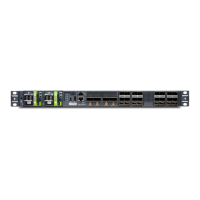

 To Next Page