Chapter 3 Optional Features and Accessories 29
Data Format and Barcode Types
On the Data Format screen, you can set up a prex and
sufx.
Use the rest of the menu options to set up different types
of barcodes, including 1D code types, composite Codes,
postal codes, and 2D code types.
Reading a Tag
Now that the Barcode Connector utility is set up, you can
start scanning barcodes.
1. Minimize the Barcode Connector utility.
2. Open an application or document to receive the
barcode data and put the cursor where you want the
data to be placed.
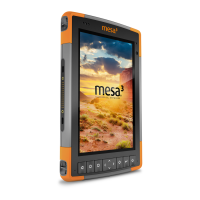
3. The barcode imager is located on the top of the Mesa 3
when in portrait mode. Aim the barcode imager at the
barcode.
4. The distance required between the barcode and Mesa
3 varies depending on the barcode being read. There
is a red aiming LED that helps you aim at the correct
barcode. Press the scan button. When the barcode is
successfully scanned, the barcode information is placed
in your document.
Troubleshooting the Barcode Imager
If the barcode imager is not functioning correctly, you can
set it to factory default settings. Follow these steps:
1. Launch Barcode Connector.
2. Scan the Set Factory Default barcode, shown here.


 To Next Page