EasyManua.ls Logo

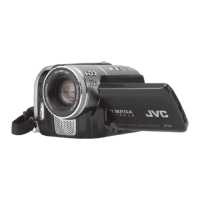
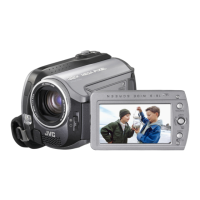
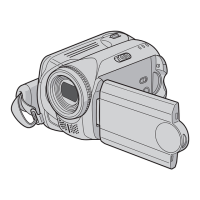
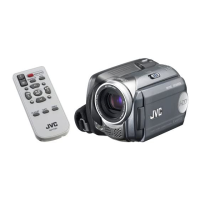
JVC Everio GZ-MG630 - User Manual

JVC Everio GZ-MG630
6 pages
Print Icon
To Next Page IconTo Next Page
Loading...
Q Close the LCD monitor to turn off the camcorder.
R Attach the battery pack, then connect the AC adapter.
The battery (BN-VF808U) will take 110 minutes to
completely charge.
The power/charge lamp blinks to indicate charging has
started. When the lamp goes out, charging is fi nished.
Charging the Battery Pack
How to Use the Touch Sensor
L How to change the MENU settings
L Using on-screen buttons
A
To select an on-screen
button appearing on
the left side, touch the
portion of the sensor
next to the on-screen
button.
B
To select an on-screen button appearing at the
bottom of the screen, touch the buttons underneath
them.
L How to play back your videos
Q Touch the MENU
button.
R Slide your fi nger up
and down on the
Touch Sensor.
S Touch the OK button.
Q
Press the PLAY/REC
button to display
thumbnails on the screen.
R Highlight thumbnail
using Touch Sensor
and touch OK button.
Preparation:
Load the provided CD-ROM
into the PC.
In Windows Vista, the auto
play dialog box appears.
Q Click [Easy Installation].
Follow the on-screen
instructions.
R Click [Next].
S Click [Finish].
Everio MediaBrowser icon is
created on the desktop.
Recording Files
Preparation:
Q Open the LCD monitor to turn on the camcorder.
R Slide the mode switch to select (video or still image)
mode.
S Press the PLAY/REC button to set on recording
mode.
The video camera
icon (!) represents
recording video.
The camera icon (#)
represents recording
stills.
Installing the Software to the PC
Video (!) mode
Press the START/STOP button to start or stop recording.
You can take pictures during video recording only by
pressing SNAPSHOT button.
Still image (#) mode
Press the SNAPSHOT button to take pictures.
To view the video or image you just recorded;
Press the QUICK REVIEW (
)
button.
During the preview you can
delete the video or image by
pressing the DELETE ( $ ) button.
Video (!) mode
Press the INFO button twice
or the INFO button and then
select
;
.
Still image (#) mode
Press the INFO button.
L Checking the remaining battery power
2
13
Power/Charge lamp
Battery Pack
AC Adapter
To AC Outlet
(110V to 240V)
Open the cover
The battery pack is
not charged at the
time of purchase.
Access lamp
The sensors do not function if you touch them with
your fi nger nail or with gloves on.

Other manuals for JVC Everio GZ-MG630

Questions and Answers

  • W
    williamsjessicaSep 9, 2025
    Why does my JVC Everio GZ-MG630 turn off after warming up from a low temperature?
    • W
      wattsbrandonSep 9, 2025
      If your JVC Camcorder displays a low temperature message and then turns off when it warms up, it may be performing a self-check. Simply turn the camcorder on again to resume using it.
  • R
    Ronald BeckerAug 23, 2025
    How to troubleshoot no power on my JVC Camcorder?
    • A
      andrew80Aug 23, 2025
      If your JVC Camcorder is not getting power, make sure the AC adapter is correctly connected and the battery pack is fully recharged.
  • D
    Deanna SimsAug 25, 2025
    What to do if the battery display is incorrect on my JVC Everio GZ-MG630?
    • S
      Stephen ThompsonAug 25, 2025
      If the remaining battery display on your JVC Camcorder is incorrect, fully charge the battery pack, let it run down completely, and then recharge it again. Note that using the camcorder for extended periods in very high or low temperatures, or repeatedly charging the battery, can also cause the display to be inaccurate.
  • A
    Anna HurstAug 26, 2025
    How to brighten a dark recording on my JVC Everio GZ-MG630?
    • S
      Steven BradfordAug 27, 2025
      If your recorded subject appears too dark on your JVC Camcorder, try using backlight compensation. You can also set '[GAIN UP]' to '[AGC]' or '[AUTO]'. Alternatively, use the '[NIGHT]' scene select option or adjust the brightness setting to the '[+]' side.
  • B
    Brandon McmahonAug 27, 2025
    How to darken a bright recording on my JVC Everio GZ-MG630 Camcorder?
    • M
      Miss Madison Woods DDSAug 28, 2025
      If your recorded subject is too bright when using your JVC Camcorder, turn off the backlight compensation if it's currently enabled. Additionally, adjust the brightness setting to the '[–]' side.
  • M
    Marilyn OsborneAug 29, 2025
    Why isn't the focus adjusting automatically on my JVC Camcorder?
    • M
      Mr. Gregory Morgan DDSAug 29, 2025
      If the focus on your JVC Camcorder is not adjusting automatically, try wiping the lens with a lens cleaning cloth. If you are recording in a dark environment or the subject lacks contrast, you may need to adjust the focus manually.
  • J
    jgoodwinSep 18, 2025
    Why aren't HDMI-CEC functions working properly with my JVC Everio GZ-MG630?
    • J
      Jessica ParkSep 18, 2025
      HDMI-CEC functions may not work correctly between your JVC Camcorder and TV due to varying TV specifications, even if they are HDMI-CEC compliant. In such cases, set '[HDMI CONTROL]' to '[OFF]'.
  • T
    Theodore ThompsonSep 18, 2025
    Why is the continuous shooting speed slow on my JVC Camcorder?
    • A
      Allen StuartSep 18, 2025
      The continuous shooting speed on your JVC Camcorder may slow down after continuous shots. Additionally, the speed may decrease depending on the recording media or under certain recording conditions.
  • J
    joanna20Sep 7, 2025
    What to do if the image or sound doesn't appear properly when connecting my JVC Everio GZ-MG630 to a TV via HDMI?
    • M
      mary41Sep 7, 2025
      If the image or sound does not appear properly on your TV when connecting your JVC Camcorder via HDMI, try disconnecting and reconnecting the HDMI cable. If that doesn't work, turn both the camcorder and the TV off and then on again.
  • C
    Colleen ChristianSep 4, 2025
    Why is my JVC Everio GZ-MG630 Camcorder operating slowly?
    • K
      Kenneth WhiteSep 4, 2025
      If your JVC Camcorder operates slowly when switching between video and still image modes or when powering on/off, it could be due to a large number of files stored on the camcorder. Copying all files from the camcorder to your computer and then erasing them from the camcorder is recommended.

Summary

Charging the Battery Pack

Checking Battery Power

Instructions on how to check the remaining battery power in Video or Still Image modes.

Using the Touch Sensor

Changing Menu Settings

Guide on how to navigate and adjust camcorder menu settings using the touch sensor.

Playback and On-Screen Controls

Instructions for playing back videos and interacting with on-screen buttons.

Recording Files

Video Recording Mode

Steps for starting/stopping video recording and taking still pictures during video.

Still Image Recording Mode

Instructions for taking still pictures and reviewing/deleting them.

Installing Software for PC

Everio MediaBrowser Setup

Process for installing the Everio MediaBrowser software onto a personal computer.

Making Backup on PC

PC Backup Preparation

Steps for preparing PC backup, including software installation and camcorder connection.

Viewing Files on TV

Instructions on connecting the camcorder to a TV using AV or HDMI connectors.

Playback Operation on TV

Guide to turning on devices, setting TV mode, and starting playback after TV connection.

JVC Everio GZ-MG630 Specifications

General IconGeneral
BrandJVC
ModelEverio GZ-MG630
CategoryCamcorder
LanguageEnglish

Related product manuals