58 EN
FEATURE:
Slow-Motion Playback
PURPOSE:
To allow slow-speed search in either direction during
video playback.
OPERATION:
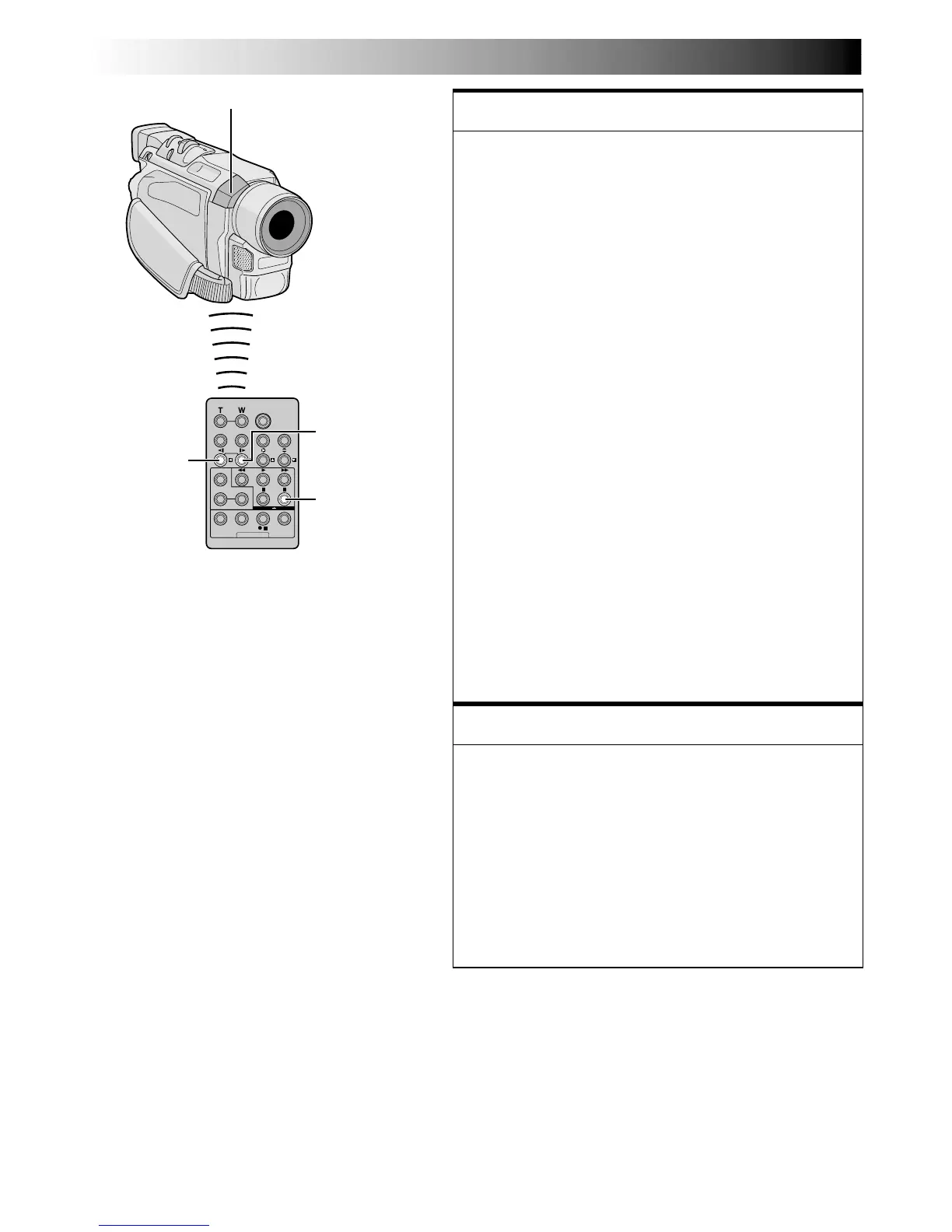
1) To change from normal to Slow-Motion Playback,
press SLOW (
9
or
0
) more than approx. 2 seconds.
After approx. 1 minute in Slow Rewind or approx.
2 minutes in Slow Forward, normal playback
resumes.
䡲 To stop Slow-Motion Playback, press PLAY (
4
).
NOTES:
●
You can also engage Slow-Motion Playback from
Still Playback by pressing SLOW more than approx.
2 seconds.
●
During Slow-Motion Playback, due to digital image
processing, the picture may take on a mosaic effect.
●
After SLOW
(
9
or
0
)
is pressed and held, the still
image may be displayed for a few seconds,
followed by a blue screen for a few seconds. This is
not a malfunction.
●
There may be a small margin between the slow-
motion playback start point you chose and the
actual start point for Slow-Motion Playback.
●
During Slow-Motion Playback, there will be
disturbances in video and the picture may seem
unstable, especially with steady images. This is not a
malfunction.
●
During Slow-Motion Playback, press PAUSE
(6)
to
pause playback.
FEATURE:
Frame-By-Frame Playback
PURPOSE:
To allow frame-by-frame search during video playback.
OPERATION:
1) To change from normal to Frame-By-Frame
Playback, press SLOW (
0
) repeatedly for forward or
SLOW (
9
) repeatedly for reverse. Each time it is
pressed, the frame is played back.
NOTE:
You can also engage Frame-By-Frame Playback from
Still Playback by pressing SLOW
(
9
or
0
)
repeatedly.
USING THE REMOTE CONTROL UNIT
(cont.)
PAUSE
Remote sensor
SLOW Forward
Button
SLOW
Rewind Button


 To Next Page