56
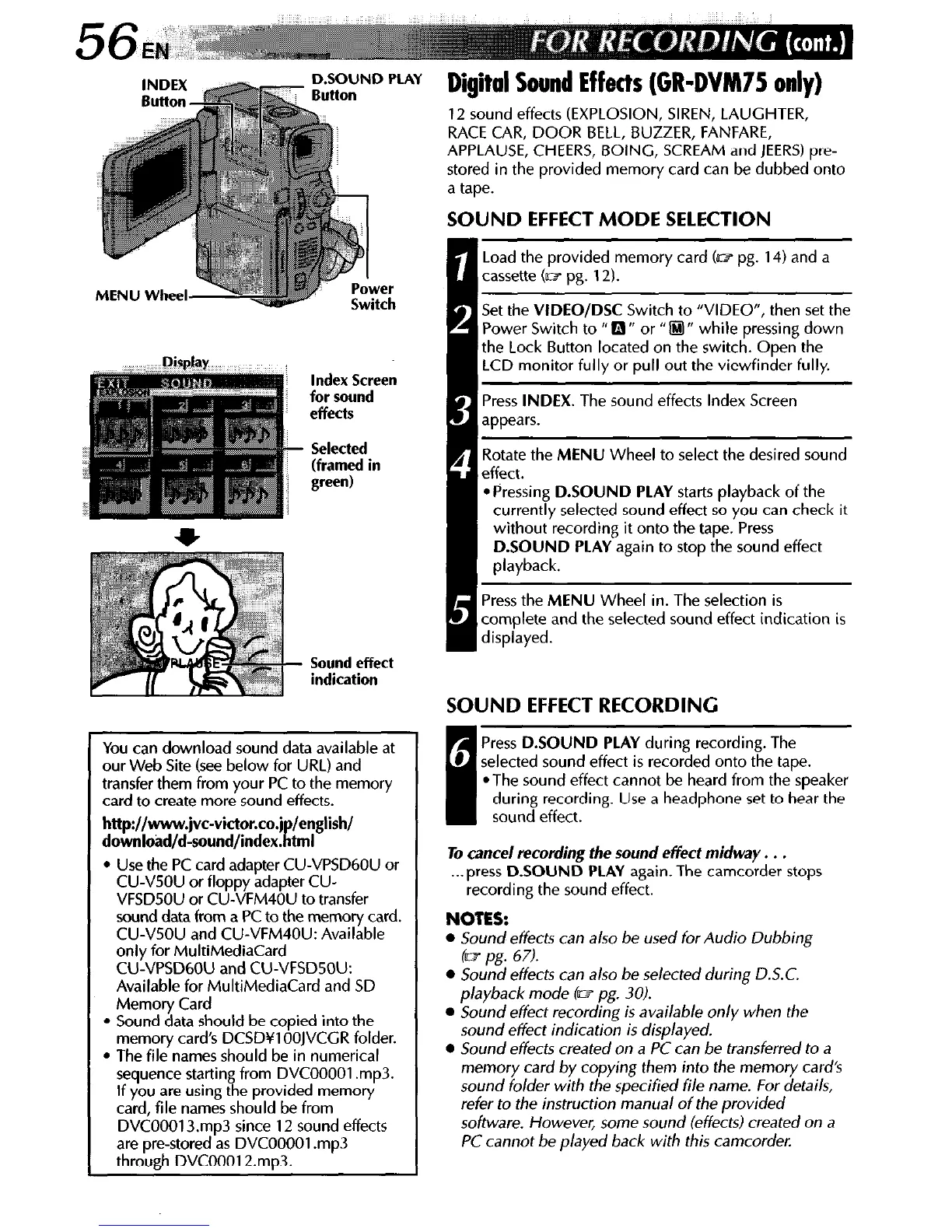
__ ~ _ &SOUND PLAY
. Button
Power
Switch
Index Screen
for sound
effects
- Selected
(framed in
green)
Sound effect
indication
You can download sound data available at
our Web Site (see below for URL) and
transfer them from your PC to the memory
card to create more sound effects.
http://www.jvc-victor.co.j /english/
download/d-sound/index. tml I:
l
Use the PC card adapter CU-VPSD60U or
CU-VSOU or floppy adapter CU-
VFSD50U or CU-VFM40U to transfer
sound data from a PC to the memory card.
CU-VSOU and CU-VFM40U: Available
only for MultiMediaCard
CU-VPSD60U and CU-VFSDSOU:
Available for MultiMediaCard and SD
Memory Card
l
Sound data should be copied into the
memory cards DCSDYl OOJVCGR folder.
l
The file names should be in numerical
sequence starting from DVCOOOOl .mp3.
If you are using the provided memory
card, file names should be from
DVCOOOl3.mp3 since 12 sound effects
are pre-stored as DVCOOOOl .mp3
through DVCOOOl2.mp3.
Digital Sound Effects (GR-DVM75 only)
12 sound effects (EXPLOSION, SIREN, LAUGHTER,
RACE CAR, DOOR BELL, BUZZER, FANFARE,
APPLAUSE, CHEERS, BOING, SCREAM and JEERS) pre-
stored in the provided memory card can be dubbed onto
a tape.
Set the VIDEO/DSC Switch to “VIDEO”, then set the
Power Switch to ” 0 ” or I’ @I ’ while pressing down
the Lock Button located on the switch. Open the
LCD monitor fully or pull out the viewfinder fully.
Press INDEX. The sound effects Index Screen
appears.
SOUND EFFECT MODE SELECTION
1
Load the provided memory card (= pg. 14) and a
cassette (= pg. 12).
1 Rotate the MENU Wheel to select the desired sound
effect.
l
Pressing D.SOUND PLAY starts playback of the
currently selected sound effect so you can check it
without recording it onto the tape. Press
D.SOUND PLAY again to stop the sound effect
playback.
Press the MENU Wheel in. The selection is
complete and the selected sound effect indication is
displayed.
SOUND EFFECT RECORDING
8
u
Press D.SOUND PLAY during recording. The
selected sound effect is recorded onto the tape.
*The sound effect cannot be heard from the speaker
during recording. Use a headphone set to hear the
sound effect.
To cancel recording the sound effect midway. . .
. ..press D.SOUND PLAY again. The camcorder stops
recording the sound effect.
NOTES:
l
Sound effects can also be used for Audio Dubbing
(w pg. 67).
l
Sound effects can a/so be selected during D.S.C.
playback mode (w pg. 30).
l
Sound effect recording is available only when the
sound effect indication is displayed.
l
Sound effects created on a PC can be transferred to a
memory card by copying them into the memory card’s
sound folder with the specified file name. For details,
refer to the instruction manual of the provided
sofiware. However, some sound (effects) created on a
PC cannot be played back with this camcorder.


 To Next Page
 Loading...