EN
57
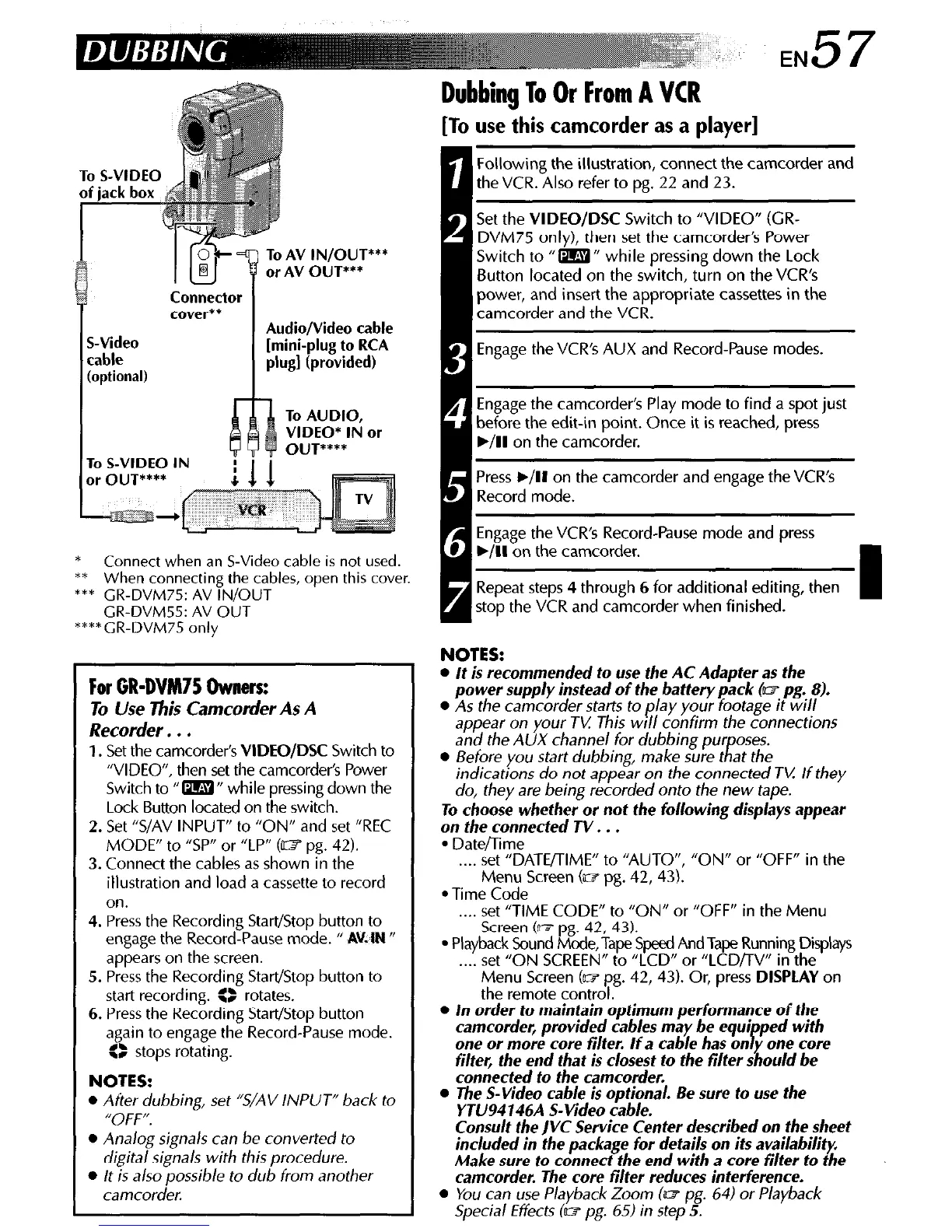
To AV IN/OUT***
or AV OUT***
Connector
cover**
Audio/Video cable
[mini-plug to RCA
plug] (provided)
To AUDIO,
VIDEO* IN or
OUT****
To S-VIDEO IN
! I I
*
Connect when an S-Video cable is not used.
** When connecting the cables, open this cover.
*** CR-DVM75: AV IN/OUT
CR-DVM55: AV OUT
****CR-DVM75 only
For GR-DVM75 Ownerr
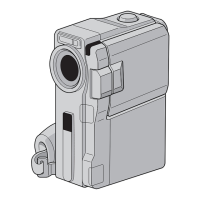
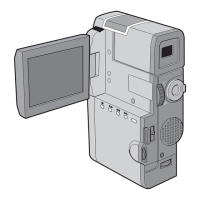
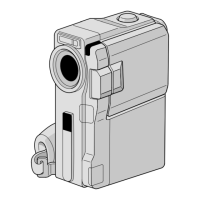
To Use This Camcorder As A
Recorder. . .
1. Set the camcorder’s VIDEO/DSC Switch to
“VIDEO”, then set the camcorder’s Power
Switch to “m” while pressing down the
Lock Button located on the switch.
2. Set “S/AV INPUT” to “ON” and set “REC
MODE” to ‘9” or “LP” (m pg. 42).
3. Connect the cables as shown in the
illustration and load a cassette to record
on.
4. Press the Recording Start/Stop button to
engage the Record-Pause mode. ‘I AV.tt-4 n
appears on the screen.
5. Press the Recording Start/Stop button to
start recording. :) rotates.
6. Press the Recording Start/Stop button
again to engage the Record-Pause mode.
<Z stops rotating.
NOTES:
l
After dubbing, set “S/AV INPUT” back to
“OFF”.
l
Analog signals can be converted to
digital signals with this procedure.
l
It is also possible to dub from another
camcorder.
Dubbing To Or From A VCR
[To use this camcorder as a player]
Following the illustration, connect the camcorder and
the VCR. Also refer to pg. 22 and 23.
Set the VIDEO/DSC Switch to “VIDEO” (GR-
DVM75 only), then set the camcorder’s Power
Switch to “m” while pressing down the Lock
Button located on the switch, turn on the VCR’s
power, and insert the appropriate cassettes in the
camcorder and the VCR.
Engage the VCR’s AUX and Record-Pause modes.
f ’
1 Engage the camcorder’s Play mode to find a spot just
before the edit-in point. Once it is reached, press
./II on the camcorder.
Press W/II on the camcorder and engage the VCR’s
Record mode.
#
Engage the VCR’s Record-Pause mode and press
b/II on the camcorder.
Repeat steps 4 through 6 for additional editing, then
stop the VCR and camcorder when finished.
NOTES:
l
It is recommended to use the AC Adapter as the
power supply instead of the battery pack (w pg. 8).
l
As the camcorder starts to play your footage it will
appear on your TV This WI// confirm the connections
and the AfJX channel for dubbing pur oses.
l
Before you start dubbing, make sure t
R
at the
indications do not appear on the connected TK If they
do, they are being recorded onto the new tape.
To choose whether or not the following disp/ays appear
on the connected TV. . .
l
Datefime
.
set “DATERIME” to “AUTO”, “ON” or “OFF” in the
Menu Screen (m pg. 42,43).
l
Time Code
.
set “TIME CODE” to “ON” or “OFF” in the Menu
Screen (07 pg. 42, 43).
l
Playback Sound Mode, Tape Speed And Tape Running Displays
. . set “ON SCREEN” to “LCD” or “LCD/TV” in the
Menu Screen (~1 pg. 42,43). Or, press DISPLAY on
the remote control.
l
In order to maintain optimum performance of the
camcorder, provided cables may be equi
one or more core filter. If a cable has
P
ped with
on y one core
fiber, the end that is closest to the filter should be
connected to the camcorder.
l
The S-Video cable is optional. Be sure to use the
YTU94146A S-Video cable.
Consult the IVC Service Center described on the sheet
included in the package for details on its availability,
Make sure to connect the end with a core filter to the
camcorder. The core filter reduces interference.
l
You can use Playback Zoom (07 pg. 64) or Playback
Special Effects (w pg. 65) in step 5.


 To Next Page
 Loading...