60
EN ’
‘,i”
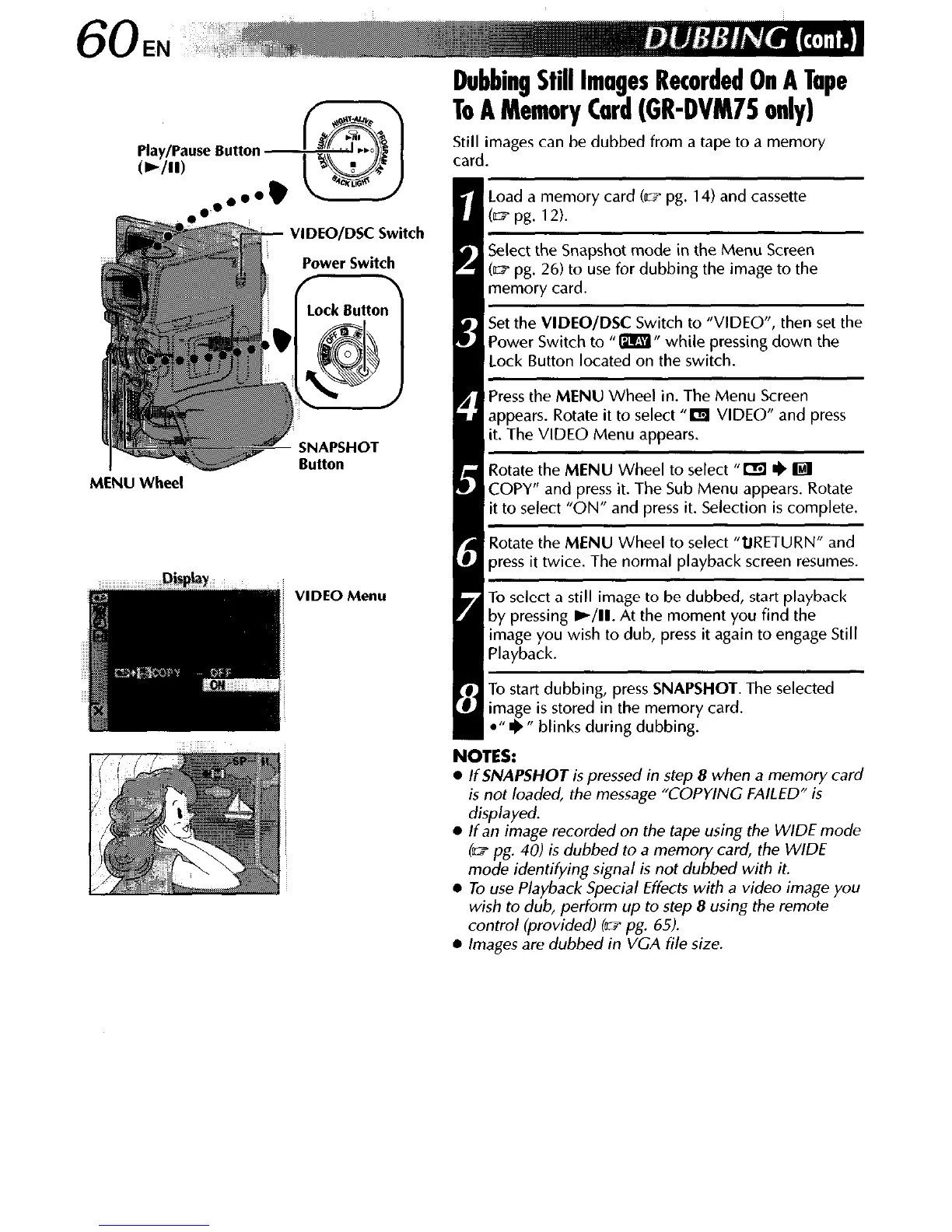
VIDEO/DSC Switch
Power Switch
:ock
1
SNAPSHOT
Button
MENU Wheel
VIDEO Menu
Dubbing Still Images Recorded On A Tape
To A Memory Card (GR-DVM75 only)
Still images can be dubbed from a tape to a memory
card.
1 Load a memory card Cm pg. 14) and cassette
ID pg. 12).
ielect the Snapshot mode in the Menu Screen
UZF pg. 26) to use for dubbing the image to the
nemory card.
jet the
VIDEO/DSC
Switch to “VIDEO”, then set the
ler Switch to A” while pressing down the
.ock Button located on the switch.
‘ress the
MENU
Wheel in. The Menu Screen
Ippears. Rotate it to select “a VIDEO” and press
t. The VIDEO Menu appears.
totate the
MENU
Wheel to select “K3 I) IF&l
3OPY” and press it. The Sub Menu appears. Rotate
t to select “ON” and press it. Selection is complete.
lotate the
MENU
Wheel to select “tiRETURN” and
press it twice. The normal playback screen resumes.
To select a still image to be dubbed, start playback
by pressing )/II. At the moment you find the
image you wish to dub, press it again to engage Still
Playback.
To start dubbing, press
SNAPSHOT.
The selected
image is stored in the memory card.
l
” I)” blinks during dubbing.
NOTES:
l
If
SNAPSHOT
is pressed in step 8 when a memory card
is not loaded, the message “COPYING FAILED” is
displayed.
l
If an image recorded on the tape using the WIDE mode
(w pg. 40) is dubbed to a memory card, the WIDE
mode identifying signal is not dubbed with it.
l
To use Playback Special Effects with a video image you
wish to dub, perform up to step 8 using the remote
control (provided) Co? pg. 65).
l
Images are dubbed in VGA file size.


 To Next Page