64
4
FEATURE: Slow-Motion Playback
PURPOSE:
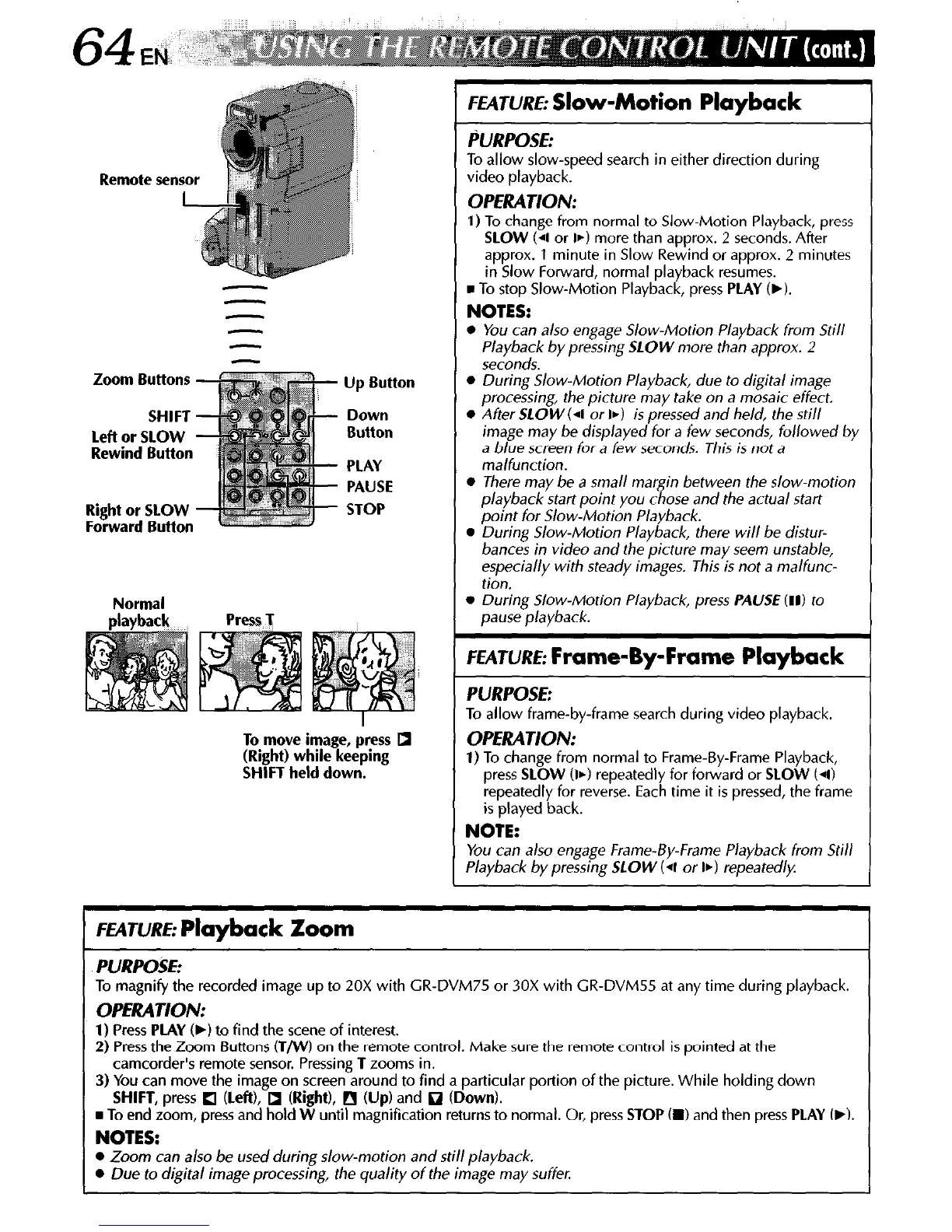
Remote sensor
Zoom Buttons
SHIFT
Lefl or SLOW
Rewind Button
Right or SLOW
Forward Button
Up Button
Down
Button
PLAY
PAUSE
STOP
Normal
playback
Press T
To move image, press 0
(Right) while keeping
SHIFT held down.
To allow slow-speed search in either direction during
video playback.
OPERATION:
1) To change from normal to Slow-Motion Playback, press
SLOW (4 or 1~) more than approx. 2 seconds. After
approx. 1 minute in Slow Rewind or approx. 2 minutes
in Slow Forward, normal playback resumes.
n
To stop Slow-Motion Playback, press PLAY (b).
NOTES:
l
You can also engage Slow-Motion Playback from Sri/l
Playback by pressing SLOW more than approx. 2
seconds.
l
During Slow-Motion Playback, due to digital image
processing, the picture may take on a mosaic effect.
0 After SLOW (4 or lb) is pressed and he/d, the still
image may be displayed for a few seconds, followed by
a blue screen for a few seconds. This is not a
ma/function.
l
There may be a small margin between the slow-motion
playback start point you chose and the actual start
point for Slow-Motion Playback.
l
During Slow-Motion Playback, there will be distur-
bances in video and the picture may seem unstable,
especially with steady images. This is not a malfunc-
tion.
0 During Slow-Motion Playback, press PAUSE (II) to
pause playback.
FEATURE:
Frame-By-Frame Playback
PURPOSE:
To allow frame-by-frame search during video playback.
OPERATION:
1) To change from nomial to Frame-By-Frame Playback,
press SLOW (lb) repeatedly for forward or SLOW (4)
repeatedly for reverse. Each time it is pressed, the frame
is played back.
NOTE:
You can a/so engage Frame-By-Frame Playback from Still
Playback by pressing SLOW (4 or
lb)
repeatedly
FEATURE:
Playback Zoom
PURPOSE:
To magnify the recorded image up to 20X with CR-DVM75 or 30X with CR-DVM55 at any time during playback.
OPERATION:
1) Press PLAY (b) to find the scene of interest.
2) Press the Zoom Buttons (T/W) on the remote control. Make sure the remote control is pointed at the
camcorder’s remote sensor. Pressing T zooms in.
3) You can move the image on screen around to find a particular portion of the picture. While holding down
SHIFT, press 0 (Left), 0 (Right), 0 (Up) and
q
(Down).
n
To end zoom, press and hold W until magnification returns to normal. Or, press STOP Cm) and then press PLAY (w).
NOTES:
l
Zoom can also be used during slow-motion and still playback.
l
Due to digital image processing, the quality of the image may suffer.


 To Next Page
 Loading...