EasyManua.ls Logo

JVC GZ-MG130UA - User Manual

JVC GZ-MG130UA
60 pages
Print Icon
To Next Page IconTo Next Page
Loading...
EN
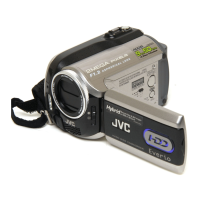
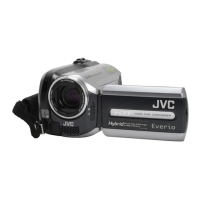
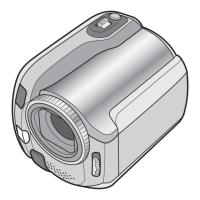
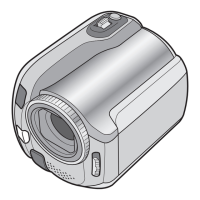
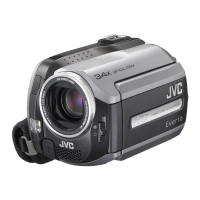
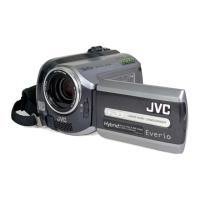
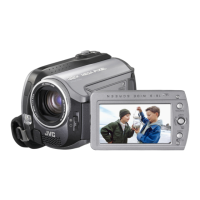
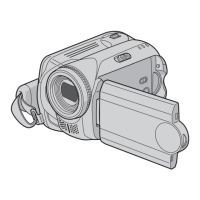
HARD DISK CAMCORDER
GZ-MG130UA
Dear Customer
Thank you for purchasing
this hard disk camera. Before
use, please read the safety
information and precautions
contained in pages 2 and 3 to
ensure safe use of this product.
For Future Reference:
Enter the Model No. (located on
the bottom of the camera) and
Serial No. (located on the battery
pack mount of the camera)
below.
Model No.
Serial No.
INSTRUCTIONS
ENGLISH

Table of Contents

Questions and Answers

  • J
    jkimAug 18, 2025
    Why is my JVC GZ-MG130UA Camcorder not recording?
    • S
      Stephanie MartinezAug 18, 2025
      If your JVC Camcorder isn't recording, first ensure that the recording medium isn't full. If it is, delete unnecessary files or replace the SD card. Also, make sure you've selected the correct recording medium in the settings.
  • T
    Taylor TaylorAug 20, 2025
    Why does the image aspect ratio look strange when watching images from my JVC GZ-MG130UA on TV?
    • J
      Jacob HernandezAug 20, 2025
      If your JVC Camcorder displays a strange aspect ratio when viewing images on your TV, adjust the [SELECT TV TYPE] settings to match the screen size of your connected TV.
  • C
    charlene50Aug 23, 2025
    Why won't my JVC GZ-MG130UA Camcorder turn on, or why is the battery life so short?
    • C
      Curtis KellyAug 23, 2025
      If your JVC Camcorder isn't turning on, or the battery life is very short even after a full charge, ensure you're using the camera within appropriate operating temperatures. If the issue continues, the battery may be worn out and need replacing.
  • Q
    qkingAug 26, 2025
    Why does the remaining battery power on my JVC Camcorder seem inaccurate?
    • K
      Kayla DaltonAug 26, 2025
      If the displayed amount of remaining battery power on your JVC Camcorder differs from the actual operating time, fully charge the battery and then let it run down completely. If the problem continues, the battery is likely worn out and needs replacing.
  • A
    Adam ThorntonAug 28, 2025
    How to fix JVC Camcorder when no power is supplied?
    • D
      Deanna HernandezAug 28, 2025
      If your JVC Camcorder isn't getting power, make sure the AC adapter is securely connected. If you're using a battery, detach it and re-attach it firmly, or replace the dead battery with a fully charged one.
  • A
    Alyssa NguyenAug 31, 2025
    Why do images on my JVC GZ-MG130UA Camcorder LCD monitor appear dark or whitish?
    • S
      Sandra MedinaAug 31, 2025
      If your JVC Camcorder's LCD monitor appears dark or whitish, try adjusting the brightness and angle of the LCD monitor. If adjusting the brightness doesn't help, consult your nearest JVC dealer because the LCD monitor’s LED light may have reached the end of its service life.
  • U
    ucampbellSep 2, 2025
    Why can't I playback footage on my JVC GZ-MG130UA Camcorder?
    • B
      barnettdanielSep 2, 2025
      If your JVC Camcorder isn't playing back footage, ensure you've selected the correct recording medium. If you're trying to watch images on a TV, make sure the TV's input mode or channel is set correctly for video playback.
  • C
    Cheryl PayneSep 4, 2025
    Why does my JVC GZ-MG130UA turn off accidentally?
    • B
      Brandon MooreSep 5, 2025
      If your JVC Camcorder accidentally turns off, it might be due to vibration or excessive sound triggering the drop detection function. Try moving to a more stable environment. You can also turn off the drop detection function by setting [DROP DETECTION] to [OFF]. To turn the camera back on, set the power/mode switch to OFF, and then to ON again.
  • S
    Stephen KnoxSep 7, 2025
    Why does no display appear on my JVC Camcorder?
    • R
      rzavalaSep 7, 2025
      If your JVC Camcorder does not display anything on the LCD monitor, and the camera has been idle for 5 minutes, it may have turned off automatically to save power. When using the battery pack, set the power/mode switch to OFF, then to ON. When using the AC adapter, perform any operation such as zooming. You can also try adjusting the brightness of the LCD monitor.
  • P
    paynebrandonSep 9, 2025
    What to do if files cannot be deleted from JVC GZ-MG130UA Camcorder?
    • M
      Megan ScottSep 9, 2025
      If you can't delete files on your JVC Camcorder, it's possible they are protected. Remove the protection from the files before attempting to delete them.

Summary

Indications on LCD Monitor

During Video and Still Image Recording

Explanation of indicators displayed on the LCD monitor during both video and still image recording.

Necessary Settings before Use

When Using an SD Card

Recording Files

Video Recording

Step-by-step guide on how to record video footage using the camcorder.

Still Image Recording

Instructions for capturing still photographs with the camcorder.

Zooming

How to operate the zoom lever to adjust the field of view during recording.

Manual Recording

Program AE

Using Program AE modes to automatically adjust exposure and shutter speed for optimal shots.

Manual Setting in Function Menu

Using the function menu for manual adjustments like focus and brightness.

Playing Back Files

Video Playback

How to play back recorded video files using the camera's interface.

Still Image Playback

How to view captured still images on the camera's LCD or connected TV.

File Search Function

Methods for searching and locating specific files by date or event.

Watching Images on TV

Guidance on connecting the camera to a TV to view recorded content.

Managing Files

Deleting and Protecting Files

Procedures for deleting unwanted files and protecting important ones from deletion.

Selecting and Deleting Files

How to select specific files for deletion from the camera's storage.

Playlists

Creating Playlists

Steps to organize recorded videos into custom playlists for preference-based viewing.

Playing Back Playlists

How to play back the created playlists, including starting from a specific scene.

Print Setting

DPOF Print Setting

Setting up print orders for images using the Digital Print Order Format (DPOF).

Copying Files

Copy to DVD Burner

Copying video files from the camera to a DVD disc using a DVD burner.

Troubleshooting

Cautions

Recording Medium Cautions

Guidelines to prevent corruption or damage to recorded data on media.

JVC GZ-MG130UA Specifications

General IconGeneral
Video FormatMPEG-2
Optical Zoom34x
Digital Zoom800x
Weight380g (without battery)
Image StabilizerElectronic
Focus AdjustmentAuto/Manual
White BalanceAuto/Manual
Microphone Operation ModeStereo
SensorCCD
Image FormatJPEG
InterfaceUSB 2.0
Recording MediaHDD
Image SensorCCD
LCD Screen2.7 inches
Recording SpeedSP/LP
White Balance PresetsFluorescent
Connector TypeUSB
Included AccessoriesUSB Cable, A/V Cable
Battery TypeLithium ion
Effective Pixels0.68 Mpix

Related product manuals