EasyManua.ls Logo

JVC GZ-MG145AA - User Manual

JVC GZ-MG145AA
60 pages
Print Icon
To Next Page IconTo Next Page
Loading...
EN
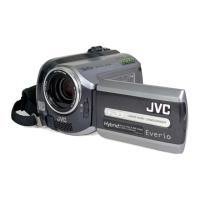
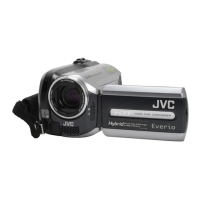
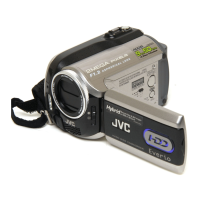
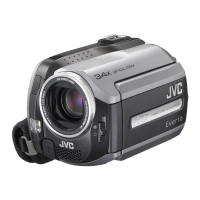
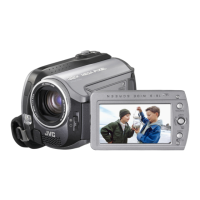
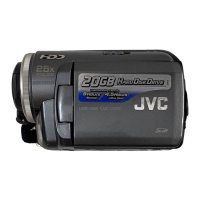
HARD DISK CAMCORDER
GZ-MG275AA
GZ-MG145AA
GZ-MG135AA
Dear Customer
Thank you for purchasing
this hard disk camera. Before
use, please read the safety
information and precautions
contained in pages 2 and 3 to
ensure safe use of this product.
INSTRUCTIONS
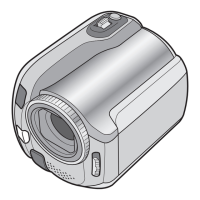
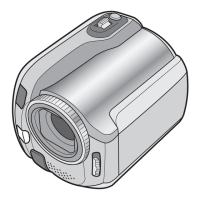
The camera illustrations appearing in this
instruction manual are of the GZ-MG135.
ENGLISH

Table of Contents

Questions and Answers

  • D
    donaldleeAug 19, 2025
    Why JVC GZ-MG145AA power does not turn on or battery operation time is extremely short?
    • J
      James GreenAug 19, 2025
      If your JVC Camcorder's power doesn't turn on or the battery life is very short after a full charge, ensure you're using the camera within appropriate operating temperatures. It's also possible that the battery is worn out and needs to be replaced.
  • B
    Brittany ClarkAug 21, 2025
    How to fix JVC GZ-MG145AA Camcorder when no power is supplied?
    • E
      Ernest WellsAug 21, 2025
      If your JVC Camcorder is not turning on, ensure the AC adapter is securely connected and the battery pack is firmly attached. If that doesn't work, try replacing the battery with a fully charged one.
  • W
    William ElliottAug 25, 2025
    Why no display appears on JVC GZ-MG145AA Camcorder?
    • C
      Casey BernardAug 25, 2025
      If no display appears on your JVC Camcorder, and the camera hasn't been operated for 5 minutes, it may have turned off automatically to save power. When using the battery pack, set the power/mode switch to OFF, then to ON again. If using the AC adapter, try zooming. You can also try adjusting the brightness of the LCD monitor.
  • J
    Jo HernandezAug 26, 2025
    Why access/charge lamp on JVC GZ-MG145AA Camcorder does not light during charging?
    • D
      donna53Aug 26, 2025
      If the access/charge lamp on your JVC Camcorder doesn't light during charging, it could be due to extreme temperatures. Charging is best done between 10°C and 35°C. Also, if the battery is already fully charged, the lamp won't light. Check the remaining battery power.
  • V
    Vanessa ZavalaAug 28, 2025
    What to do if JVC GZ-MG145AA Camcorder recording cannot be performed?
    • D
      Douglas AguilarAug 28, 2025
      If your JVC Camcorder isn't recording, it might be because the recording medium is full. Try deleting unnecessary files or replacing the SD card. Also, ensure that you have selected the correct recording medium.
  • M
    Michelle MitchellAug 30, 2025
    What to do if JVC Camcorder power was turned off accidentally?
    • G
      Glen HuertaAug 30, 2025
      If the power of your JVC Camcorder turned off accidentally, try moving to a location free from vibration or excessive sound. The drop detection function might have activated; set the power/mode switch to OFF, then ON again. To disable this function, set [DROP DETECTION] to [OFF].
  • N
    Nathan LeonardSep 2, 2025
    Why displayed amount of remaining battery power differs from the actual operating time on JVC GZ-MG145AA?
    • A
      Amanda ColeSep 2, 2025
      If the displayed amount of remaining battery power differs from the actual operating time on your JVC Camcorder, fully charge the battery and then let it run down completely. If the issue continues, the battery is likely worn out and needs replacement.
  • G
    Guy DukeSep 4, 2025
    Why images on JVC Camcorder LCD monitor appear dark or whitish?
    • S
      Stanley JohnsonSep 4, 2025
      If images on your JVC Camcorder's LCD monitor appear dark or whitish, try adjusting the brightness and angle of the LCD monitor. If the problem persists, the LCD monitor’s LED light may be nearing the end of its service life. Consult your nearest JVC dealer.
  • R
    Renee TurnerSep 6, 2025
    Why aspect ratio of the image is strange when watching images on JVC Camcorder on TV?
    • G
      gbradySep 6, 2025
      If the aspect ratio looks strange when watching images from your JVC Camcorder on your TV, adjust the [SELECT TV TYPE] settings to match your TV screen size.
  • M
    Michael MccormickSep 8, 2025
    Why 7REC indicator flashes during video recording on JVC GZ-MG145AA?
    • J
      jacobsianSep 8, 2025
      If the 7REC indicator flashes during video recording on your JVC Camcorder, the camera's temperature is likely increasing. If it continues to heat up, recording may stop to protect the recording medium. Turn off the power and wait for the camera to cool down.

Summary

Instructions

Safety Precautions

Caution on Replaceable Lithium Battery

Details hazards and handling instructions for the replaceable lithium battery used in the device.

Trademarks

Read This First!

Precautions on Handling Batteries

Provides essential precautions for safely handling and using the camera's battery packs.

Camera Accessories

How to Use the Everio Dock

Explains how to connect various cables to the Everio dock for expanded functionality.

Attaching the Shoulder Strap

Attaching the Core Filter

Details how to attach the core filter to the AC adapter's DC cord to reduce interference.

Camera Index and Controls

LCD Monitor Indications

Necessary Settings Before Use

Charging the Battery Pack

Step-by-step guide on how to charge the camera's battery pack and estimated charging times.

Language Setting

Date;Time Setting

Other Settings

Checking Remaining Battery Power

Instructions on how to check the remaining battery level and interpretation of the display.

Grip Adjustment

Guide on how to adjust the camera's grip for comfortable handling.

Lens Cover Operation

Instructions on how to open and close the lens cover to protect the camera's lens.

Tripod Mounting

Details on how to securely mount the camera onto a tripod using the mounting socket.

Using an SD Card

Video Recording

Still Image Recording

Zooming

LED Light and Flash Operation

Explains how to use the LED light and flash functions during recording.

Registering Files to Events

Checking Recording Media Space

Manual Recording

Program AE Settings

Explains automatic exposure settings like Portrait, Sports, Snow, Spotlight, and Twilight.

Nightscope Recording

Backlight Compensation

Spot Exposure Control

Manual Setting in Function Menu

Focus Adjustment

Details on how to manually adjust focus and lock exposure for optimal shots.

Brightness Adjustment

Guide to manually adjust the display brightness and exposure settings.

Shutter Speed and Aperture Priority

White Balance (WB) Adjustment

How to set white balance for accurate color reproduction under various lighting conditions.

Special Effects and Tele Macro

Explains how to apply special effects and use the tele macro function for close-up shots.

Playing Back Files

Video Playback Operations

How to play, pause, search, and control volume during video playback.

Watching Images on TV

Instructions for connecting the camera to a TV for playback and adjusting display settings.

Still Image Playback

File Search Function

Date Index Screen Search

Search for video files using the date index screen.

Event Screen Search

Search for video files registered to specific events.

Playback of Demonstration Files

Playback with Special Effects

Managing Files

Deleting and Protecting Files

How to delete or protect individual files or all files on the recording medium.

Viewing File Information

Changing Event Registration

Partial Delete (Edited Copy)

Creating Playlists

Playing Back Playlists

Other Playlist Operations

Changing Playlist Names

Instructions for renaming playlists.

Deleting a Playlist

How to delete playlists without affecting the original files.

Print Setting

DPOF Print Setting

Set print parameters for images using the Digital Print Order Format (DPOF).

Direct Printing with PictBridge

Printing Selected Still Images

Printing Using DPOF Settings

Copying Files

Using DVD Burner for Copying

How to copy video files from the camera to a DVD disc using a DVD burner.

Copying New Video Files to DVD

Selecting Video Files for Copying

Guide to select files from various lists for DVD creation.

Dubbing Video to VCR;DVD Recorder

Dubbing Video from VCR;DVD Player

Copying;Moving Still Image Files

Changing Menu Settings

Video Menu Settings (Quality, Zoom)

Adjusting video quality and maximum zoom ratio settings.

Advanced Video Settings

Image Size and ISO Gain

Settings for still image resolution and ISO sensitivity.

Image and General Settings

Drop Detection and Remote Control

Configuration for drop detection safety feature and remote control operation.

Demo Mode and Operation Sound

Settings for the demonstration mode and system operation sounds.

General Settings and Display Options

Clock and Date;Time Settings

How to set the camera's clock, date, and time display formats.

Reset and Power Saving Settings

Options for resetting settings and managing auto power off functionality.

Media Settings

HDD and SD Card Formatting

Instructions for cleaning the HDD, formatting the HDD, and formatting SD cards.

Troubleshooting Guide

Camera Not Supplied with Power

Troubleshooting steps for when the camera does not power on or display anything.

Power Issues and Battery Problems

Resolving issues with accidental power off, battery life, and charging indicators.

Troubleshooting Displays and Recording

LCD Monitor Issues

Addresses issues like dark or bright spots on the LCD and aspect ratio problems.

Recording Performance Problems

Solutions for recording failures, vertical lines, and missing date/time displays.

Troubleshooting Playback and Other Issues

Playback and File Deletion Issues

Resolving problems with playback, fader effects, noise, and file deletion.

Data Processing and SD Card Removal

Troubleshooting slow data processing and issues with removing the SD card.

Warning Indications

Battery and Date;Time Warnings

Interpreting battery level indicators and messages related to date/time settings.

Card and Recording Failure Warnings

Understanding errors for card issues, broken video management files, and recording failures.

Cleaning the Camera

Camera Specifications

Technical Specifications

Recording Time and Storage Capacity

General Cautions

Battery Pack Cautions

Important safety guidelines for handling, charging, and storing battery packs.

Recording Medium Cautions

Guidelines to prevent corruption or damage to recorded data on storage media.

LCD Monitor Care

Recommendations for preventing damage and prolonging the service life of the LCD monitor.

Main Unit Handling Precautions

CD-ROM Handling Guidelines

Glossary of Terms

JVC GZ-MG145AA Specifications

General IconGeneral
TypeHDD Camcorder
Image SensorCCD
Image Sensor Size (Alternative)1/6 inch
Digital Zoom800x
LCD Screen Size2.7 inches
Video FormatMPEG-2
Audio FormatDolby Digital
Weight380 g
LensKonica Minolta Lens
Still Image Resolution640 x 480
InterfaceUSB 2.0
Battery TypeLithium-Ion
Recording Media30GB HDD
LCD Screen Pixels123, 000
Image StabilizerElectronic

Related product manuals