
 To Next Page


T
Timothy PerezSep 3, 2025
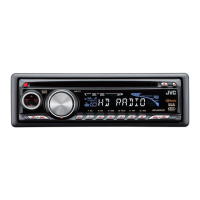
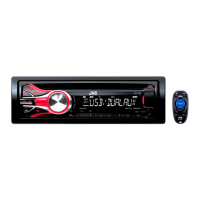
What does “NO TAG DATA” mean on my JVC KD-HDR71BT?
- SswarnerSep 3, 2025
If “NO TAG DATA” appears, the broadcast currently received does not support iTunes Tagging, or the broadcast does not provide PSD.

What does “NO TAG DATA” mean on my JVC KD-HDR71BT?
If “NO TAG DATA” appears, the broadcast currently received does not support iTunes Tagging, or the broadcast does not provide PSD.
How to fix JVC Car Receiver when no Bluetooth device is detected?
If no Bluetooth device is being detected, try searching from the Bluetooth device again or reset the unit.
What does “ERROR” mean on JVC Car Receiver?
If “ERROR” appears on the display of your JVC Car Receiver, try the operation again. If “ERROR” appears again, check if the device supports the function you have tried.
What does “NOT SUPPORT” mean when voice dialling on my JVC Car Receiver?
If “NOT SUPPORT” appears when trying to perform voice dial, the connected phone does not support this feature.
Why does my JVC KD-HDR71BT Car Receiver say “CANNOT PLAY”?
If your JVC Car Receiver displays “CANNOT PLAY”, it means the unit cannot detect the connected device. Check whether the connected device is compatible with this unit, ensure that the device contains files in the supported formats, and try reattaching the device.
What does “CANNOT MAKE NEW STATION” mean on my JVC Car Receiver?
If “CANNOT MAKE NEW STATION” appears, there is a problem creating a new station, such as a network issue.
Why is the iPod/iPhone not working with my JVC KD-HDR71BT Car Receiver?
If your iPod/iPhone isn't turning on or working, check the connection between the unit and the iPod/iPhone. You can also detach and reset the iPod/iPhone using a hard reset, or check whether the setting is appropriate.
Why is phone sound quality poor on JVC KD-HDR71BT Car Receiver?
If the phone sound quality is poor with your JVC Car Receiver, reduce the distance between the unit and the Bluetooth device. Also, move the car to a place where you can get better signal reception.
What to do if “MISWIRING CHK WIRING THEN RESET UNIT” appears on JVC KD-HDR71BT?
If you see “MISWIRING CHK WIRING THEN RESET UNIT” or “WARNING CHK WIRING THEN RESET UNIT” on your JVC Car Receiver's display, and no operations are possible, first ensure the terminals of the speaker leads are properly insulated with tape. If the message persists, it is recommended to consult your JVC car audio dealer or the kits supplying company.
What does “RESET 8” mean on JVC KD-HDR71BT Car Receiver?
If “RESET 8” appears on the display of your JVC Car Receiver and the Satellite Radio does not work at all, reconnect this unit and the Satellite Radio correctly, and then reset this unit.
Advises stopping the car before operation and careful volume adjustment for safety.
Guides on how to search for conventional and HD Radio stations using auto or manual methods.
Instructions on how to manually or automatically preset radio stations for quick access.
How to tag songs from HD Radio broadcasts for later purchase via iTunes.
How to recall stored radio stations using preset buttons or the menu.
How to connect and play audio files from CD or USB mass storage devices.
Guides on navigating through folders and selecting audio tracks for playback.
How to connect and play audio from an iPod or iPhone using the unit.
Steps to install the Pandora app and create an account for streaming.
How to connect and stream Pandora radio via Bluetooth or USB.
Step-by-step process to pair your Bluetooth-enabled phone or audio device with the unit.
How to manually connect or disconnect registered Bluetooth devices like phones or audio players.
How the unit handles incoming calls, including automatic source switching and display notifications.
How to end an ongoing phone call using the unit's controls or remote.
Storing and making calls to up to 6 contacts from the unit's memory.
Configuration options for Bluetooth phone settings like phonebook access, auto answer, ring tones, and mic level.
Guide to initiating calls via the hands-free menu using dial, received, missed, or phonebook options.
How to play audio wirelessly from a Bluetooth-enabled device.
Stream Pandora internet radio from a smartphone through the unit via Bluetooth.
Controls for loudness, volume adjust, subwoofer output, high-pass filter, beep tone, and amplifier gain.
Settings for radio tuning interval, mono mode, blend hold, IF band, and radio timer.
Managing Bluetooth pairings, PIN codes, auto connection, and device information.
Details on playable audio file formats, extensions, bit rates, and sampling frequencies.
Lists compatible iPod/iPhone models and notes on video file browsing and song order.
Guidelines for connecting USB devices, including compatibility, file systems, and character limits.
Information on Bluetooth version compatibility, signal conditions, and device disconnections.
Common issues like no sound, unit malfunction, or source selection problems and their remedies.
Problems related to radio reception, sound quality changes, and preset station storage.
Troubleshooting steps for memory full, tag already saved, no tag data, or transfer errors.
Problems with disc/device detection, playback order, elapsed time display, and file errors.
Further troubleshooting for unsupported devices, playback errors, and connection detection problems.
Solutions for pairing failures, connection errors, sound quality issues, and device detection problems.
Solutions for setup completion, station limits, and new station creation problems with Pandora.
Troubleshooting for subscription status, signal reception, channel availability, and unit reset for satellite radio.
Critical safety instructions for connecting power and speakers to prevent damage or hazards.
Instructions for physically installing the unit into the vehicle's dashboard.
Diagram and guidance for making standard electrical connections, including power and speakers.
 General
| Brand | JVC |
|---|---|
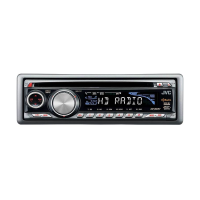
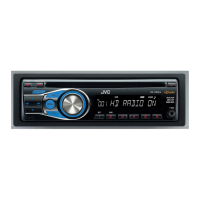
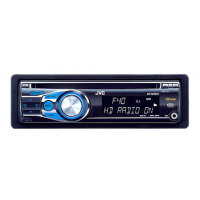
| Model | KD-HDR71BT |
| Category | Car Receiver |
| Tuner Bands | AM/FM |
| Bluetooth | Yes |
| USB Port | Yes |
| AUX Input | Yes |
| CD Player | Yes |
| HD Radio | Yes |
| Display Type | LCD |
| MOSFET Power IC | Yes |
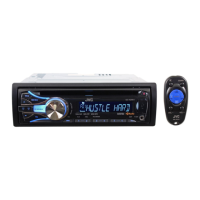
| Remote Control | Yes |
| Wireless Remote Control | Yes |
| Built-in Microphone | Yes |
| iPod/iPhone Control | Yes |
| Android Control | Yes |
| Type | Receiver |
| Preamp Outputs | 3 |
| RMS Power Output | 22 watts |
| Peak Output | 50W |
| Compatible Formats | MP3/WMA |
| Max Power Output | 50W x 4 |
| Steering Wheel Control | Yes |
| EQ Settings | 13-Band |