EasyManua.ls Logo

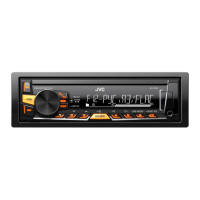
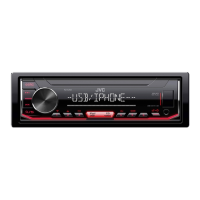
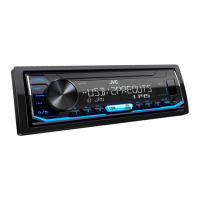
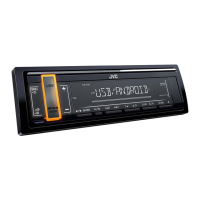
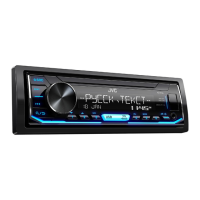
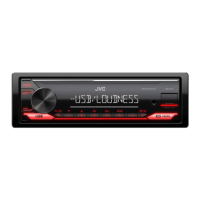
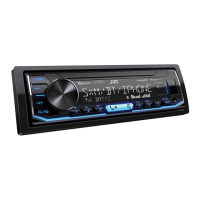
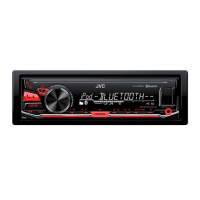
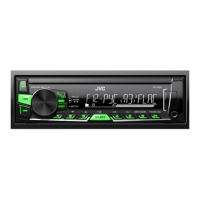
JVC KD-X120 - User Manual

JVC KD-X120
36 pages
Print Icon
To Next Page IconTo Next Page
Loading...
Data Size: B6L (182 mm x 128 mm)
Book Size: B6L (182 mm x 128 mm)
ENGLISH
FRANÇAIS
B5A-0118-00 [E/EN]
KD-X220 / KD-X125 / KD-X120
DIGITAL MEDIA RECEIVER
INSTRUCTION MANUAL
RÉCEPTEUR MULTIMÉDIA NUMÉRIQUE
MANUEL D’INSTRUCTIONS
Please read all instructions carefully before
operation to obtain the best possible performance
from the unit.
Veuillez lires les instructions attentivement avant
d’utiliser l’appareil afin d’obtenir les meilleures
performances possibles de l’appareil.
JS_JVC_KD_X220_E_EE_C_00.indd 1JS_JVC_KD_X220_E_EE_C_00.indd 1 17/9/2014 8:58:06 AM17/9/2014 8:58:06 AM

Questions and Answers

  • D
    daybillySep 10, 2025
    What does “MISWIRING CHECK WIRING THEN PWR ON” mean on JVC KD-X120 Receiver?
    • D
      Daniel Bryant IIISep 10, 2025
      If the message “MISWIRING CHECK WIRING THEN PWR ON” appears on your JVC Receiver, turn the power off. Check the speaker wires to ensure the terminals are properly insulated. Then, turn the power back on.
  • F
    fscottAug 22, 2025
    What to do if JVC KD-X120 Receiver shows 'MISWIRING CHECK WIRING Turn the power off, then check to be sure the terminals THEN PWR ON'?
    • S
      shannon68Aug 22, 2025
      If the message “MISWIRING CHECK WIRING Turn the power off, then check to be sure the terminals THEN PWR ON” appears, turn off the power and check to ensure the terminals of the speaker wires are properly insulated. Then, turn the power back on.
  • E
    Elizabeth TurnerAug 25, 2025
    Why is radio reception poor on my JVC KD-X120 Receiver?
    • D
      Dr. Valerie SkinnerAug 25, 2025
      To improve radio reception, ensure the antenna is firmly connected and pull the antenna out completely.
  • K
    Kelly MooreAug 27, 2025
    What to do if JVC KD-X120 Receiver shows 'CANNOT PLAY' flashes and/or connected device cannot be detected?
    • J
      Joshua AguirreAug 27, 2025
      If “CANNOT PLAY” flashes, verify that the connected device is compatible with the JVC Receiver and that the files are in supported formats. Also, try reattaching the device.
  • L
    Lori GordonAug 28, 2025
    What to do if JVC Receiver shows 'NO DEVICE' or 'READING' keeps flashing?
    • A
      Aaron HallAug 28, 2025
      If you see “NO DEVICE” or “READING” flashing, try switching off the developer options on your Android device and reconnecting it.
  • F
    fcombsAug 29, 2025
    Why sound cannot be heard during playback on JVC Receiver?
    • T
      Taylor JonesAug 29, 2025
      If there's no sound during playback, reconnect the Android device. If in [AUDIO MODE], launch, relaunch, or try another media player application. You can also restart the Android device.
  • B
    Brianna KennedySep 18, 2025
    Why are correct characters not displayed on my JVC KD-X120?
    • K
      Kenneth MorganSep 18, 2025
      Your JVC Receiver can only display uppercase letters, numbers, and a limited number of symbols. Uppercase Cyrillic letters can also be displayed if [???????] is selected.
  • T
    Tammy MartinezSep 12, 2025
    Why can't I playback in [AUTO MODE] on my JVC KD-X120?
    • C
      christina84Sep 12, 2025
      If you cannot playback in [AUTO MODE] on your JVC Receiver, first ensure that the JVC MUSIC PLAY APP is installed on your Android device. If it is, try reconnecting the Android device and selecting the appropriate control mode. If the problem persists, the connected Android device may not support [AUTO MODE].
  • J
    joneskevinSep 8, 2025
    How to improve radio reception on JVC KD-X120 Receiver?
    • G
      garciajamieSep 8, 2025
      If you're experiencing poor radio reception with your JVC Receiver, make sure the antenna is firmly connected. Also, try pulling the antenna out completely to improve the signal.
  • K
    Keith WilsonSep 5, 2025
    What to do if JVC Receiver cannot playback at [AUTO MODE]?
    • A
      Anthony Lara Jr.Sep 5, 2025
      If you cannot playback in [AUTO MODE], ensure that the JVC MUSIC PLAY APP is installed on the Android device. Also, try reconnecting the Android device and selecting the appropriate control mode.

Summary

Health and Environmental Precautions

Proper Disposal of Electronic Waste and Batteries

Guidelines for environmentally sound disposal of old electronic equipment and batteries, including lead warning.

Compliance and Manufacturer Information

Regulatory Declarations (EMC, RoHS)

Statements of conformity to EMC Directive 2004/108/EC and RoHS Directive 2011/65/EU.

Before Use: Safety and Maintenance

Essential Safety Guidelines and Warnings

Critical warnings and cautions for safe operation and user protection.

Manual Usage and Unit Care

Guidance on how to read the manual and perform basic maintenance like cleaning.

Unit Basics and Controls

Faceplate Overview and Basic Operations

Identification of faceplate components and instructions for power, volume, and source selection.

Unit Mounting and Faceplate Handling

Instructions for attaching, detaching the faceplate, and mounting the unit.

System Reset Procedure

Steps to perform a system reset, which will also erase preset adjustments.

Getting Started: Initial Setup

Initial Setup: Demo, Clock, and Basic Settings

Step-by-step guide for cancelling the demonstration, setting the clock, and configuring basic system settings.

USB, iPod, and Android Device Management

Connecting and Controlling Devices

Instructions for connecting USB, iPod, and Android devices and basic playback controls.

Advanced Media Playback and Search

Features for selecting control modes, music drives, searching files, and audiobook playback.

Radio Operations and Features

Station Tuning and Preset Memory

How to search for radio stations, store them as presets, and recall them.

Advanced Radio Settings and Functions

Using radio timer, SSM, local seek, and adjusting reception and program search settings.

AUX and Bluetooth Connectivity

Connecting External Audio Sources

Guidance on connecting portable audio players via AUX and setting up Bluetooth devices.

Audio Settings and Sound Customization

Equalizer and Sound Enhancement Options

Adjusting sound profiles using presets, custom EQ, and features like Bass Boost and Loudness.

Subwoofer, Speaker, and Volume Configuration

Settings for subwoofer output, speaker levels, fader/balance, and source volume adjustments.

Display and Illumination Settings

Screen Brightness and Scrolling Control

Adjusting display brightness for day/night modes and controlling information scrolling behavior.

Button Color and Illumination Customization

Changing button illumination color and adjusting display color based on car headlights.

System Information and Compatibility

File Formats and Device Compatibility

Supported media file formats, USB device requirements, and compatible iPod/iPhone/Android models.

Software Features and System Details

Information on Android OS support, JVC Music Control, and Cyrillic character display.

Troubleshooting and Problem Resolution

General and Radio Troubleshooting

Solutions for common issues like no sound, source selection problems, and poor radio reception.

USB;iPod and Android Device Issues

Troubleshooting steps for playback errors, device detection problems, and Android-specific issues.

Technical Specifications

Tuner, USB, and Auxiliary Specifications

Detailed technical specifications for the tuner, USB interface, and auxiliary input.

Audio, General, and Physical Specifications

Specifications covering audio performance, general operating parameters, and physical dimensions.

Installation and Wiring Guide

Unit Mounting and Removal Procedures

Step-by-step instructions for installing the unit in the vehicle and its removal.

Wiring Connections and Parts Identification

Guidance on wiring connections, ISO connector details, and identification of installation parts.

JVC KD-X120 Specifications

General IconGeneral
TypeDigital Media Receiver
DIN Size1 DIN
Power Output50 W x 4
RMS Power Output22 W x 4
RMS Power Bandwidth20 Hz - 20 kHz
TunerAM/FM
BluetoothYes
USB PortYes
AUX InputYes
Display TypeLCD
Preamp Voltage2.5 V
Sub Preamp OutputsNo
USB InputYes
iPod CompatibilityYes
Android CompatibilityYes
HD RadioNo
Satellite Radio ReadyNo
Steering Wheel Control CompatibleYes
Remote ControlNo
FaceplateDetachable
MP3 PlaybackYes
WMA PlaybackYes
AAC PlaybackYes
Peak Output200 Watts

Related product manuals