ENGLISH
5
[F/W UPDATE]
[UPDATE SYSTEM]
[F/W UP
xxxx]
[YES]: Starts upgrading the firmware. ;
[NO]: Cancels (upgrading is not activated).
For details on how to update the firmware, visit
<http://www.jvc.net/cs/car/>.
[FACTORY
RESET]
[YES]: Resets the settings to default (except the
stored station). ; [NO]: Cancels.
[CLOCK]
[TIME SYNC]
[ON]: The clock time is automatically set using
the Clock Time (CT) data in FM Radio Broadcast
Data System signal. ; [OFF]: Cancels.
[CLOCK
DISPLAY]
[ON]: The clock time is shown on the
display even when the unit is turned off. ;
[OFF]: Cancels.
[ENGLISH]
Select the display language for menu and music
information if applicable.
By default, [ENGLISH] is selected.
[ESPANOL]
RADIO
• “ST” or “STEREO” lights up when receiving an FM stereo broadcast with sufficient signal strength.
Search for a station
1
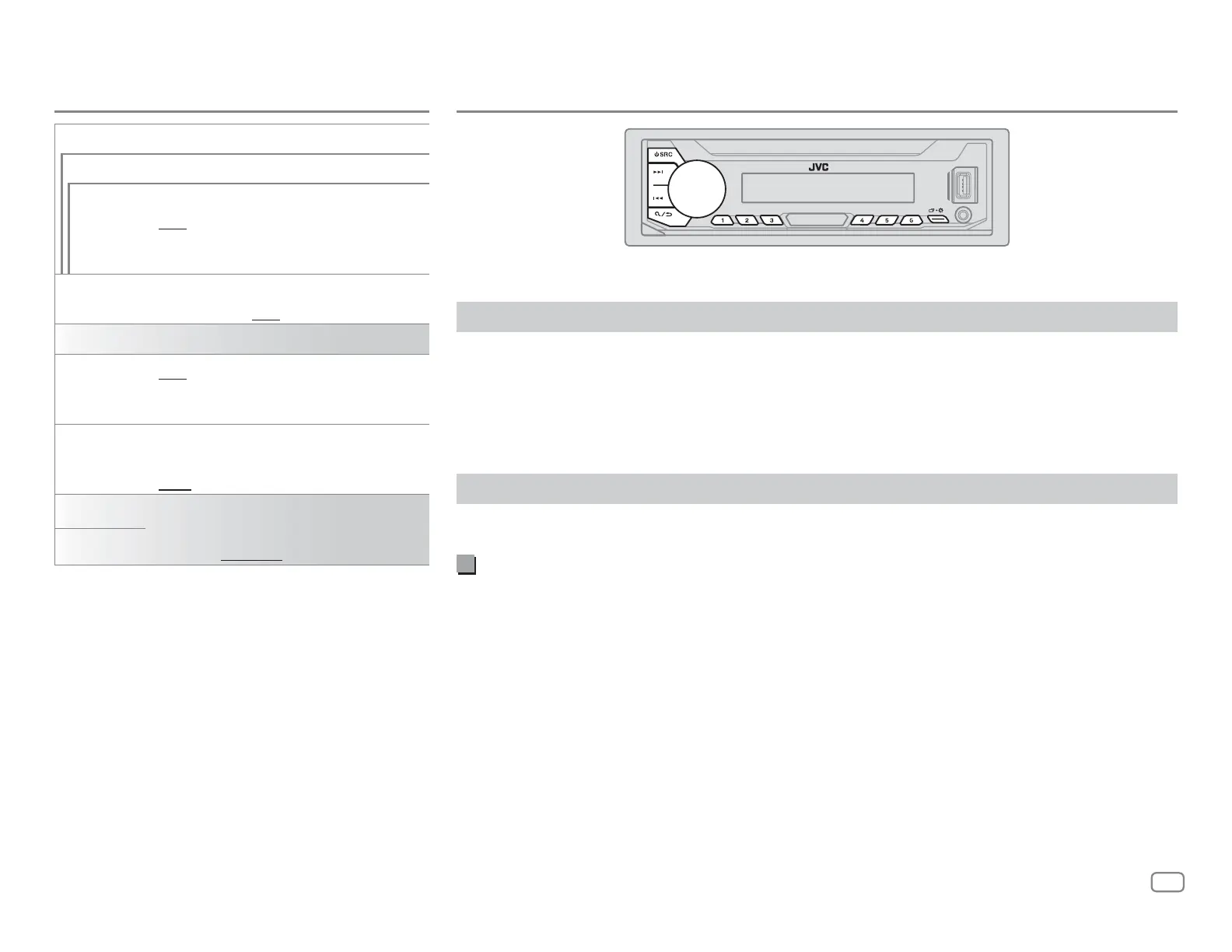
Press B SRC repeatedly to select FM or AM.
2 Press S / T (or press H / I on the remote control) to search for a station automatically.
(or)
Press and hold S / T (or press and hold H / I on the remote control) until “M” flashes,
then press repeatedly to search for a station manually.
Settings in memory
You can store up to 18 stations for FM and 6 stations for AM.
Store a station
While listening to a station...
Press and hold one of the number buttons (1 to 6).
(or)
1 Press and hold the volume knob until “PRESETMODE” flashes.
2 Turn the volume knob to select a preset number, then press the knob.
“MEMORY” appears once the station is stored.
GETTING STARTED
JS_JVC_KD_X360BTS_K_EN_4.indd 5 6/1/2018 3:52:10 PM


 To Next Page