Bluetooth Control
54
Hands-Free Setup
You can make various settings for the Hands-
Free function.
1
Press the [FNC] button.
Popup menu appears.
2
Touch [ ].
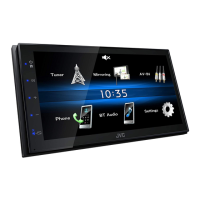
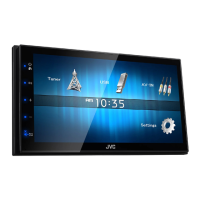
HOME screen appears.
3
Touch [ ].
SETUP screen appears.
4
Touch [Connection].
Connection Setup screen appears.
5
Touch [TEL SETUP].
TEL SETUP screen appears.
6
Set each function as follows.
■ [Bluetooth HF/Audio]
Select the speakers to output the sound from
the smartphone/cell-phone (such as phone
call voice and ringing tone) and Bluetooth
audio device.
[Front]: Outputs sound from the front
speakers.
[All ](Default): Outputs sound from all
speakers.
■ [Auto Response]*
Set the automatic response time to pick-up
an incoming call.
[OFF ](Default): Turns off the Automatic
response function.
[1]/[5]/[10]/[15]/[20]/[25]/[30]: Sets the ringing
time (second).
■ [Auto Pairing]
When set to “ON”, the Apple Auto Pairing
function is turned on to automatically
register the iPod touch or iPhone connected
to this unit.
[ON ](Default): Turns on the Apple Auto
Pairing function.
[OFF]: Turns off the Apple Auto Pairing
function.
■ [Sort Order]
Set how to sort the data in the smartphone/
cell-phone phonebook.
[First ](Default): Sorts data by the first name.
[Last]: Sorts data by the last name.
* Either the auto response time set on this
unit or the time set on the smartphone/
cell-phone, whichever is shorter takes
effect.
7
Touch [OK].



 To Next Page
 Loading...