Setup
55English
Setup
Monitor Screen Setup
You can adjust the image quality of video,
menu screen, etc.
1
Press the [FNC] button.
Popup menu appears.
2
Touch [Screen Adjust].
Screen Adjustment screen appears.
3
Adjust each setting as follows.
■ [Backlight]/[Contrast]/[Black]/
[Brightness]/[Colour]/[Tint]
Adjust each setting.
■ [Aspect]
Select a screen mode.
[Full]: Changes the aspect ratio of video and
displays video fully on the screen.
[Normal]: Displays video at the ratio of 4:3.
[Auto]: Displays video fully (vertically or
horizontally) with no ratio change.
NOTE
• Settings to adjust vary depending on the current
source.
System Setup
1
Press the [FNC] button.
Popup menu appears.
2
Touch [ ].
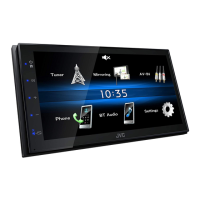
HOME screen appears.
3
Touch [ ].
See the following section for each
setting.
• Set up AV (P.60)
• Set up display (P.59)
• Set up the user interface (P.56)
• Set up camera (P.40)
• Set up special (P.58)
• Set up connection (P.61)
• Set up security (P.9)



 To Next Page
 Loading...