EasyManua.ls Logo

JVC LT-32G4 - User Manual

JVC LT-32G4
22 pages
Print Icon
To Next Page IconTo Next Page
Loading...
INSTRUCTIONS
LT-32A4
LT-32G4
LT-32G40
LT-40Z40
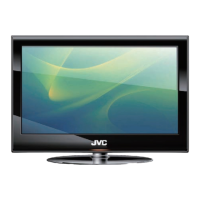
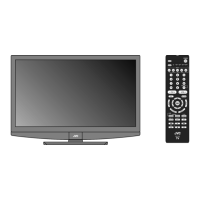
LCD TV
LT-32G40
LT-32G4
LT-40Z40
LT-32G40
3IZ0101C_EN.indd 13IZ0101C_EN.indd 1 10/21/11 12:05:26 PM10/21/11 12:05:26 PM

Questions and Answers

  • L
    Larry AllenAug 5, 2025
    What to do if my JVC LT-32G4 has no picture and sound?
    • S
      stephanie32Aug 5, 2025
      If your JVC LCD TV has no picture and no sound, first ensure that the TV is switched on and properly connected to the mains power outlet. Then, select the appropriate input mode. If the problem persists, unplug the unit for one minute, and then plug it back in.
  • A
    Amber MullinsAug 11, 2025
    Why does my JVC LT-32G4 LCD TV have wrong colors?
    • K
      Kerri CamposAug 11, 2025
      Color and brightness errors on your JVC LCD TV may occur if the viewing angle or ambient air temperature exceeds the specified technical limits.
  • G
    gwatkinsAug 17, 2025
    How to fix no reception with built-in tuner on JVC LCD TV?
    • L
      lisa35Aug 18, 2025
      If you're experiencing no reception with the built-in tuner on your JVC LCD TV, connect the antenna. If the problem persists, try using another antenna.
  • J
    James LeeAug 23, 2025
    What to do if the channel option cannot be selected on my JVC LCD TV?
    • C
      charlesmurphyAug 23, 2025
      If the channel option cannot be selected on your JVC LCD TV, the unit might be set to AV mode. To resolve this, press '1' on the remote control.
  • F
    fhuynhAug 29, 2025
    Why does my JVC LCD TV switch off with missing antenna signal?
    • D
      Daniel GentryAug 29, 2025
      It's normal for your JVC LCD TV to switch off if the antenna or external input signal is missing. The set will automatically change to standby mode 15 minutes after the signal disappears.

Summary

Safety Precautions

How to Attach the Stand

Location of Controls

Description of Indicators and Controls

Details the function of buttons and indicators on the TV and remote control.

Remote Control

Connections

Auto Setup

Quick Guide for Menu Operation

Provides a brief walkthrough for navigating the TV's menu system.

Selecting the Input Source

Explains how to switch between different connected video sources.

On-screen Language Selection

Programme Edit

Allows for editing channel names, order, and skipping channels.

Channel Setup

Covers manual tuning, color system, sound system, and fine-tuning.

Basic Operation

Channel Selection

How to change channels using number buttons or CH +/-.

Channel List

Displays a list of all receivable programmes, allowing selection of desired channels.

Information Display

Shows program information for approximately 5 seconds.

QuickView

Returns to the last selected TV channel, not available in external input.

MUTING

Temporarily cuts off sound, can be released by pressing again.

Still Picture

Freezes the current video frame; can be canceled by pressing again.

Teletext

Accesses and displays teletext pages, can take time to store pages.

Fastext;TOPtext

Enhanced teletext with coloured buttons for direct page access.

Stereo Reception in Analogue Cable TV Channel Mode

Picture Format

Allows adjustment of the picture aspect ratio for optimal viewing.

Other Formats

Describes different picture display options like 4:3, 16:9, and Cinema.

Other Convenience Functions

Media Operation

Playback Files

How to play photos, music, and movie files from a USB storage device.

Media Browser

Interface for browsing and selecting media files stored on a USB device.

Operation Window

Playable File Types

Lists supported file formats for photos, music, movies, and text.

PC Connection

Connecting an HDMI or a DVI Device to the HDMI Input

Instructions for connecting digital video and audio devices via HDMI or DVI.

Connection to Other Equipment

Troubleshooting Table

License Information

Specifications

JVC LT-32G4 Specifications

General IconGeneral
BrandJVC
ModelLT-32G4
CategoryLCD TV
LanguageEnglish

Related product manuals