EasyManua.ls Logo

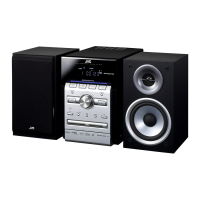
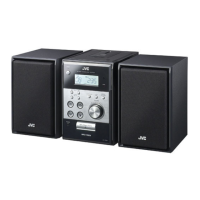
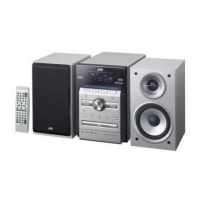
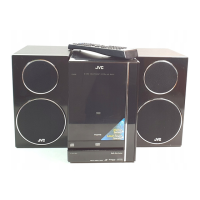
JVC UX-GN9V - User Manual

JVC UX-GN9V
72 pages
Print Icon
To Next Page IconTo Next Page
Loading...
MICRO COMPONENT SYSTEM
UX-GN9V
Consists of CA-UXGN9V and SP-UXGN9V
LVT1991-006B
[A, US, UB]
INSTRUCTIONS
English
UX-GN9V[A]-frontcover.fm Page 1 Wednesday, May 13, 2009 11:38 AM

Table of Contents

Questions and Answers

  • B
    briveraAug 17, 2025
    Why is my JVC Stereo System remote control not working?
    • J
      julieballAug 17, 2025
      Your JVC Stereo System remote control might not be working because something is blocking the path between the remote control sensor and the remote itself. Ensure nothing obstructs the sensor. Also, the batteries might be low, so try replacing them.
  • W
    whiteronnieAug 20, 2025
    What to do if my JVC Stereo System produces no sound?
    • K
      Katrina WolfAug 20, 2025
      If your JVC Stereo System isn't producing any sound, make sure the speakers are connected correctly. Also, check if headphones are connected; if so, disconnect them.
  • M
    Mark ThompsonAug 22, 2025
    Why does my JVC Stereo System have no picture?
    • C
      Christopher PayneAug 23, 2025
      If your JVC Stereo System shows no picture, the issue might be an improper connection. Ensure all cables are connected properly.
  • L
    Laura GrantAug 25, 2025
    Why is the HDMI CEC function not working on my JVC Stereo System?
    • C
      Catherine RobinsonAug 26, 2025
      The HDMI CEC function might not work if the connected TV is not compatible with it. Refer to your TV's manual. Alternatively, check the “CEC” setting on your JVC Stereo System and make sure it is set to “ON 1” or “ON 2” instead of “OFF”.
  • M
    megan51Aug 27, 2025
    What to do if no picture or sound is produced via the HDMI MONITOR OUTPUT terminal on my JVC Stereo System?
    • J
      James PetersAug 27, 2025
      If you're getting no picture or sound via the HDMI MONITOR OUTPUT terminal, it could be due to several reasons. First, the disc or file you're playing might be in a format incompatible with the main unit or TV. Check the playable disc/file types. Second, the connected TV might not be compatible with HDCP, so connect a TV that is. Third, the main unit might not recognize the TV; try disconnecting and reconnecting the HDMI cable. Finally, using an HDMI cable longer than 5 m (15 feet) can cause issues, so use a shorter cable.
  • M
    Mrs. Karen DunnAug 30, 2025
    How to fix a distorted picture on my JVC Stereo System?
    • A
      Angel MillerAug 30, 2025
      If the picture is distorted on your JVC Stereo System, the video signal type setting may not be appropriate. Select the video signal type suitable for your TV.
  • J
    Jeffrey MendezSep 1, 2025
    How do I fix an abnormal screen size on my JVC Stereo System?
    • T
      Timothy MillerSep 1, 2025
      If the screen size is abnormal on your JVC Stereo System, the screen size setting may not be appropriate. Select the display method suitable for your TV.
  • L
    Laura OsbornSep 4, 2025
    Why won't my JVC Stereo System play a disc?
    • C
      christine29Sep 4, 2025
      If your JVC Stereo System won't play a disc, and “RG ERROR” appears on the display, the region code number of the disc is not compatible with the system. Confirm the compatible region code. Also, make sure the disc is placed on the disc tray with the printed surface facing up.
  • W
    William RoblesSep 6, 2025
    What to do if a certain point on the disc cannot be played back properly on my JVC Stereo System?
    • M
      Melissa HerreraSep 6, 2025
      If a certain point on the disc cannot be played back properly on your JVC Stereo System, the disc may be scratched or dirty. Clean or replace the disc.
  • R
    Ryan KleinSep 9, 2025
    What to do if the HDMI CEC function on my JVC Stereo System doesn't work after reconnecting the HDMI cable?
    • M
      mary79Sep 9, 2025
      If the HDMI CEC function doesn't work properly after reconnecting the HDMI cable, the previous connection setting might be stored on the main unit. Select “OFF” for the “CEC” setting, and then select “ON 1” or “ON 2” again.

Summary

Instructions and Safety Information

Warnings, Cautions, and Others

Essential safety information, warnings, and precautions for operating the system.

Proper Ventilation Caution

Guidelines for adequate airflow around the unit to prevent overheating and ensure proper function.

General Handling and Safety Notes

Advice on system placement, handling, and environmental considerations to prevent damage or malfunction.

System Overview and Setup

Part Description

Identification of front and rear components and terminals of the main unit and speakers.

Display Window Indicators

Explanation of various indicators on the unit's display screen and their meanings.

Remote Control Guide

Instructions for using the remote control, including battery installation and basic operations.

Preparation and Connections

Steps for connecting antennas, speakers, TVs, audio devices, and USB storage.

Basic Operations and Playback

Core Unit Operations

How to turn the unit on/off, adjust volume, and control sound temporarily.

Sound Mode and Tone Customization

Selecting sound modes, customizing equalization patterns, and enhancing bass or treble.

Disc and File Playback Basics

Guidance on selecting file types, playing discs, and playing files from USB devices.

Playback Navigation and Control

Features for stopping, pausing, resuming, searching, and adjusting playback speed.

Advanced Features and Settings

Convenient Playback Functions

Program, random, repeat playback, A-B repeat, and audio/subtitle/view angle selection.

System Preference Settings

Adjusting picture quality, preference screen settings, and display options.

USB Recording and Bluetooth Connectivity

Recording audio to USB, managing files, and connecting Bluetooth devices for audio playback.

Karaoke and Timer Operations

Using karaoke features, vocal adjustments, and setting sleep or recording timers.

Notes, Troubleshooting, and Specifications

Operation and Disc;File Notes

Important notes on system operation, handling discs, file compatibility, and legal information.

Troubleshooting Guide

Solutions for common problems encountered during playback, recording, and system use.

System Specifications

Technical details including tuner, terminals, power, dimensions, and accessories.

JVC UX-GN9V Specifications

General IconGeneral
CD PlayerYes
FM TunerYes
Speaker Type2-Way Bass Reflex
Cassette DeckNo
Disc Capacity1
Remote ControlYes
Total Harmonic Distortion1%
Tuner BandsFM
Playback FormatsCD
FM/AM TunerFM
Preset Stations30

Related product manuals