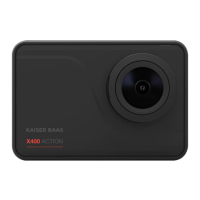
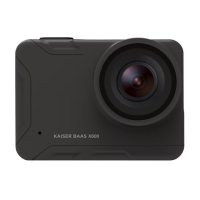
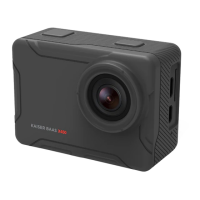
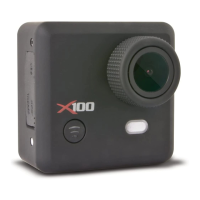
Need help?
Do you have a question about the Kaiser Baas X200 and is the answer not in the manual?
Recommends fully charging the camera before use. A full charge takes approximately 2.5 hours.
Requires a MicroSD card (Class 10 or higher). Card must be formatted before first use.
Recommended before first recording. Formatting erases all data; backup content prior to formatting.
Check Kaiser Baas website for the latest firmware. Current version is found on the last settings page.
Insert battery, then hold Power/Mode button for 2 seconds until logo appears to turn on.
Power/Mode button cycles modes. Up/down buttons navigate menus. Record/OK starts/stops recording or confirms selection.
The default mode. Click Record button to start recording. Blue LED flashes when recording.
Enter by clicking Power/Mode button once from Video Mode. Click Record/Confirm to take a photo.
Sets camera resolution and frame rates. Higher resolution provides greater detail and clarity.
Manually control exposure/amount of light. Select EV level using the up/down button.
Triggers recording automatically when motion is detected by the camera.
Allows continuous recording using intervals. Deletes oldest file when MicroSD is full.
Records footage at low frame rate, showing rapid change over time when played back.
Wide Dynamic Range feature improves exposure, enhancing detail in dark shadows.
Option to turn the microphone off. Set to on by default.
Toggle date stamp on/off. Choose to display Date or Date & Time.
Refers to the number of pixels in an image, identified by width and height.
Determines the quality of the image captured by the camera.
Sets a delay for taking a single photo after pressing the Record/Confirm button.
Select the sharpness level using the up/down buttons on the side of the camera.
Manually control ISO level for footage. Higher ISO adds noise/grain to the image.
Reduces shakiness and blur when shooting video footage.
Manually control white balance. Options include Auto, Daylight, Cloudy, Tungsten, Fluorescent.
Sets frequency to 50Hz or 60Hz to avoid light strobing in footage.
Shows or hides the On-Screen Display during recording.
Conserves power by turning off LCD. Recording continues when screensaver is active.
Inverts recording for mounting the camera in hard-to-reach places.
Powers off the camera after a selected period of inactivity (3, 5, or 10 minutes).
Select your desired language for the camera interface.
Toggle the menu click noise on or off.
Set the date and time. Use Up/Down to adjust values and Record to jump characters.
Use camera as a Dash Camera, recording in Loop Mode when power is detected.
Option to delete a single file or all files from the MicroSD card.
Formats the MicroSD card. Recommended for cards used in other devices. Backup data first.
Restores all camera settings to their factory default values.
Displays the current firmware version installed on the X250.
 General
| Brand | Kaiser Baas |
|---|---|
| Model | X200 |
| Category | Action Cameras |
| Language | English |

 To Next Page