To transmit ASCII, type CONTROL-C and then the letter T (do not hold the control key while
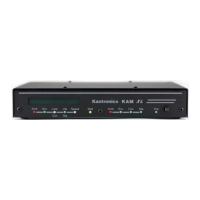
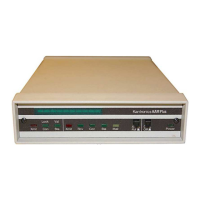
typing the T). This keys your transmitter, the bargraph on the front of the KAM Plus will go
dark, and the red LED at the far left ofthe front panel of the RAM Plus lights indicating you
are transmitting. Now type your message on the keyboard. The RAM Plus sends this message
over the radio. Once you have finished typing your message, you must tell the RAM Plus that
you are done, allowing it to return to the receive mode. To do this, type CONTROL-C followed
by the letter E. The RAM Plus returns to the receive mode after all of the data you have typed
has been transmitted.
If you would like to operate ASCII at a different speed (perhaps 200 baud), you can enter
the ASCII mode from the command prompt and specify the speed specified after the command
(e.g. ASCII 200). The following message results:
- ASCII 200-
You are then ready to receive and transmit ASCII at 200 baud.
When you are through operating ASCII and wish to chang, to another mode, you must
first return to the Command mode. Type CONTROL-C and then the letter X. This exits the
ASCII mode and returns to Packet mode, giving you the cmd: prompt from the RAM Plus.
AMTOR
When operating this mode using AFSK (mic input), set your HF radio in lower sideband (LSB).
This is general practice in the amateur community for digital communications. You should also
have the VOX disabled since the KA..\1Plus will key your transmitter. When transmitting, the
amount of power generated by your station can be adjusted with the mic gain control on your
radio. You should set this control just to the point of maximum power output. If your radio
has an ALC indicator, adjust mic gain for minimal indication.
From the cmd: prompt, type AMTOR and press return. The KAM Plus enters the AMTOR
mode and sends the following message to your screen:
<AMTOR STANDBY>
This indicates that you are in the AMTOR operating mode, ready to receive an AMTOR FEC
transmission. If you now tune to an AMTOR FEC signal, your RAM Plus decodes the infor-
mation and displays it on your screen. When in the AMTOR STANDBY mode, you will not be
able to monitor any stations already linked using AMTOR ARQ. To monitor these
conversations, you must use the LAMTOR mode (see below).
To transmit AMTOR FEC, type CONTROL-C and then the letter T (do not hold the control key
while typing the T). This keys your transmitter, the bargraph on the front of the RAM Plus will
go dark, and the red LED at the far left ofthe front panel of the RAM Plus lights indicating
you are transmitting. Now type your message on the keyboard. The RAM Plus sends this
message over the radio. Once you have finished typing your message, you must tell the RAM
Plus that you are done, allowing it to return to the receive mode. To do this, type CONTROL-C
followed by the letter E. The KAM Plus returns to the AMTOR STANDBY mode after all ofthe
data you have typed has been transmitted. This is the method you use to call CQ in AMTOR,
and when the KAM is in the AMTOR STANDBY mode, it will respond to another station who
attempts to link to you using AMTOR ARQ with your SELCAL.
If you are monitoring AMTOR FEC and you see someone call CQ, you might choose to link to
that station to carry on a qso. To do this, you first leave the AMTOR STANDBY mode and then
start the link. Type CONTROL-C followed by the letter X. This leaves the AMTOR STANDBY
mode and you will see the cmd: prompt. Now type AMTOR xxxx (where xxxx is the SELCAL of
the station you wish to talk to) and press return. The RAM Plus begins the link process, and
when the other station responds, you receive a message saying:
<LINKED to XXXX>
KAM Plus April 15, 1993
© Copyright 1993, Kantronics Co., Inc. All Rights Reserved.
Duplication of this manual or the firmware without permission of Kantronics Co., Inc. is prohibited.
GETTING STARTED
G11


 To Next Page
 Loading...