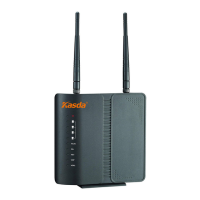
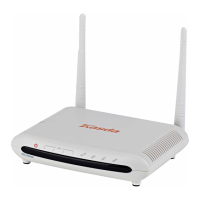
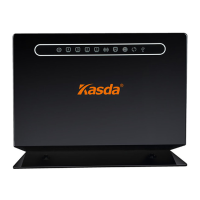
KW6512 LinkSmart Wireless Router User Manual
8
4. Right-click Ethernet,select Properties, then double-click internet protocol
version 4( TCP/IPv4).
5. Select Otain an IP address automatically and Obtain DNS Server address
automatically. Then click OK.
4.3 For windows XP
1. Click “Start” -> Control Panel -> Network and Internet Connection -> Network
Connections”
2. Right-click Wireless Networks Connection (or Local Area Connection), and then
click Properties.
3. Select Internet Protocol (TCP/IP), and then click Properties.
4. Select Otain an IP address automatically and Obtain DNS Server address
automatically. Then click OK.
4.4 For Mac OS X
1. Click the Apple icon on the upper left corner of the screen.
2. Go to System Preference -> Network.
3. Select Airport on the left menu bar, and then click Advanced for wireless
configuration; or select Ethernet for wired configuration,
4. In the Configure IPv4 box under TCP/IP, select Using DHCP.
5. Click Apply to save the settings.
5 Quick Setup of the Router
In order to use the web-based management software, it will be necessary to use a
computer or mobile phone which occupies the same subnet as the Router. The
simplest way to do this for many users will be to use DHCP server that is enabled by
default on the Router. Please make sure the wan connection is ok.
Setup Wizard will guide you through step-by-step process to configure your router
and connect to the Internet.
5.1 Quick Setup of the Router via mobile phone
1. Connect your phone to router by using default WiFi network name and password,
which are printed on product label at the bottom of the router.
2. Launch a browser on your phone to log in router with www.mykasda.com. Setup
your initial login password and then click next button to continue.


 To Next Page