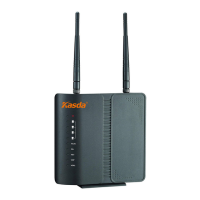
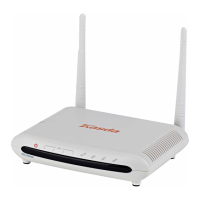
KW6512 LinkSmart Wireless Router User Manual
7
3 Hardware Installation
This chapter shows you how to connect Router. Meanwhile, it introduces the
appropriate environment for the Router and installation instructions.
1. Using an Ethernet Cable to connect the WAN port of the ROUTER to a cable or
modem.
2. Using an Ethernet Cable to connect the LAN port of the ROUTER to your LAN or a
PC with network card installed.
3. Connect the power cable to the PWR connector on ROUTER, then plug in the
power adapter to the AC power outlet, and then press the on-off button.
4 PC Configuration Guide
4.1 For windows 7
1. Click “Start -> Control Panel-> Network and Internet -> View networks status ->
Change adapter settings”
2. Right-click Wireless Network Connection(or Local Area conncection), and then
click Properties.
3. Select Internet Protocol Version 4 (TCP/IPv4), and then clcik Properties.
4. Select Obtain an IP address automatically and Obtain DNS Server address
automatically. Then click OK.
4.2 For Windows 8
1. Move your mouse to the lower right corner and click the Serch icon in the popus.
2. Go to Apps, type Control Panel in the serche box and press enter.
3. Go to “Control Panel ->l View networks status-> Change adapter settings”


 To Next Page