LED Functions
If the dash cam is turned on, the LED status will indicate the corresponding function.
Status
Remains green
Remains blue
Remains red
Flashing quickly in green
Flashing quickly in blue
Breathes
Wi-Fi is enabled.
Recording error
Record emergency video
Process phase tasks
Normal recording
Not in recording mode
Function
3
Quick configuration
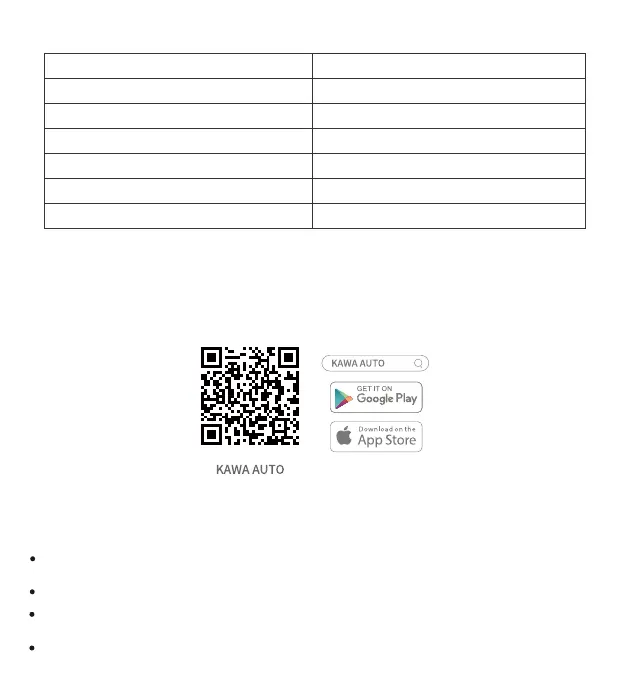
1.Download the app.
Download KAWA AUTO APP by scanning the QR code below.(After downloading the app, you can use it to
watch the real-time video recorded by the dash cam, adjust the dash cam's installation angle, and
view/download the recorded videos.)
2.Add to APP.
Open the KAWA AUTO APP, click on the "+" in the upper right corner, select “KAWA Dash Cam D5” , and
follow the instructions in the APP to operate.
*During the process of adding the dash cam to the app, the phone needs to connect to the dash cam's
hotspot.
Please connect your phone to the dash cam's hotspot (make sure the dash cam's hotspot is turned on),
---not to another phone's hotspot or your home WiFi.
Hotspot Name: KAWA_D5_XXXX (or as indicated on the product label) Initial Password: 12345678
To connect the hotspot of the dash cam, the operating system of your phone should be Android5.0 or
---iOS8.0 and above.
If VPN is enabled, please disable it before connecting to the dash cam.



 To Next Page