How to eliminate noise or metallic sound from my Kawai Musical Instrument?
- SSarah PrattSep 4, 2025
To address noise or metallic sounds from your Kawai Musical Instrument, make adjustments using Tone Control, Fall-back Noise, and/or Damper Noise.
How to eliminate noise or metallic sound from my Kawai Musical Instrument?
To address noise or metallic sounds from your Kawai Musical Instrument, make adjustments using Tone Control, Fall-back Noise, and/or Damper Noise.
What to do if the volume of audio files is incorrect or SMF files sound wrong on my Kawai CN301?
To resolve volume issues with MP3 or WAV files, or unintended sounds with SMF files on your Kawai Musical Instrument, adjust the recording level setting. Note that this instrument is not GM compatible, so SMF files may sound different or not play at all.
Why can't I play back songs from a USB drive on my Kawai Musical Instrument?
If you cannot play back songs saved on a USB memory device with your Kawai Musical Instrument, the data format might be incompatible, or the transfer speed of the USB memory device may be too slow. Try using another USB memory device that supports USB2.0 Hi-Speed.
What to do if the playback of a lesson song does not start on my Kawai CN301 Musical Instrument?
To start playing a lesson song on your Kawai Musical Instrument, first select a song and then press the [PLAY/STOP] button.
Why doesn't the name of my Kawai Musical Instrument appear on my smart device?
If the name of your Kawai piano doesn't appear on your smart device, another device might be connected via Bluetooth MIDI/Bluetooth Audio. Press and hold the [LEFT] button and [EFFECTS] button on the Home screen to cancel pairing.
How to reduce noise when releasing keys on my Kawai CN301?
To reduce noise when releasing keys on your Kawai Musical Instrument, adjust Fall-back Noise and/or Key-off Effect.
How to stabilize the pedals on my Kawai Musical Instrument?
If the pedals on your Kawai Musical Instrument are unstable, ensure that the adjustor is set to an appropriate height.
How to fix keys that are out of tune on my Kawai CN301?
If some keys on your Kawai Musical Instrument are out of tune, adjust them using User Tuning.
How to fix muffled or piercing sound on my Kawai CN301 Musical Instrument?
If the sound from your Kawai Musical Instrument is muffled or piercing, try adjusting Topboard Simulation, Tone Control, Touch Curve, and/or Voicing.
What to do if no sound is coming out of my Kawai CN301?
If no sound is coming from your Kawai Musical Instrument, make sure the volume isn't set too low. Check if headphones or a headphone adapter are plugged into the [PHONES] jacks. Also, verify that 'Local Control' hasn't been disabled.
Safety rules and warnings for product operation and maintenance to prevent hazards.
Solutions for common problems and operational issues.
Step-by-step guide for assembling the digital piano.
Functions for recording and playback to internal memory or USB.
Step-by-step guide for internal recording and playback.
Guide to recording and playing back audio via USB memory.
Core settings for transpose, tone, volume, tuning, and more.
Simulating acoustic piano adjustments for sound customization.
Selecting pre-defined piano adjustment combinations.
Fine-tuning individual piano parameters for detailed sound shaping.
Adjusting keyboard touch sensitivity for volume and dynamic response.
Simulating hammer properties to affect the piano's tonal character.
Adjusting tuning for temperament and individual keys.
Selecting different historical temperament systems.
Configuring wireless Bluetooth MIDI and Audio connections.
Safety rules and warnings for product operation and maintenance to prevent hazards.
Solutions for common problems and operational issues.
Step-by-step guide for assembling the digital piano.
Functions for recording and playback to internal memory or USB.
Step-by-step guide for internal recording and playback.
Guide to recording and playing back audio via USB memory.
Core settings for transpose, tone, volume, tuning, and more.
Simulating acoustic piano adjustments for sound customization.
Selecting pre-defined piano adjustment combinations.
Fine-tuning individual piano parameters for detailed sound shaping.
Adjusting keyboard touch sensitivity for volume and dynamic response.
Simulating hammer properties to affect the piano's tonal character.
Adjusting tuning for temperament and individual keys.
Selecting different historical temperament systems.
Configuring wireless Bluetooth MIDI and Audio connections.
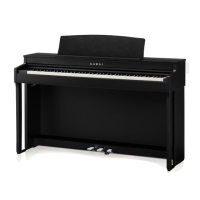
| Product color | Black |
|---|---|
| Keys quantity | 88 keys |
| Hammer-action keyboard | Yes |
| Power source type | AC, DC |
| Power consumption (max) | 17 W |
| Sound effects | Reverberation |
| RMS rated power | 40 W |
| Speaker diameter | 130 mm |
| Number of speakers | 2 |
| Maximum polyphony (notes) | 256 |
| Reverberation effects quantity | 24 |
| Bluetooth version | 5.1 |
| Demo songs quantity | 33 |
| Recorder/sequencer number of songs | 10 |
| Display resolution | 128 x 64 pixels |
| Depth | 435 mm |
|---|---|
| Width | 1410 mm |
| Height | 870 mm |
| Weight | 47500 g |