Need help?
Do you have a question about the Kemove 61 and is the answer not in the manual?
Overview of special key combinations activated with the Fn key for enhanced functionality.
Details on various built-in RGB lighting effect modes available on the keyboard.
Steps to update the keyboard software to the latest version for optimal performance.
Information regarding connecting the keyboard in wired mode and power grab.
Add, export, and import custom lighting layers and profiles for unique effects.
Choose, show, and hide different dynamic lighting effects for personalized ambiance.
Configure specific lighting zones and their properties for granular control.
Select and manage pre-defined lighting effect settings for quick application.
Configure FN key combinations for custom shortcuts and functions.
Manage keyboard settings across four distinct hardware layers for different profiles.
Define and manage custom macro sequences for automated key press actions.
Enable or disable the function to switch WASD keys to arrow key functionality.
Create new categories for organizing macro files and settings.
Record key sequences, set delays, and edit macros for custom automation.
Import external programs and configure their functions and lighting.
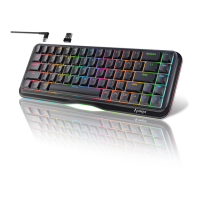
The KEMOVE 61 Mechanical Keyboard is a versatile and customizable input device designed for users who value both performance and personalization. This manual outlines the various functions, usage features, and maintenance aspects of the keyboard, ensuring a comprehensive understanding for optimal use.
The KEMOVE 61 is a compact mechanical keyboard, typically featuring 61 keys, making it ideal for users who prefer a minimalist setup or require portability. Its core functionality revolves around providing a responsive and tactile typing experience, characteristic of mechanical keyboards. Beyond standard input, the keyboard offers extensive customization options, particularly in its lighting, key assignments, and macro capabilities.
The keyboard utilizes a "Fn" (Function) key to access a wide array of secondary functions, enhancing its utility despite its compact size. These combinations are crucial for controlling multimedia, adjusting lighting, and accessing system-level commands without dedicated keys.
F-row Emulation:
Fn + ESC acts as ~ (tilde) or ` (grave accent).Fn + 1 through Fn + 0 emulate F1 through F10.Fn + - acts as F11.Fn + = acts as F12.Fn + 5 through Fn + 8 emulate F5 through F8.Fn + 9 acts as F9.Fn + 0 acts as F10.Multimedia Controls:
Fn + A functions as Pause/Play.Fn + S functions as Previous Song.Fn + D functions as Next Song.Fn + F functions as Mute.Fn + G functions as Volume Down.Fn + H functions as Volume Up.Navigation and Editing Keys:
Fn + J functions as Ins (Insert).Fn + K functions as Home.Fn + L functions as Page Up.Fn + M functions as Del (Delete).Fn + , functions as End.Fn + . functions as Page Down.Arrow Keys and Directional Input:
Fn + / functions as Up Arrow (↑).Fn + Right Alt functions as Left Arrow (←).Fn + Menu functions as Down Arrow (↓).Fn + Right Ctrl functions as Right Arrow (→).AWSD keys to act as arrow keys, providing an alternative for navigation. This can be enabled or disabled through the software settings.Lighting Controls:
Fn + P decreases brightness.Fn + [ increases brightness.Fn + O and Fn + ] switch between different light modes.Fn + \ also switches between different light modes.Fn + ; decreases LED speed.Fn + ' increases LED speed.Bluetooth Connectivity:
Fn + Z connects to BT1.Fn + X connects to BT2.Fn + C connects to BT3.Fn + Z/X/C for 3 seconds. Pressing again will connect to the last paired device.Fn Key Lock:
Fn + Spacebar locks the Fn key, allowing direct access to secondary functions without holding Fn. Pressing Fn + Spacebar again unlocks it.The KEMOVE 61 keyboard is designed for a highly personalized user experience, primarily through its dedicated software.
The software provides a centralized hub for all customization, divided into several main sections:
The KEMOVE 61 offers a rich array of lighting effects and customization options:
The keyboard's software allows for comprehensive key remapping across four different hardware layers. This means users can create distinct key layouts for different applications or preferences.
Fn key combinations, offering flexibility beyond the default settings.AWSD keys to function as arrow keys. This is particularly useful for gaming or specific software applications where arrow keys are frequently used. To enable this, navigate to "Keyboard Settings," click the "Settings" button next to "Hardware 1," and toggle "arrow key switch" on, then click "Apply" and "Save."Macros are sequences of key presses, mouse clicks, or delays that can be executed with a single key press. The KEMOVE 61's software offers robust macro capabilities:
This section allows users to import and manage custom programs or profiles. This feature is useful for loading pre-configured settings or sharing custom layouts with other users. It also allows for configuring specific functions and lighting profiles associated with these programs.
The KEMOVE 61 supports both wired and wireless (Bluetooth) connectivity. When connecting via USB, ensure the power switch is on and the keyboard is in wired mode for proper power grab and functionality.
While the manual primarily focuses on software-based customization, some aspects touch upon maintenance and troubleshooting:
In summary, the KEMOVE 61 Mechanical Keyboard is a highly adaptable device, offering deep customization through its intuitive software. From intricate RGB lighting patterns to personalized key assignments and powerful macros, it caters to users seeking a tailored typing and gaming experience. Its compact design, combined with robust software features and dedicated support channels, makes it a compelling choice for enthusiasts and professionals alike.
 General
| Keycap Material | PBT |
|---|---|
| Polling Rate | 1000Hz |
| Type | Mechanical |
| Switch Type | Gateron |
| Connectivity | Bluetooth 5.1, USB Type-C |
| RGB Lighting | Yes |
| Software | Kemove Driver |
| Compatibility | Windows, macOS, iOS, Android |
| Actuation Force | Varies by switch type |

 To Next Page