EasyManua.ls Logo

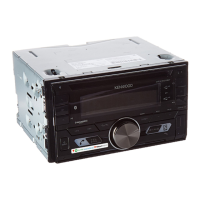
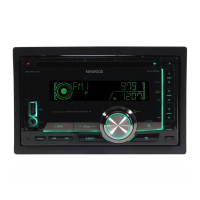
Kenwood DPX702BH - User Manual

Kenwood DPX702BH
41 pages
Print Icon
To Next Page IconTo Next Page
Loading...
For your records
Record the serial number, found on the back of the unit, in the spaces designated on the warranty card, and in the space provided below.
Refer to the model and serial numbers whenever you call upon your Kenwood dealer for information or service on the product.
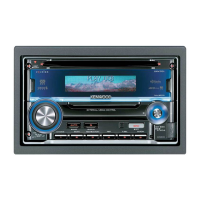
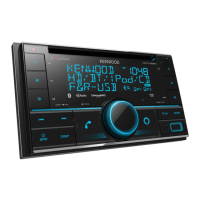
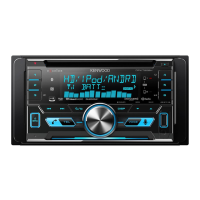
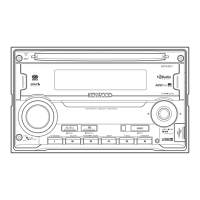
Model DPX792BH/ DPX702BH/ DPX592BT/ DPX502BT
Serial number
US Residents Only
Register Online
Register your Kenwood product at www.Kenwoodusa.com
B5A-0909-00 (KN)© 2015 JVC KENWOOD Corporation
DPX792BH
DPX702BH
DUAL DIN SIZED CD RECEIVER
INSTRUCTION MANUAL
RECEPTEUR CD FORMAT DUAL DIN
MODE D’EMPLOI
RECEPTOR DUAL DE CD TAMAÑO DIN
MANUAL DE INSTRUCCIONES
DPX592BT
DPX502BT
JS_KWD_DPX792BH_KN_C00_1.indd 1 28/10/2015 12:16:18 PM


Questions and Answers

  • J
    Jill OwensSep 3, 2025
    What does 'READ ERROR' mean on my Kenwood DPX702BH Car Receiver?
    • L
      Lisa MaloneSep 3, 2025
      If your Kenwood Car Receiver displays “READ ERROR”: * Copy the files and folders onto the USB device again. * If this does not solve the problem, reset the USB device or use another USB device.
  • J
    Jorge WilcoxAug 25, 2025
    What does 'PROTECTING SEND SERVICE' mean on my Kenwood DPX702BH?
    • J
      Judith WhitakerAug 25, 2025
      If your Kenwood Car Receiver displays “PROTECTING SEND SERVICE”, send the unit to the nearest service center.
  • C
    Christina WilsonAug 25, 2025
    What does 'DEVICE FULL' mean on my Kenwood DPX702BH?
    • E
      Erik SmithAug 26, 2025
      If your Kenwood Car Receiver displays “DEVICE FULL”, the number of registered devices has reached its limit. Retry after deleting an unnecessary device.
  • L
    Linda BraySep 10, 2025
    Why is my Kenwood Car Receiver showing “MISWIRING CHECK WIRING THEN PWR ON”?
    • E
      eric07Sep 10, 2025
      This message indicates a wiring issue. Turn off the power, ensure the speaker wire terminals are properly insulated, and then turn the power back on.
  • J
    Jacqueline DuffySep 16, 2025
    Why is my Kenwood Car Receiver showing “READ ERROR”?
    • D
      Dawn RussellSep 16, 2025
      If your Kenwood Car Receiver displays “READ ERROR”, copy the files and folders onto the USB device again. If the problem continues, reset the USB device or use another USB device.
  • L
    Lawrence WardSep 6, 2025
    Why is playback intermittent on my Kenwood Car Receiver?
    • R
      Rachael GibbsSep 7, 2025
      If playback is intermittent or sound skips on your Kenwood Car Receiver, turn off the power saving mode on the Android device.
  • M
    Michelle GrayAug 31, 2025
    What does 'READING' flashing mean on my Kenwood DPX702BH?
    • B
      Brandon ParkerAug 31, 2025
      If “READING” keeps flashing on your Kenwood Car Receiver, avoid using too many hierarchical levels or folders.
  • S
    Shaun FreemanSep 22, 2025
    Why the connected Bluetooth audio player cannot be controlled on my Kenwood Car Receiver?
    • S
      Steven CombsSep 23, 2025
      If the connected Bluetooth audio player cannot be controlled, check whether it supports Audio/Video Remote Control Profile (AVRCP). You may also try disconnecting and reconnecting the Bluetooth player.
  • T
    Tyler HamiltonSep 13, 2025
    What to do if voice calling method is not successful on Kenwood DPX702BH?
    • S
      Susan RichSep 13, 2025
      If voice calling is unsuccessful, try using it in a quieter environment. Also, speak closer to the microphone and ensure you use the same voice as the registered voice tag.
  • H
    hleeAug 27, 2025
    Why is voice calling not working on my Kenwood DPX702BH Car Receiver?
    • C
      crystal24Aug 27, 2025
      If voice calling is not successful on your Kenwood Car Receiver: * Use voice calling in a quieter environment. * Reduce the distance from the microphone when you speak the name. * Make sure the same voice as the registered voice tag is used.

Summary

Safety, Compliance, and Disposal Information

FCC Compliance and Interference

Details FCC regulations, potential interference, and user steps to mitigate it.

Regulatory Compliance and RF Exposure

RF Radiation Exposure Guidelines

Explains compliance with FCC/IC radiation exposure limits and recommended installation distance.

Before Use and Manual Guidance

Important Usage Precautions

Emphasizes reading the manual, safety warnings, and operational cautions before use.

Safe Driving and Volume Control

Advises against distracting operations and proper volume setting for safety.

Unit Basics and Controls

Basic Operations: Power, Volume, Source

Guides on turning the unit on/off, adjusting volume, and selecting audio sources.

Initial Setup and Configuration

System Settings and HD Radio Tuning

Advanced HD Radio and Tuner Settings

Audio Sources: AUX and USB Connectivity

Connecting USB, iPod, and Android Devices

Details how to connect USB storage, iPod, and Android devices for playback.

Media Playback Controls

Playback Operations and Navigation

Covers playback, pause, seeking, track/folder selection, repeat, and random play functions.

Pandora App Integration

Pandora and iHeartRadio Operations

Radio Services: iHeartRadio and SiriusXM

SiriusXM Advanced Features

SiriusXM TuneScan and Settings

Bluetooth Connectivity and Pairing

Initial Bluetooth Device Pairing

Guides on connecting the microphone and pairing Bluetooth devices for the first time.

Auto Pairing and Connection Management

Explains automatic pairing for specific devices and managing multiple connections.

Bluetooth Call Management and NFC

Handling Incoming and Ongoing Calls

Guides on receiving, answering, rejecting, and ending calls via Bluetooth.

Advanced Bluetooth Call and Voice Settings

Managing Multiple Calls and Call Modes

Covers handling multiple calls, swapping calls, and switching between talk modes.

Voice Quality and Call Settings

Explains how to adjust voice quality, auto-answer, and battery/signal display.

Bluetooth Calling Features

Making Calls via Call History and Phonebook

Guides on making calls using call history, phonebook, and number dial features.

Voice Recognition for Calls

Explains how to use voice recognition to initiate calls and control phone functions.

Bluetooth Memory and System Settings

Storing and Managing Contacts

Guides on storing and erasing contacts in memory for quick dialing.

Bluetooth System Configuration Options

Details settings like device selection, PIN code, reconnection, auto-pairing, and initialization.

Bluetooth Audio Playback and Testing

Bluetooth Audio Playback Controls

Details playback, navigation, repeat, and random play functions for Bluetooth audio.

Audio Settings and Bluetooth Internet Radio

Audio Control Adjustments

Details settings for subwoofer, manual EQ, bass extend, and preset equalizers.

Advanced Audio Configuration

Sound Level and Effect Adjustments

Covers settings for loudness, subwoofer, fader, balance, volume offset, and sound effects.

Speaker and Crossover Settings

Details speaker size selection and crossover frequency/gain adjustments for tweeters and subwoofers.

Display Settings and Audio Output Options

File Compatibility and Device Support

Troubleshooting Common Issues

General and Radio Reception Problems

Addresses issues like no sound, wiring errors, service messages, and poor radio reception.

CD, USB, iPod, and Android Device Errors

Provides solutions for disc errors, no device detected, file errors, and iPod/Android specific issues.

Troubleshooting for Specific Services

Pandora and Android Playback Issues

Solutions for playback errors, connection issues, and device support for Pandora and Android.

SiriusXM Radio Troubleshooting

Addresses common SiriusXM issues like antenna, tuner connection, subscription, and content errors.

Bluetooth Troubleshooting Guide

Bluetooth Connection and Pairing Problems

Solutions for issues like no device detected, failed pairing, and echo/noise during calls.

Bluetooth Audio and Voice Operation Issues

Addresses poor sound quality, voice recognition errors, audio interruptions, and device control problems.

Installation and General Specifications

Installation Warnings and Basic Procedure

Provides critical safety warnings and a step-by-step guide for installing the unit.

Unit Installation Procedures

In-Dash Mounting Guide

Step-by-step instructions for mounting the unit into a standard dashboard.

Wiring Connection Guide

Power, Speaker, and Output Connections

Details connections for power, speakers, outputs, microphone, and USB.

Warranty and Service Information

Kenwood DPX702BH Specifications

General IconGeneral
BluetoothYes
Display TypeLCD
Radio TunerAM/FM
Subwoofer Preamp RCA OutputYes
CD PlayerYes
DIN SizeDouble DIN
Power Output (RMS)22 watts
Peak Power Output50 watts x 4 channels
USB InputFront
Compatible FormatsMP3, WMA, AAC
Equalizer13-band
Preamp RCA Outputs3 Pairs
Preamp Voltage4V
Satellite Radio ReadySiriusXM Ready
AUX InputFront
iPod and iPhone CompatibilityYes
Android CompatibilityYes
Steering Wheel Control CompatibilityYes

Related product manuals