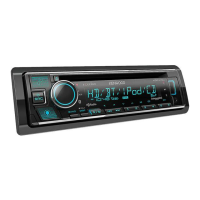
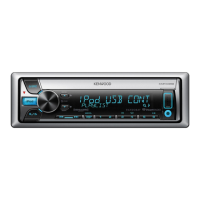
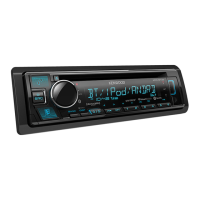
Need help?
Do you have a question about the Kenwood KDC-X692 and is the answer not in the manual?
Details about Kenwood Corporation, SAT Radio Ready, HD Radio, Windows Media, and AAC compatibility.
Essential safety measures to prevent injury and ensure safe operation of the product.
Clarification on the accuracy and intended use of the G-Analyzer feature.
Instructions for initial setup, including canceling demonstration mode and resetting the unit.
Guidelines for cleaning the unit, faceplate terminals, and handling lens fogging.
Important information regarding installation, accessories, RDS, and illustration differences.
Operations for power, source selection, volume adjustment, attenuation, and call muting.
Details on connecting external devices via USB and auxiliary inputs.
How to access and use the Function Control menu for settings and text scrolling.
Basic operations for the tuner, including band selection.
Functions for tuning radio stations, memory, and presets.
How to play discs and audio files, including disc handling.
Operations for USB devices and iPods, including playback controls and search functions.
Configuration options for security, source selection, display, illumination, and audio amplification.
Settings for traffic info, noise reduction, HD Radio, station naming, AUX, CD read, presets, and demo mode.
Options for customizing display patterns, text, and colors.
Settings related to G-Analyzer, preset memory, and various playback modes (scan, random, repeat).
Explanation of condition indicators and references to relevant pages for settings.
Examples of different display types (A through F) and their components.
Step-by-step guide on how to navigate and make settings using the Function Control.
Available text display information for various sources and modes.
Procedure for selecting text display elements and their order.
Guide to changing the font color for the display.
Instructions for attaching custom titles to stations or CDs.
Details on character input methods and memory capacities for naming.
Procedure to customize the display name for auxiliary input sources.
List of adjustable G-Analyzer control items and their overview.
Steps to set vehicle weight and class for G-Analyzer horsepower calculation.
Procedure for calibrating the G-Analyzer for accurate acceleration and braking measurements.
How to operate the G-Analyzer stop watch function.
Measuring and displaying horsepower and maximum power.
Steps to reset G-Meter, G-Counter, and Horsepower Analysis values.
How to select music from iPod or other audio sources using the Music Select function.
Using remote control for direct track and disc number searches.
How to select the CD Changer as the audio source.
Controls for music search, disc search, repeat playback, and random play on disc changers.
Procedure for saving radio stations into memory presets.
Recalling preset stations and using direct access tuning via remote control.
How to select stations based on Program Type.
Setting and recalling preferred Program Types for quick access.
Procedure to register a Program Type for stations lacking PTY data.
Steps to set a custom 4-digit security code for the unit.
Procedure to disable the security code function.
Instructions for manually adjusting the unit's clock.
Procedure for manually setting the unit's date.
How to control an connected LX amplifier unit.
Steps for downloading and displaying custom pictures, wallpapers, and G-Graphics.
How to enable or disable the demonstration mode.
Detailed instructions for detaching and reattaching the unit's faceplate.
Adjusting basic audio settings like volume, bass, treble, balance, and fader.
Fine-tuning bass, middle, and treble frequencies and characteristics.
Configuring audio setup options like filters, phase, loudness, and dual zone.
Optimizing sound quality by setting the appropriate speaker type.
Registering current sound control settings as an audio preset memory.
Recalling previously saved audio preset settings.
Basic operations for satellite radio, including source selection, seeking, and presets.
How to search for channels and categories in satellite radio.
Using direct access tuning to enter specific satellite radio channels.
Procedure for storing satellite radio channels into memory presets.
Recalling stored satellite radio channels.
Basic remote control functions for volume, source, dual zone, and rear volume.
Remote control functions specific to tuner, CD/USB, and satellite radio sources.
Information about the button used with the Bluetooth HANDS FREE BOX.
Instructions for loading and replacing the remote control's batteries.
Details on playable audio file formats, disc media, and USB device compatibility.
Important notes and guidelines for using USB devices and iPods with the unit.
Information about the KENWOOD Music Editor PC application.
Information on supported satellite radio tuners and HD Radio features.
Specific operation methods for KCA-BT100 and cell-phone status display.
Guidelines for handling CDs and identifying discs that cannot be played.
Definitions of various menu items and functions.
Important safety warnings and FCC compliance information.
List of included accessories for installation.
Comprehensive guide for installing the unit in a vehicle.
Critical warnings and advice for safe and proper installation.
Information on connecting CD players or disc changers.
Diagram and details for connecting USB devices, steering remotes, and speakers.
Wiring for antenna, AUX input, power control, Tel mute, and dimmer.
Connections for vehicle power (ignition, battery) and ground.
Instructions for removing the hard rubber frame from the unit.
Steps for installing the unit in non-Japanese cars using mounting hardware.
Procedure for installing the unit in Japanese cars using vehicle brackets.
Detailed steps for safely removing the unit from the vehicle.
Steps to prepare an opening for mounting the USB bracket.
Instructions for passing the USB connector and securing the bracket with screws.
Important warnings regarding the placement of the unit during installation.
Solutions for general issues like sound tone and illumination, and tuner reception problems.
Resolving issues with disc playback and audio file skipping.
Troubleshooting noise issues that may occur during folder search.
Resolving disc errors, TOC errors, unit malfunctions, and protection mode.
Resolving issues with unsupported files, copy protection, iPod, and USB connections.
Detailed specifications for FM/AM tuners and the CD player section.
Specifications for USB interface, audio output power, and speaker impedance.
Specifications for auxiliary input, operating voltage, dimensions, and weight.
Overview of Music Editor functions: managing files, information, and transferring to USB.
Notes on the scope of the document and the nature of software examples.
Description of key windows and panels within the Music Editor software.
Explanation of elements related to file lists, target views, navigation, and device space.
Functions within the File menu: importing, optimizing, playlists, and exporting.
Functions within the Edit menu: copying, pasting, properties, deleting, and selecting.
Functions within the Play menu: playback controls, volume, and mute.
Functions within the Tools menu: updating the library and setting options.
Functions within the Help menu: accessing help and update information.
Instructions on how to start the KENWOOD Music Editor application.
Explanation that ripping requires external software like Windows Media Player.
Crucial instruction to disable copy protection when ripping audio files.
Details on configuring rip settings, format, and quality in Windows Media Player.
Steps to select songs or files and import them into the Music Editor library.
Option to analyze music data during the import process.
Details on file format specification, folder import, and watched folder settings.
Handling of songs with copy protection (DRM) and songs with failed data analysis.
Steps to connect a USB device and register it within the Music Editor.
Procedure for registering a target device, including entering information and selecting the model.
How to select the appropriate car audio model for the USB device.
Completing the USB device registration process and verifying information.
Cautions regarding connecting USB devices, power, removal, and hubs.
Creating USB databases without registration and changing device icons.
Setting conditions for USB device usage like album art and volume adjustment.
Automatic creation of playlists on the USB device after registration.
Steps to select the target USB device and the songs to be transferred.
Using drag-and-drop to transfer selected songs to the target USB device.
Synchronizing the USB device library with the PC.
Cautionary advice regarding the transfer of audio files from PC to USB device.
Connecting the USB device to the PC for synchronization.
Selecting the USB device in the target selector to initiate synchronization.
Notes regarding the synchronization button status and condition setting dialog.
Instructions on how to view songs in the program's library or a connected USB device.
How to select items in library or target views to display songs.
Tips for changing song display order and refining selection using navigation.
How to sort songs in the file list view by clicking on column headers.
Understanding sort indicators and notes about playlist display order.
How to select criteria for searching songs in the library or USB device.
Entering search strings to find songs and viewing results.
Selecting the target USB device or library for song deletion.
Steps to select songs for deletion and using the delete key.
Notes regarding deletion of dynamic playlists and songs in USB devices.
Information that can be managed by the program, such as title, artist, and album.
Distinction between editable song information fields and display-only fields.
Notes on compatibility of song information formats like MP3, WMA, and AAC.
Selecting a song to modify its associated information.
Accessing and using the Properties dialog to change song metadata.
How to change information for multiple songs simultaneously.
Description of the three playlist types: Playlists, Dynamic, and Impression.
Steps to create a new, empty playlist in the Music Editor.
How to add songs to a newly created playlist using drag and drop.
Selecting rules (genre, artist) to automatically collect songs for dynamic playlists.
Setting song order (Random/Reverse) and limiting the number of songs in dynamic playlists.
Confirming the dynamic playlist settings by clicking OK.
Notes on playlist limits, live updating, and crossfade restrictions for dynamic playlists.
How to edit dynamic playlist properties like name and rules.
Selecting a theme song by right-clicking in the file list view.
Using context menu to select songs focusing around the theme song.
Specifying playlist climax settings and naming the impression playlist.
Setting the maximum number of songs for an impression playlist and confirming.
Notes on the requirement for completed data analysis for impression playlist creation.
Explanation of crossfade for smooth transitions between songs in a playlist.
Steps to enable crossfade by right-clicking a playlist and selecting Property.
Checking the Crossfade option in the Playlist Property dialog.
Using the slider to specify the overlap duration for crossfade.
Selecting the sound quality for the crossfade effect from the dropdown list.
Confirming the crossfade settings by clicking OK.
Notes on crossfade limitations, car audio compatibility, and playing fade-out parts.
Alternative method to set crossfade via the Options dialog in the Tools menu.
Restrictions on crossfade for dynamic playlists and synchronization time.
Information on trademarks for KENWOOD, Microsoft, and Windows Media.
Mentions of Musicsommelier and other product/system names and symbols.
Warning regarding the default ON state of the demonstration function for first-time use.
Instructions on how to turn off the demonstration function.
Sections for product identification (model/serial number) and dealer stamp.
Fields for customer name, address, and purchase date.
Important notices regarding the use of the warranty card for purchases like new panels.
A thank you message and information about warranty validity by country.
Contact address for Kenwood Corporation Customer Information Center.
Details on what the warranty covers and specific exclusions for Kenwood products in the USA.
Procedure for obtaining warranty service from authorized Kenwood service centers in the USA.
Limitations on implied warranties and consumer rights under USA state laws.
Scope of express warranty and conditions for Kenwood products in Australia.
Exclusions from warranty and purchaser's responsibilities for service in Australia.
Important advice for Australian customers regarding maintenance, purchase proof, and packaging.
Warranty terms, period, and exclusions for Kenwood products in Canada.
Procedure for obtaining warranty service from authorized Kenwood centers in Canada.
Warranty coverage and exclusions for Kenwood products sold to the U.S. Military personnel.
List of authorized Kenwood service centers in various international locations.
 General
| Brand | Kenwood |
|---|---|
| Model | KDC-X692 |
| Category | Car Receiver |
| Language | English |


 To Next Page