Manual ACK-3410
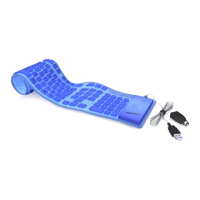
Packing contents
ACK-3410, Manual
1. Key features
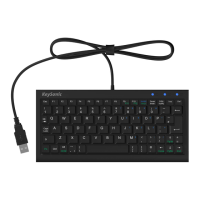
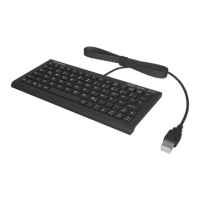
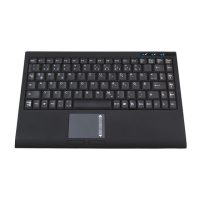
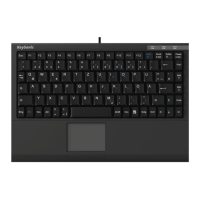
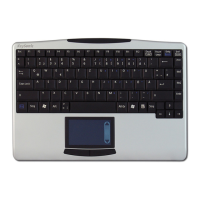
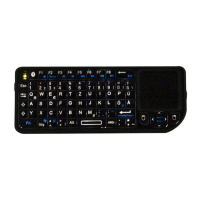
• Super mini keyboard with an improved Smart-Touchpad
• New Smart-Touchpad with extended “finger functions”:
2 finger = page-up/-down scrolling like mouse wheel
3 finger = menu pop-up like right mouse button
• Modern design in noble, matt black SoftSkin coating
• Full functionality of a full-size layout keyboard
• Extremely silent stroke and tactile feedback due to high-quality X-Type membrane technology
• Appealing blue status LEDs for Caps, Num, and Scroll Lock with new Light-stripe design
• Plug & Play installation, no special driver necessary
2. Installation
In order to install your keyboard, please perform the following steps:
• Connect your keyboard to a free USB port on your computer.
3.How to use the keyboard
3.1 Touchpad
As a mouse alternative the keyboard is equipped with an improved
Smart-Touchpad inclusive two mouse function keys
• Gently glide over the touchpad surface with your finger in order to move the cursor, and tap on
the surface in order to click.
• Click, double-click, marking, and drag functions can be performed directly by tapping on the
surface of the touchpad. You don’t need to apply a lot of pressure in order to do that. You will
get the best reaction by clicking gently and rapidly (optional you can use for that the mouse
function keys as well).
• In order to „drag“, to draw, or to mark, you must apply a double-click on the touchpad with
the finger remaining on the touchpad after the second click. Then, glide over the touchpad with
your finger in order to complete the movement.
• Put two fingers on the Touchpad and glide over it to scroll up and down in your application
(identically to a mouse scroll wheel).
• Tap with three fingers on the surface of the touchpad to retrieve the context menu at the related
position of the cursor (identically to a right mouse button).
• Using notebooks with already integrated touchpad and mouse function keys you have to
de-activate these intern control devices in case of error messages or malfunctions.
Manual ACK-3410




 To Next Page